
Categorise Transactions
Categorising transactions is the core day-to-day task in bookkeeping. It is the process of telling Kuberan Books which account each bank transaction belongs to — turning a raw bank feed into an accurate general ledger. This guide covers how to categorise transactions one at a time in the grid, how to split and match them, how to bulk-categorise and bulk-post, and how to use Fin Rules to handle recurring items automatically.
Open the transactions grid
Inside the client’s Books, click Bank Accounts and stay on the Transactions tab.
Pick the account from the account selector, and use the year/month selectors, the search box, and the type filter (All Types / Credits / Debits) to narrow the list. The action menu also offers Has Suggestions to focus on transactions Kuberan has proposed a category for.
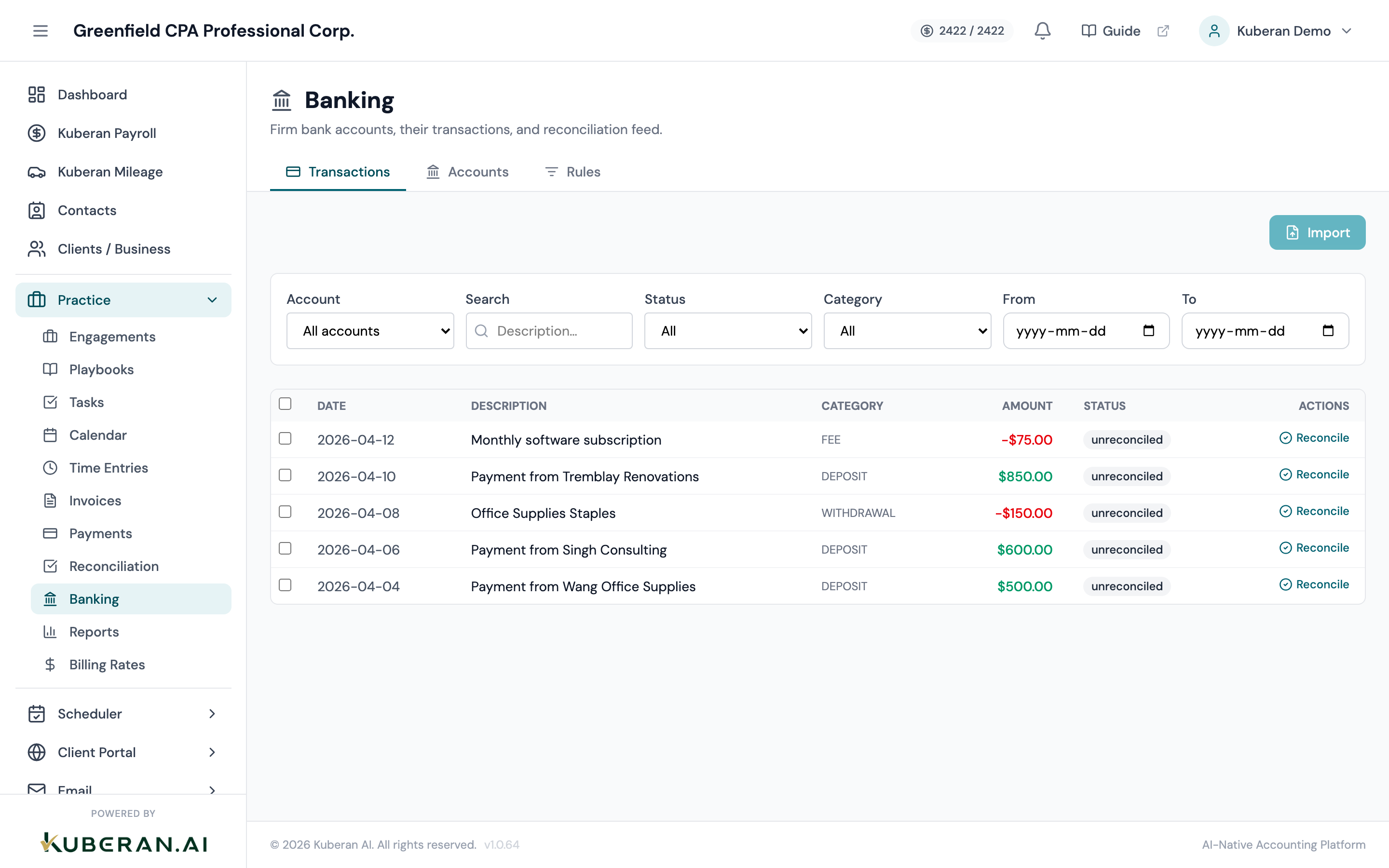
The Transactions tab. Each row is editable inline.
The grid columns show the date, description, transaction type, debit or credit amount, the GL Account (category), Vendor/Customer, and Tax — and each of these is editable directly in the row.
Categorise a single transaction
The primary way to categorise is inline, right in the grid row. Each field is its own editable cell.
Set the GL Account (category)
Click the GL Account cell and type in the single search box (“Search account…”) to find the chart-of-accounts account this transaction belongs to. For example:
- Office supplies purchased at Staples →
Office Supplies Expense - Client payment received → a revenue/income account (or match it to an invoice — see below)
- Hydro bill payment →
Utilities Expense
If the account you need does not exist, click Add New at the bottom of the search results to create it on the fly without leaving the grid.
- Office supplies purchased at Staples →
Set the vendor or customer
Click the Vendor/Customer cell. It has two tabs — Vendor and Customer — each with its own search and a create-new option, so you can attach the transaction to a contact (and create that contact inline if needed).
Set the tax rate
Click the Tax cell and pick the applicable tax rate (“Search tax rate…”). Seeded Canadian rates include HST (13% Ontario; 15% for NS/NB/NL/PE), GST 5%, and provincial PST/QST. The rate label carries the percentage (e.g.
HST 13%) and Kuberan computes the tax portion inclusively. For accounts flagged with an ITC restriction (such as 50% for meals), the recoverable portion is shown on the row.Set the transaction type (optional)
The Type cell lets you refine the transaction type (Deposit, Charge, Fee, Transfer, and so on). Type drives how a transaction is posted — for example, a Refund Received is treated as a purchase-side credit that recovers HST (an input tax credit), not as revenue.
Inline edits save as you make them. For a fuller view with notes and a reference field, click a transaction to open the Transaction Details side panel, which exposes the same Account, Type, GL Account, and Tax Rate fields plus a notes/memo field.
Split a transaction across multiple accounts
Some transactions cover more than one expense type — for example, a single credit-card charge that includes both office supplies and a personal item, or a loan payment that includes principal and interest.
Open the transaction’s row action menu and choose Split Transaction.
In the Split Transaction dialog, add a row for each portion, each with its own account, amount, and tax. Kuberan shows the remaining unallocated amount so you can see when the split is complete.
Click Split Transaction to save. The transaction shows a “Split” status.
Match and transfer
For transactions that are not simple expenses or revenue, use the row action menu:
- Match to Invoice / Match to Bill — link a deposit to a customer invoice, or a payment to a vendor bill, so accounts receivable/payable clear correctly. Match Multiple Invoices / Match Multiple Bills handle one payment covering several documents.
- Mark as Transfer — for money moving between the client’s own accounts (e.g. chequing → savings, or a credit-card payment). This keeps the same cash movement from being counted twice.
- Accept Suggestion — apply Kuberan’s proposed categorisation when one is shown.
- Learn Fin Rule — turn this transaction into a reusable rule (see below).
Fin Rules — automate recurring categorisations
Fin Rules tell Kuberan how to categorise transactions automatically based on the payee name or description. Once a rule exists, matching transactions are categorised for you.
Create a Fin Rule
From a transaction’s row action menu, choose Learn Fin Rule. Kuberan pre-fills the rule from that transaction’s description and the account you assigned.
Review the match condition (payee name or a keyword in the description) and the action (the account, contact, and tax to apply).
Save the rule.
Manage all rules under the Fin Rules screen. AI-generated rules are badged AI Learned.
Bulk categorise similar transactions
When you have many similar transactions to categorise at once:
Tick the checkbox on each transaction you want to categorise. A sticky action bar appears showing “N transaction(s) selected”.
Click Categorize in the action bar. The Bulk Categorize Transactions dialog opens.
Set the shared Account (with the same Add New option), Vendor/Customer, Payment Method, and Tax, then click Apply to N Transaction(s).
The dialog warns you if the direction looks wrong (for example, an income account applied to debits), so you can catch mis-selections before applying.
Bulk post transactions
The action bar also has a Post button, which opens the Bulk Post Transactions dialog to post the selected transactions as expenses or revenue in one step.
What to do next
- Reconcile the bank account — confirm your books match the bank statement
- Run financial reports — see the impact of your categorisation on the Income Statement
- Review GST/HST — verify tax codes before the next return period