
Settings — Permissions
Overview
The Permissions screen manages who has access to your Kuberan AI workspace and what they can do once inside. Team members are assigned one of three roles — Owner, Admin, or Staff — which determines their default access level. Roles are complemented by a permissions matrix that gives fine-grained control over each module. This allows you to give a junior staff member access to Books but not Payroll, or a front-desk person access to the Scheduler and SMS but not financial data.
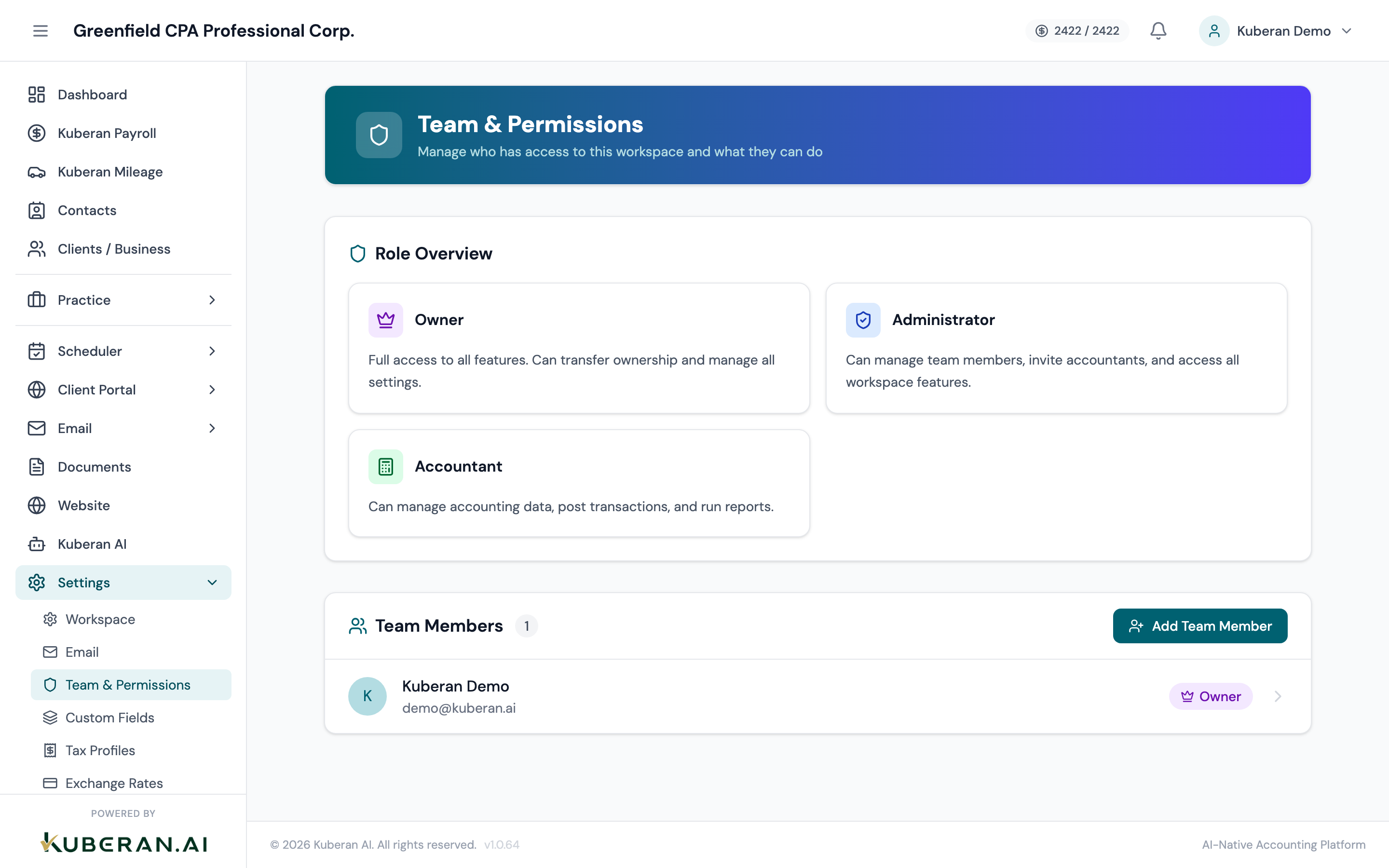
- (1) Invite User button
- (2) Team member row — name, email, role
- (3) Role badge — Owner, Admin, or Staff
- (4) Permissions matrix — checkboxes per module per user
- (5) Revoke Access action
Roles
The workspace owner has unrestricted access to all modules, settings, and billing. There is exactly one Owner per workspace. Ownership can be transferred to another Admin from this screen, but the transfer is permanent and requires the current Owner to confirm.
Admins have full access to all modules and most settings, including the ability to invite and manage other team members. They cannot access billing settings or transfer workspace ownership. Admins can see and modify all client data.
Staff members have access only to the modules explicitly enabled in their permissions matrix. They cannot access Settings, Billing, or Portal Admin unless those permissions are individually granted. This is the appropriate role for junior staff, bookkeepers, and administrative assistants.
Actions
Invite a Team Member
- Click Invite User in the toolbar.
- Enter the team member’s email address.
- Select their role: Admin or Staff (Owner cannot be assigned at invite time).
- For Staff roles, configure the permissions matrix:
- Toggle on/off access for each module (Books, Payroll, Mileage, Scheduler, Documents, Email, SMS, Portal Admin, Reports, Settings).
- For some modules, you can choose between View Only and Full Access to distinguish between read-only and write access.
- Click Send Invitation. An email is sent with an invitation link that expires after 48 hours.
Change a Team Member’s Role
- Find the team member in the list and click their name or the Edit button.
- Change the role using the Role dropdown.
- Adjust the permissions matrix if moving from Admin to Staff (permissions matrix is not applicable to Admins — they have full access by default).
- Click Save.
Role changes take effect immediately. If a team member is currently logged in, their access level updates on their next page load.
Revoke Access
- Open the Actions menu on the team member’s row.
- Select Revoke Access.
- Confirm.
The team member can no longer log in. Their contributions (transactions, notes, pay runs) remain attributed to their name in historical records. To reinstate them, click Restore Access — their previous role and permissions are restored, and they can log in again.
Permissions Matrix
The permissions matrix lists available modules and settings across the top, and team members down the side. Checkboxes at each intersection control that team member’s access.
Available permission categories:
| Permission | Description |
|---|---|
| Books | Access to the Books (Client Accounting) module |
| Payroll | Access to the Payroll module |
| Mileage | Access to the Mileage module |
| Scheduler | Access to the Scheduler and appointment management |
| Documents | Access to the Documents module and document requests |
| Access to the Email inbox | |
| SMS | Access to the SMS conversations and bulk SMS |
| Portal Admin | Access to Portal Admin (users, announcements, chat) |
| Contacts | Access to the Contacts CRM module |
| Reports | Access to cross-module reporting and exports |
| Settings | Access to workspace-level settings (use with caution) |
Tips
- Front-desk staff typically need: Scheduler (Full Access), SMS (Full Access), Documents (View Only or Full Access). They generally should not have access to Payroll, Financials, or Settings.
- Bookkeepers typically need: Books (Full Access), Documents (Full Access), possibly Payroll depending on their responsibilities.
- Use the least privilege principle. Give each team member only the access they need for their role. Over-permissioning creates security and compliance risks, especially for modules containing SINs, banking details, and financial data.