
Reconciliation
Overview
The Reconciliation workspace is a two-pane matcher. On the left it lists the firm’s unreconciled bank transactions for a chosen account and period; on the right it lists outstanding client payments (money you have recorded but not yet tied to a bank deposit), grouped by client. You work through the bank transactions, asking Kuberan AI to suggest likely payment matches, then confirm the ones that are correct. The goal is to link each deposit to the payment(s) that produced it — not to balance to a statement closing figure.
This is deliberately lighter than a classic three-way statement reconciliation: there is no statement opening/closing balance to enter, no running difference to drive to zero, and no separate “finalise period” step. Instead you confirm matches one transaction at a time, and generate a PDF report scoped to an account and date range whenever you need a record.
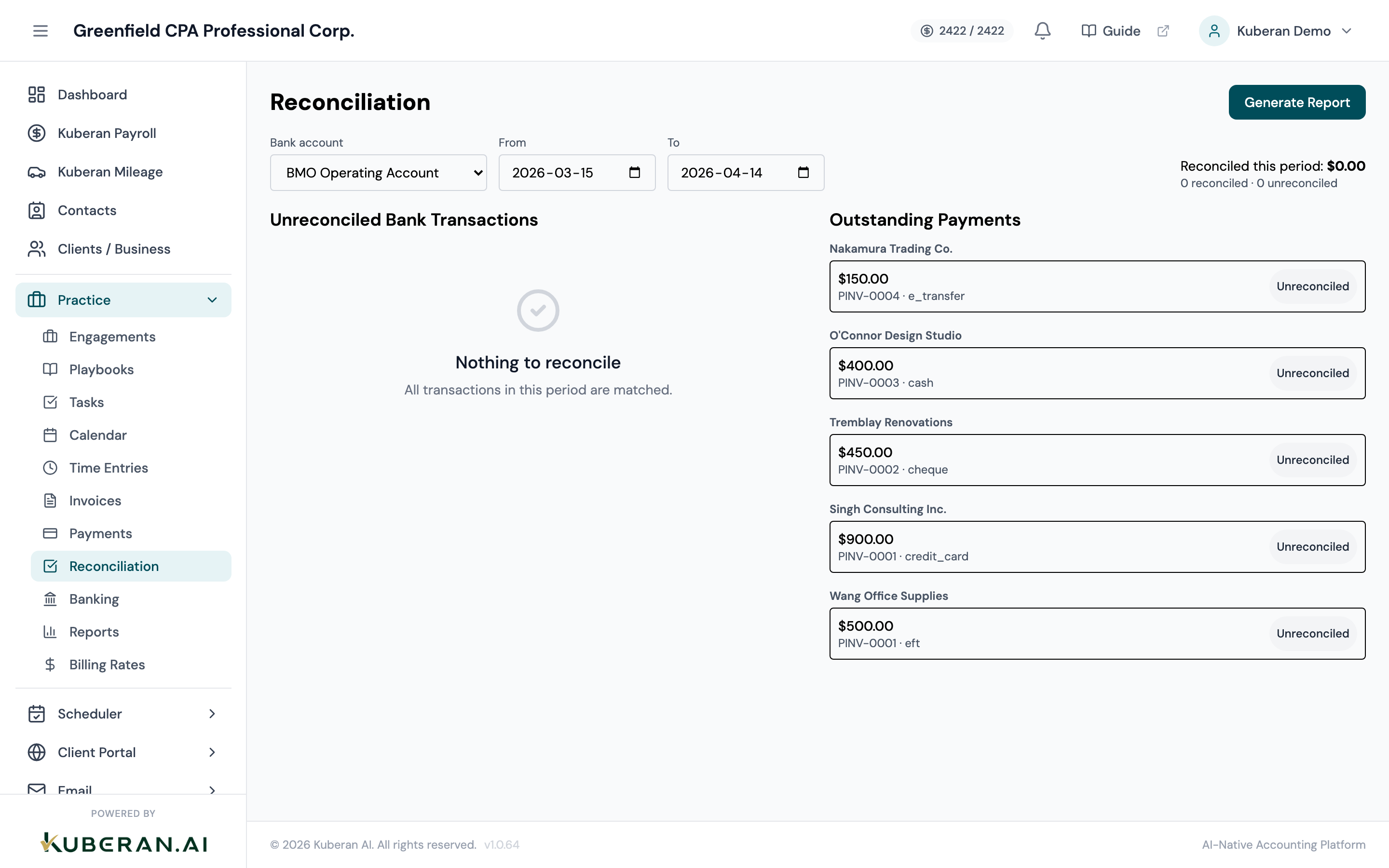
- (1) Bank account selector and From/To date range in the header
- (2) Reconciled this period total, plus reconciled / unreconciled counts
- (3) Generate Report button — downloads a server-rendered PDF for the selected account and range
- (4) Left pane — unreconciled bank transactions grouped by date, each with a Suggest matches action
- (5) Right pane — outstanding client payments grouped by client
Screen Layout
Header: A bank account selector, a From/To date range, a Reconciled this period total, reconciled/unreconciled counts, and a Generate Report button.
Left pane — Unreconciled Bank Transactions: Imported transactions for the selected account and period that are not yet reconciled, grouped by date. Each transaction shows its amount and description, a Suggest matches button, and — once suggestions load — confirm, unmatch, and split-deposit actions.
Right pane — Outstanding Payments: Client payments that have been recorded but not yet reconciled to a bank transaction, grouped by client. Each row shows the amount, its invoice number, and the payment method.
UI Elements
Header
Selects which firm bank account to reconcile. Defaults to the first account. Changing it reloads both panes.
A date range bounding the bank transactions shown in the left pane. Defaults to roughly the last 30 days.
The total value of transactions reconciled within the current view. Read-only.
A small summary of how many transactions on the account are reconciled versus still outstanding.
Opens a server-rendered PDF reconciliation report scoped to the selected account and date range. There is no “mark as reconciled” or “finalise” step — the report is a snapshot you can produce at any time.
Left pane — bank transactions
Loads advisory match suggestions for a single bank transaction. Each suggestion shows a candidate client, amount, a confidence score, and the reasons it matched. Suggestions are advisory — nothing is reconciled until you confirm.
Accepts a suggested match. Kuberan AI records (or reuses) the corresponding client payment and links it to the bank transaction, marking the transaction reconciled.
Shown once a transaction is reconciled. Releases the match, returning the transaction to unreconciled and freeing the payment.
Opens the Split Deposit modal for a single bank deposit that covers several client payments, letting you allocate one transaction across multiple outstanding payments.
Right pane — outstanding payments
Each row shows the payment amount, its linked invoice number, and the payment method. Rows are grouped under the client they belong to and carry an “Unreconciled” badge until matched.
Actions
Reconcile a Bank Transaction
- Navigate to Practice → Reconciliation.
- Choose the Bank account and set the From/To date range to the period you are reconciling.
- In the left pane, click Suggest matches on a bank transaction. Kuberan AI lists candidate client payments with a confidence score and match reasons.
- Review the suggestions and click Confirm on the correct one. The transaction is linked to that payment and marked reconciled.
- If a single deposit covers several payments, click Split deposit instead and allocate the amount across the outstanding payments.
- If you confirm the wrong match, click Unmatch to release it and try again.
Reconcile a Non-Payment Transaction
Some transactions — bank fees, interest, transfers — have no client payment to match against. Reconcile these from the Banking screen rather than here:
- Open Practice → Banking on the Transactions tab.
- Find the transaction and click the Reconcile link in its Actions column.
- The transaction is marked reconciled with no payment match, and an entry is written to the reconciliation audit log.
Generate a Reconciliation Report
- Select the Bank account and From/To range you want to report on.
- Click Generate Report in the header.
- A server-rendered PDF opens, scoped to that account and date range, suitable for your working-paper file.