
Settings — Custom Fields
Overview
Custom Fields allow you to extend the standard Kuberan AI data model with additional information specific to your practice. Every practice has unique data requirements — you might track a client’s CRA My Account access status, the name of a client’s bookkeeper, a contact’s referred-by source, or a custom engagement complexity rating. Custom fields let you capture this information within Kuberan AI rather than in a separate spreadsheet. Fields appear on the relevant record’s edit form and are available for reporting and filtering.
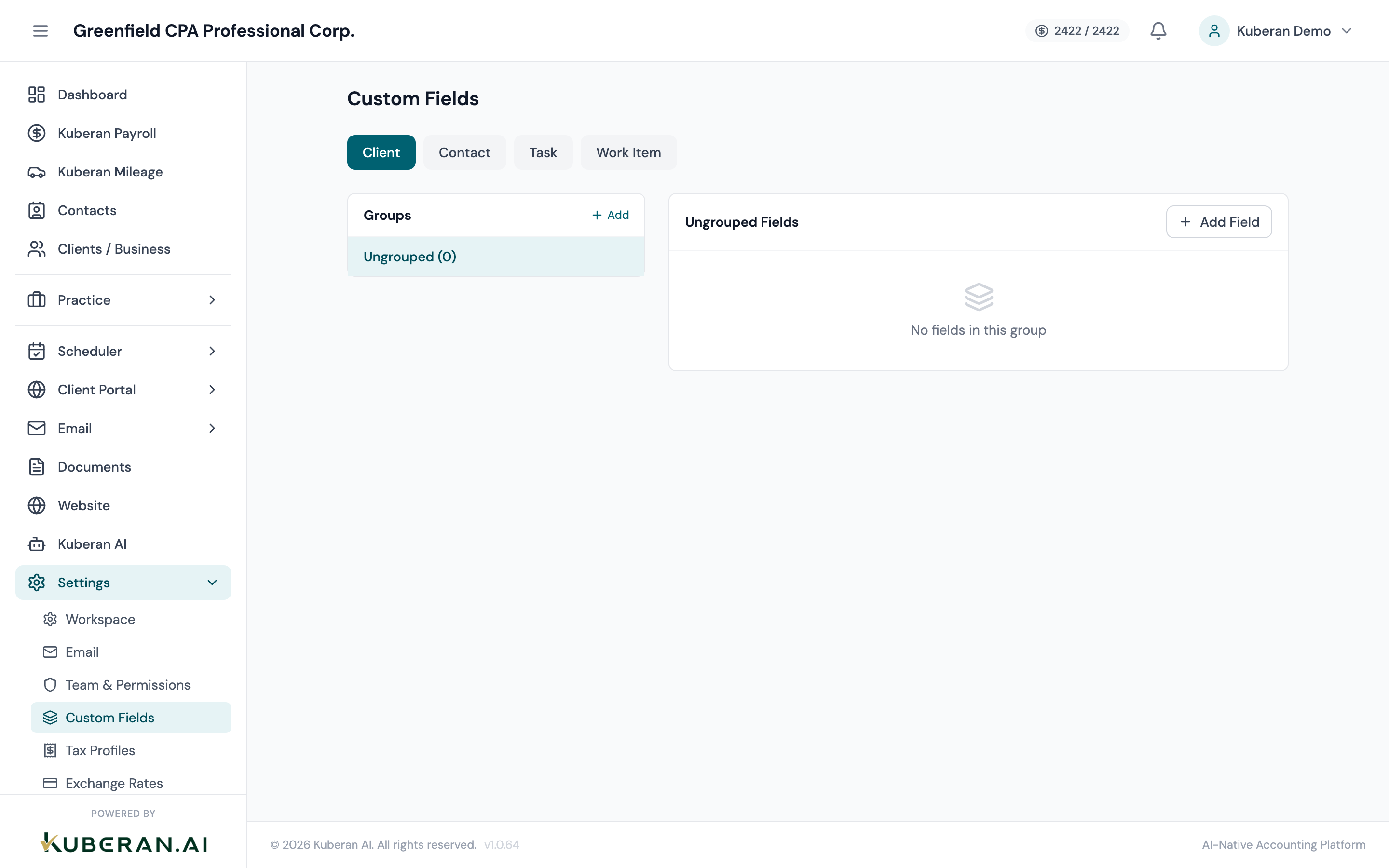
- (1) Entity tabs — Clients, Contacts, Engagements
- (2) Add Custom Field button
- (3) Field name and type
- (4) Required toggle — makes the field mandatory on the form
- (5) Edit and Delete actions per field
Screen Layout
Entity tabs (top): Switch between Clients, Contacts, and Engagements to see the custom fields defined for each.
Field list: All custom fields for the selected entity, showing the field name, data type, whether it is required, and actions.
Field Types
A single-line text input. Use for short text values like “Bookkeeper Name,” “CRA Access Status,” or “File Reference Number.” Searchable and sortable.
A numeric input. Use for quantities, ratings, or numeric identifiers. Supports decimal values.
A date picker. Use for dates like “Last Review Date,” “Signed Engagement Letter Date,” or “CRA My Account Verified On.”
A predefined list of options. Use when you want to constrain values to a specific set (e.g., a complexity rating of Low / Medium / High, or a lead source of Referral / Website / Walk-In / Other). You define the list of options when creating the field.
A true/false toggle. Use for yes/no data like “CRA Power of Attorney on File,” “E-File Authorization Signed,” or “Recurring Client.”
Like Dropdown, but allows multiple options to be selected at once. Use when a record can have more than one applicable value from a list.
Actions
Create a Custom Field
- Select the entity tab (Clients, Contacts, or Engagements) where the field should appear.
- Click Add Custom Field.
- Enter the field name (e.g., “Bookkeeper Name”).
- Select the field type.
- For Dropdown and Multi-Select fields, add the option values one by one by typing each option and pressing Enter.
- Toggle Required on if this field must be filled in before the record can be saved. Leave off for optional fields.
- Optionally add a description or helper text that appears below the field in the form (e.g., “Enter the name of the external bookkeeper managing this client’s books”).
- Click Save Field. The field immediately appears on the form for all records of that entity type.
Edit a Custom Field
Click the Edit (pencil) icon on any field row. You can change the field name, description, required status, and (for Dropdown/Multi-Select) add or remove options. You cannot change the field type after creation. If you need a different type, delete the field and create a new one.
Delete a Custom Field
Click the Delete icon on a field row. A warning confirms that deleting the field will remove all data stored in that field across every record. This action cannot be undone. If you are unsure, consider deactivating the field instead — deactivated fields are hidden from forms but their data is retained.
Where Custom Fields Appear
Once created, custom fields appear in the following places:
- Edit form: The custom fields section at the bottom of the edit form for the entity type (e.g., on the Edit Client form, a “Clients” custom field appears in a “Custom Fields” section).
- Record detail view: Displayed in the Custom Fields card on the record’s detail page.
- Filters: Custom fields of type Dropdown, Checkbox, and Date can be used as filters in the Clients and Contacts list views.
- Reports: Custom field values are included when exporting client or contact data to CSV.
Tips
- Avoid duplicating built-in fields. Kuberan AI already has fields for email, phone, address, fiscal year end, and many other standard data points. Only create custom fields for information that is genuinely not captured by a built-in field.
- Dropdown over Text for controlled vocabularies. If you have a field where only certain values are valid (e.g., engagement complexity or client tier), use Dropdown rather than Text. Free-text fields end up with inconsistent values (“High,” “high,” “HIGH,” “h”) that are harder to filter and report on.
- Required fields add friction. Only mark a field as Required if the data is truly necessary for every record of that type. Requiring too many fields makes data entry slower and leads to placeholder values being entered just to satisfy the requirement.