
Import Transactions from a File
While Plaid’s live bank feed is the most convenient way to bring transactions into Kuberan Books, there are situations where a file import is the right approach. Understanding when to use each method prevents duplicate transactions and wasted time.
When to import vs. use Plaid sync
Use Plaid sync when:
- The client’s bank is supported by Plaid
- You want ongoing automatic transaction updates
- You are setting up a new client from a recent date
Use file import when:
- The client’s bank is not supported by Plaid
- You are migrating historical data from a previous bookkeeping system
- The Plaid connection is temporarily broken and you need to keep up with current transactions
- You are cleaning up a specific period and prefer to work from a downloaded statement
Supported file formats
Inside a client’s Books, the Import CSV button imports a comma-separated (.csv) file. Two additional options in the account’s action menu widen this:
| Option | Formats | Notes |
|---|---|---|
| Import CSV | .csv | The main import. Auto-detects RBC, TD (including EasyWeb), BMO, Scotiabank, and CIBC layouts; other banks fall through to a column-mapping step. |
| Import Statement | .csv | An alternate CSV importer with a manual column-mapping and preview flow. |
| Import Data | .csv, .xlsx, .xls, .json | Bulk-imports either accounts or transactions from a spreadsheet or JSON file. |
Step 1 — Download the statement from your bank
Most Canadian online banking portals let you export transactions as a CSV file. Look for an Export or Download button on the account activity screen. Common locations:
- RBC Online Banking: Accounts > account name > Download Transactions
- TD EasyWeb: Account > Download > select date range > CSV
- Scotiabank: Transaction History > Export > CSV
- BMO Online Banking: Accounts > View Transactions > Export
Select the full date range you want to import — typically a full calendar month or the period since your last import.
Step 2 — Open the CSV importer
Inside the client’s Books, open Bank Accounts and stay on the Transactions tab.
Click the Import CSV button. The Import transactions from CSV modal opens.
Choose the destination account under Import into:. If the account does not exist yet, add it first via Add Account.
Drop or browse for the downloaded
.csvfile.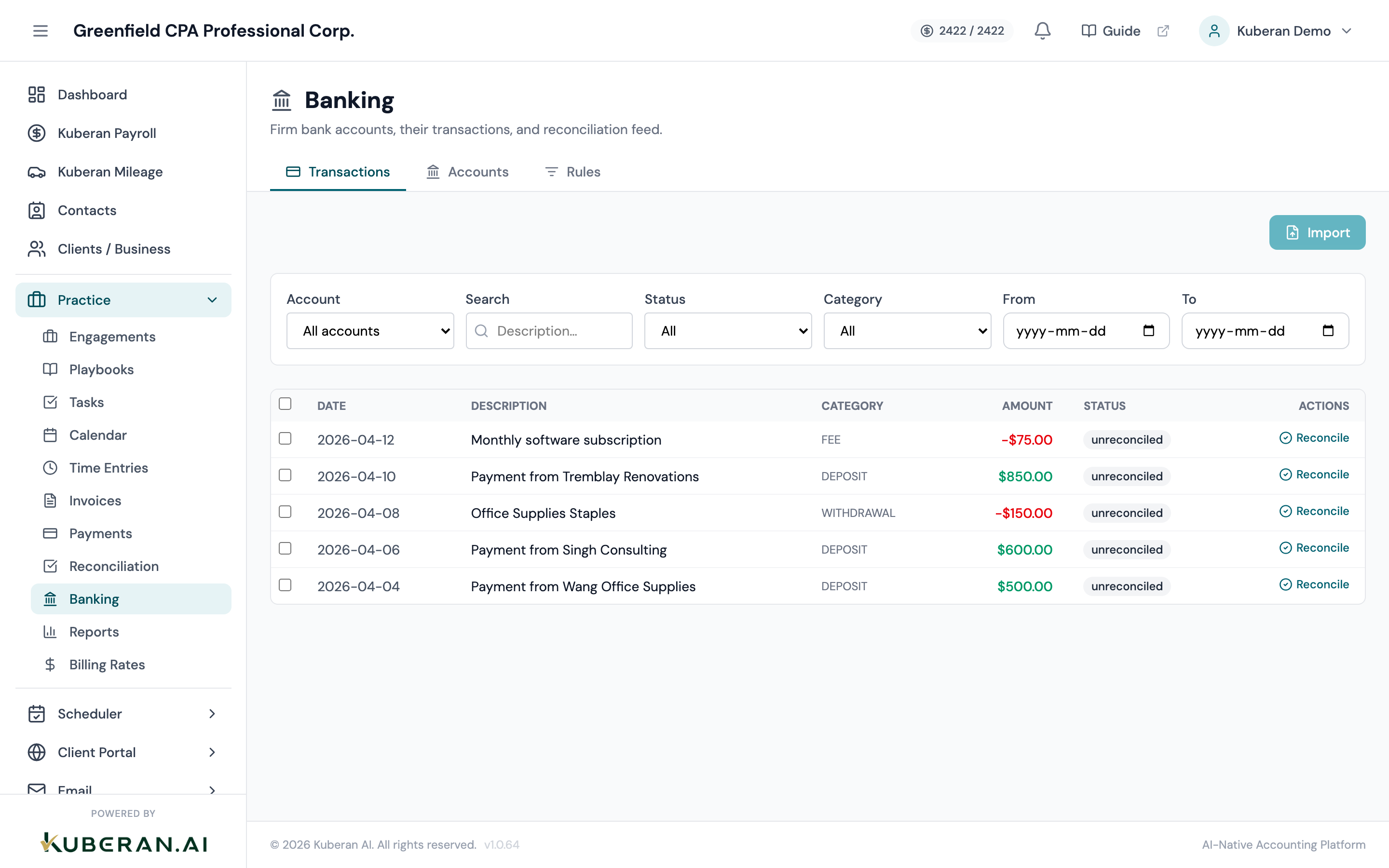
Select the destination account, then upload the CSV file.
Step 3 — Map columns (if the bank is not auto-detected)
For RBC, TD, BMO, Scotiabank, and CIBC files, Kuberan auto-detects the layout and skips straight to preview. For other banks, it shows a column-mapping step where you match each column to the correct field:
Required mappings:
- Date — the transaction date
- Amount — the transaction amount. If your CSV has separate debit and credit columns, map each one to the appropriate field.
Optional but recommended:
- Description — the merchant or payee text; used for categorisation suggestions and Fin Rules
Amount convention
Some banks export withdrawals as negative numbers and deposits as positive; others use separate debit and credit columns. Choose the option that matches your file so Kuberan reads the direction of each amount correctly. Multiple date formats (YYYY-MM-DD, DD/MM/YYYY, MM/DD/YYYY, and others) are supported.
Step 4 — Preview and confirm the import
Kuberan shows a preview of the detected transactions. Review it against your bank statement to confirm the dates, amounts, and count look right, then confirm the import.
Duplicates are skipped automatically. Kuberan compares incoming rows against existing transactions and skips any that already exist, so re-importing an overlapping date range will not double-count. The import summary reports how many rows were imported and how many were skipped as duplicates.
After the import
Imported transactions appear in the grid on the Transactions tab, ready to categorise. From here, the workflow is the same as for Plaid transactions:
- Review and categorise each transaction — see Categorise transactions
- Set up Fin Rules to automate future categorisation — see Fin Rules
- Reconcile the account once a full month is categorised — see Reconcile a bank account