
Tasks
Overview
The Tasks screen consolidates every task from every engagement into a single, filterable list. Rather than opening each engagement individually, your team can review their full workload here. It is a cross-engagement view — tasks themselves are created inside an engagement (on the engagement’s Tasks tab, manually or via a playbook), not on this screen. Two tabs, My Tasks and All Tasks, let you switch between your own queue and the whole workspace, and a set of filters narrows the list further.
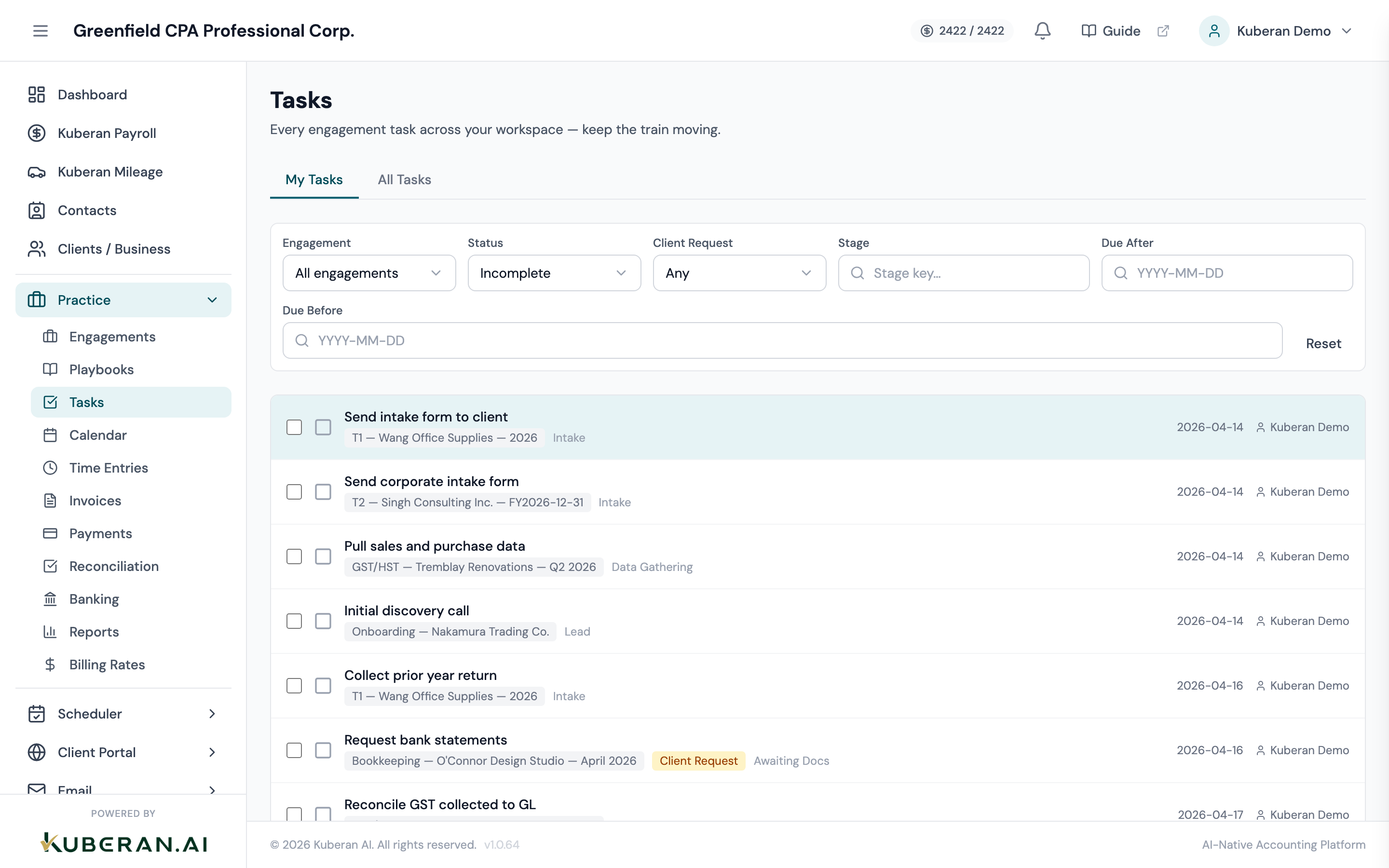
- (1) View tabs — switch between My Tasks and All Tasks
- (2) Filter bar — Engagement, Status, Client Request, Stage, Due After, Due Before
- (3) Bulk-select checkbox — select rows to reveal the Mark Complete bar
- (4) Complete toggle — mark a task complete or reopen it in place
- (5) Task row — name, engagement chip, Client Request badge, stage, due date, and assignee
Screen Layout
Header: The page title and a one-line description.
View tabs: My Tasks (default) shows only tasks assigned to you. All Tasks shows every task in the workspace.
Filter bar: Engagement, Status, Client Request, Stage, Due After, and Due Before controls. Changing any filter resets the list to the first page.
Task list: One row per task. Each row has a bulk-select checkbox, a complete toggle, the task name, an engagement chip, an optional Client Request badge, an optional stage label, a due date, and the assignee. Clicking anywhere on the row (other than the checkbox or toggle) opens the Task detail panel.
Bulk action bar: Appears above the list only when one or more rows are selected. It offers Mark Complete and Clear.
Pagination + shortcuts hint: Below the list are the page controls and a reminder of the keyboard shortcuts.
UI Elements
View Tabs
Filters the list to tasks assigned to you. This is the default when you open the screen.
Shows every task across the workspace, regardless of assignee.
Filter Bar
Limits the list to a single engagement. Defaults to All engagements.
Filters by completion state: Incomplete (default), Complete, or All. The list filters on the binary complete/incomplete flag rather than the full status enum.
Filters by the client-request flag: Any (default), Client only, or Internal only.
Free-text field that matches a task’s stage key (the playbook stage it belongs to).
Date field (YYYY-MM-DD). Shows tasks due on or after the entered date.
Date field (YYYY-MM-DD). Shows tasks due on or before the entered date.
Task Row
Selects the row for a bulk action. Selecting one or more rows reveals the bulk action bar.
A checkbox-style icon at the left of the row. Click to mark the task complete (filled tick) or to reopen it. Completed rows show the name in grey strikethrough.
Clicking the row opens the Task detail panel on the right, where every field can be edited inline.
A small chip below the task name showing the parent engagement. Clicking it opens the Engagement detail panel.
An amber Client Request badge shown when the task is flagged as work the client is responsible for.
A muted label showing the playbook stage the task belongs to, when a stage key is set.
The task’s due date, when set.
The assigned team member’s name, when set.
Bulk Action Bar
Appears when one or more row checkboxes are selected.
Marks all selected tasks complete at once.
Deselects all rows and hides the bulk bar.
Keyboard Shortcuts
Move the row selection down (j) or up (k).
Toggle the selected row’s complete state.
Open the selected task’s parent engagement.
Task Detail Panel
Clicking a row opens a slide-over panel with inline editing on every field — changes save automatically (text fields on blur, dropdowns and dates on change), with a brief “Saved” hint after each save:
- Name and Description — free text
- Status — Not started · In progress · Blocked · Done
- Priority — Low · Medium · High · Urgent
- Assignee — any workspace member, or Unassigned
- Due date — date picker
- Client Request — a prominent toggle marking the task as the client’s responsibility rather than the firm’s
- Engagement chip — opens the parent engagement
- Comments — a threaded discussion on the task
- Mark complete / Re-open — a quick toggle for the completion state
Actions
Create a Task
Tasks are not created on this screen. To add one, open the engagement it belongs to and use its Tasks tab. Once created, the task appears here automatically.
Complete a Task
- Click the complete toggle at the left of the task row. The icon fills with a tick and the name gains a strikethrough.
- To reopen, click the toggle again. The task returns to an incomplete state (its status moves back to In progress).
Bulk Complete Tasks
- Select one or more tasks using the row checkboxes. The bulk action bar appears with the selected count.
- Click Mark Complete. All selected tasks are marked complete.
- Click Clear to deselect.
Edit a Task
- Click the task row to open the Task detail panel.
- Change any field — name, description, status, priority, assignee, due date, or the Client Request flag. Edits save automatically.
Flag a Task as a Client Request
Flagging a task as a client request marks it as something the client is responsible for (uploading documents, signing a form, providing information) rather than firm work. It drives the Client Request filter and the amber row badge.
- When creating a client-request task inside an engagement, the client’s contact receives an email letting them know an action is required.
- You can also toggle the Client Request flag on an existing task from the Task detail panel; toggling it here updates the flag and badge without re-sending the email.
Related
- Engagements List — Create and manage tasks in the context of a specific engagement
- Playbooks — Automatically generate task sets from reusable templates
- Calendar — See task due dates alongside other deadlines
- Time Entries — Log time against engagements