
Sales receipts
Overview
A sales receipt records a sale that is paid in full at the moment it happens — a cash sale, a card swipe, or any over-the-counter transaction where no invoice or receivable is involved. Unlike an invoice, which creates an open Accounts Receivable balance, a sales receipt books the revenue and the cash receipt in a single step.
When a receipt is completed, it posts a balanced journal entry: a debit to the deposit account you choose (a bank, cash, or credit-card account) and a credit to the income account on each line, with GST/HST collected split out to the tax-payable account. If a line item is an inventory-tracked product, completing the receipt also posts the Cost of Goods Sold entry (Debit COGS, Credit Inventory Asset) at the item’s average cost and reduces quantity on hand. Receipts begin life as a Draft and only hit the ledger when completed, so you can stage a sale and review it before it affects the books.
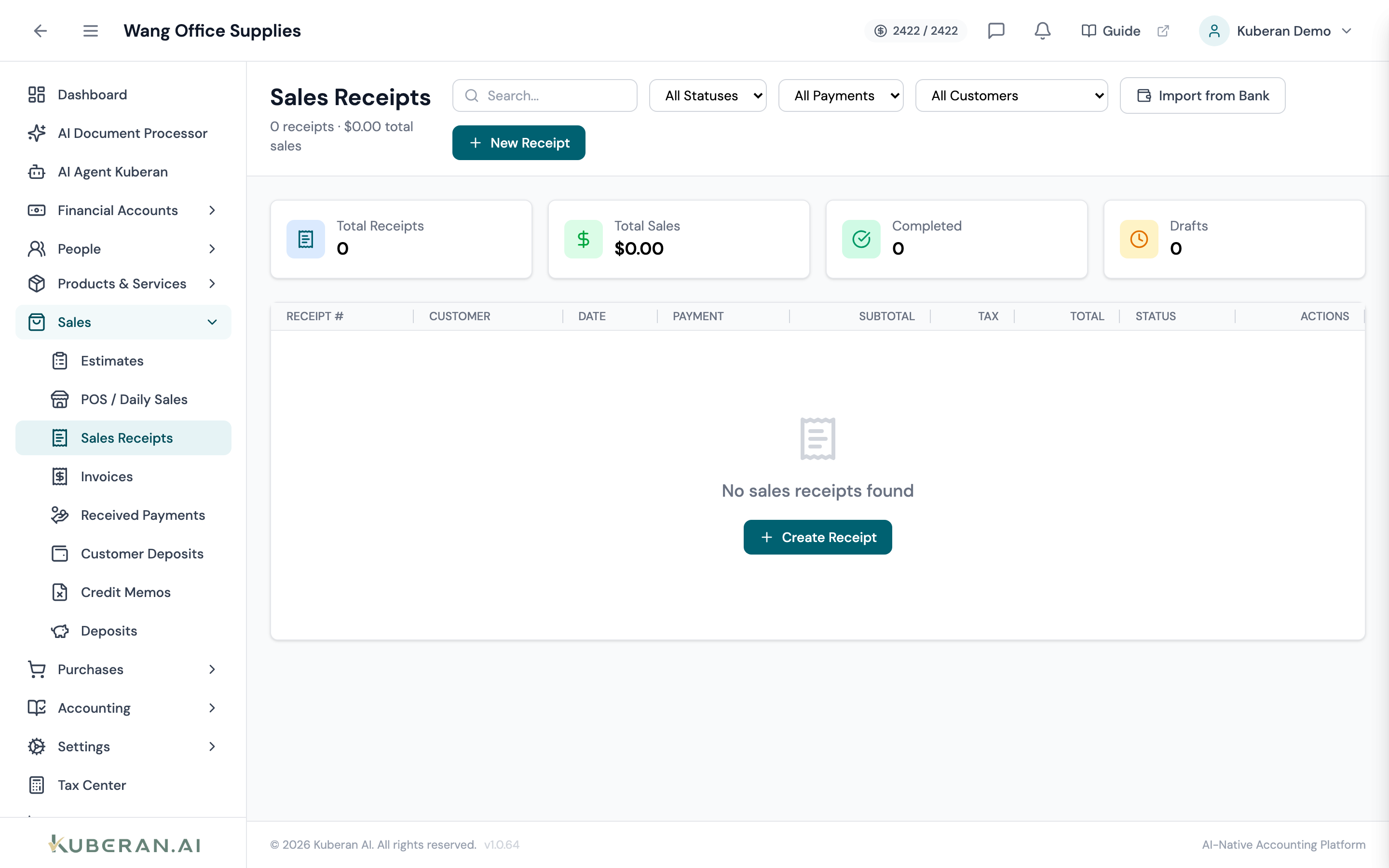
- (1) Summary cards — Total Receipts, Total Sales, Completed, Drafts
- (2) New Receipt button — opens the receipt editor
- (3) Status badge — Draft, Completed, or Void
- (4) Total column — receipt total including tax
- (5) Actions menu — view, edit, complete, void, duplicate
Screen Layout
Summary cards (top): Total Receipts (count), Total Sales (amount), Completed (count), and Drafts (count).
Toolbar: New Receipt and Import from Bank buttons, a search field, and filters for Status, Payment Method, and Customer.
Receipt table (centre): One row per receipt. Columns: Receipt #, Customer, Date, Payment, Subtotal, Tax, Total, Status, and Actions.
Statuses
| Status | Colour | Meaning |
|---|---|---|
| Draft | Amber | Created but not posted; can be edited freely |
| Completed | Green | Posted to the ledger; journal entry created and inventory adjusted |
| Void | Grey | Reversed; the journal entry has been backed out |
UI Elements
Toolbar
Opens the sales receipt editor to create a new receipt.
Creates sales receipts from matched bank deposit transactions instead of entering them by hand.
Filter the list by All Statuses, Draft, Completed, or Void.
Narrow the list to a single payment method or customer. A Clear control appears when any filter is active.
Table Columns
Auto-incremented receipt number (e.g., SR-0001). Click to open the receipt detail.
The payment method used — Cash, Cheque, Credit Card, Debit, E-Transfer, or Other.
The pre-tax subtotal, GST/HST collected, and the grand total. These are computed from the line items — you do not enter them directly.
Per-row actions: View Details, Edit (draft only), Complete (draft only), Delete (draft only), Void (completed only), and Duplicate (any status).
Actions
Create a Sales Receipt
- Click New Receipt. The receipt editor opens.
- Select the Customer (required).
- Set the Receipt Date and choose the Payment Method.
- Choose Deposit To — the bank, cash, or credit-card account that received the funds.
- Optionally set a Location and a Reference # (e.g., a POS transaction number).
- Add line items: pick a Product/Service, choose the income Category (account), enter a description, Qty, and Price, and tick Tax for taxable lines. The line Amount and tax are calculated automatically.
- Add a Customer Note or Internal Note if needed.
- Click Save as Draft to stage the receipt, or Save & Complete to post it to the ledger immediately.
Complete a Draft
- Click ⋯ → Complete on a Draft row (or Save & Complete in the editor).
- The receipt posts its journal entry: Debit the deposit account, Credit each income account, with GST/HST split to tax payable. Inventory-tracked lines also post COGS and reduce quantity on hand.
- The status changes to Completed. Completed receipts can no longer be edited — void and re-enter instead.
Void a Receipt
Voiding reverses the journal entry (and any inventory movement) and marks the receipt Void. Use this rather than deleting a completed receipt, so the audit trail is preserved.
- Click ⋯ → Void on a Completed receipt.
- Confirm. A reversing entry is posted automatically; inventory-tracked lines are restocked at the original cost.
Sales Receipt vs Invoice
| Sales receipt | Invoice | |
|---|---|---|
| Payment | Collected at the time of sale | Billed now, paid later |
| Receivable | None | Creates an Accounts Receivable balance |
| Cash posting | Debit bank/cash on completion | Debit bank only when payment is recorded |
| Use when | Walk-in / paid-in-full sale | Customer is invoiced on terms |
Related
- Invoices — Bill customers on terms and track receivables
- Daily Sales — Summarise a day of POS sales in one entry
- Customers — Customer records used on receipts
- Items — Products and services on receipt lines
- Inventory Accounting — COGS postings for inventory-tracked items
- Deposits — Group received funds into a single bank deposit
- Tax Centre — GST/HST collected on receipts flows into the return