
Payroll — CRA Remittances
Overview
The CRA Remittances screen shows the complete remittance schedule for a client’s payroll. Canadian employers are required to remit payroll deductions — CPP (employee and employer share), EI (employee and employer share), and income tax withheld — to the Canada Revenue Agency on a regular schedule. Kuberan AI calculates the amounts owing for each remittance period automatically from your processed pay runs. From this screen you can record that a payment has been made, view the itemised breakdown for any period, and print the official remittance form (PD7A) for your records.
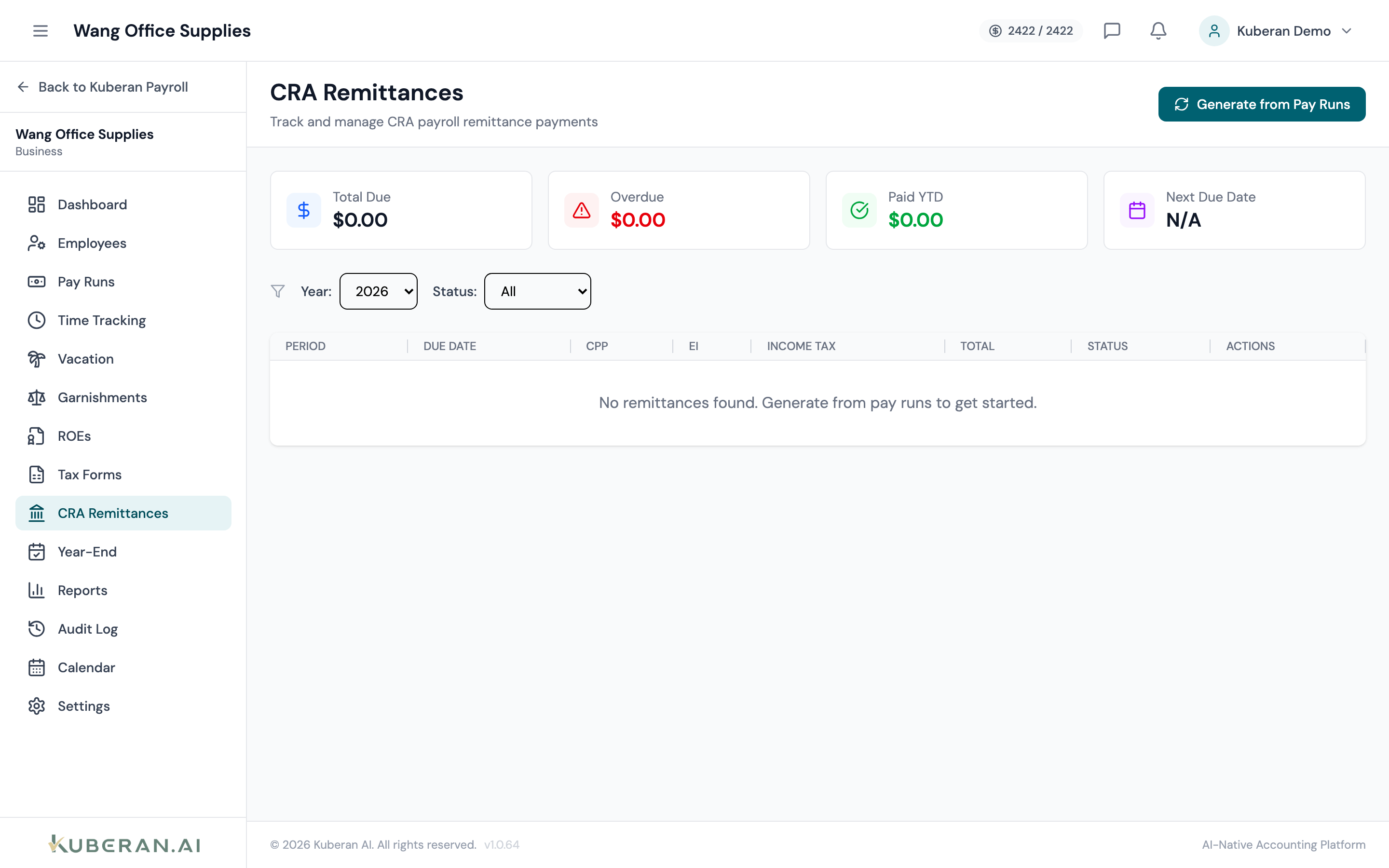
- (1) Remittance period column
- (2) CPP total (employer + employee combined)
- (3) EI total (employer + employee combined)
- (4) Income Tax Deducted column
- (5) Status badge — Due or Paid
- (6) Record Payment and View Breakdown actions
Screen Layout
Toolbar (top): Year selector and a toggle between All Periods and Outstanding Only.
Remittance table: One row per remittance period showing the breakdown of amounts and the current status.
Table Columns
The remittance period, which corresponds to the month (for regular remitters) or the pay period (for accelerated remitters) to which the deductions relate. The CRA due date for remitting is shown beneath the period label.
The employer’s share of Canada Pension Plan contributions for this period. The employer match is equal to the total employee CPP deductions.
The total employee CPP deductions withheld from employees’ paycheques during this period.
The employer’s Employment Insurance premium, calculated at 1.4 times the total employee EI deductions.
The total employee EI premiums withheld from employees’ paycheques during this period.
The total federal and provincial income tax withheld from all employees during this period.
The sum of all five amounts above. This is the amount you need to remit to the CRA for this period.
Due (blue) — the remittance has not yet been recorded as paid. Overdue (red) — the CRA due date has passed and no payment has been recorded. Paid (green) — a payment has been recorded for this period.
Actions
Record a Remittance Payment
- Find the remittance period you have paid and click Record Payment in its row.
- Enter the payment date — the date you actually remitted the funds (e.g., the date of your online banking transaction).
- Select the payment method: Online Banking (My Business Account), Financial Institution, or Other.
- Optionally enter a confirmation number or reference number from your bank.
- Click Save. The period status changes to Paid.
Recording a payment does not transmit anything to the CRA — it is an internal record for your practice’s reconciliation.
View Remittance Breakdown
Click View Breakdown in any row to open a drawer showing the per-pay-run detail that makes up the period total. The breakdown lists every pay run that falls within the remittance period, with the CPP, EI, and income tax amounts from each run itemised. This is useful for reconciling the total when it does not match your expectations.
Print Remittance Form (PD7A)
Click the print icon or Print Form in any row to generate a PDF of the CRA PD7A remittance form pre-filled with the period amounts. You can print this and take it to a financial institution to remit, or keep it as a record of what was submitted.
Remittance Frequency
Kuberan AI defaults to monthly remittance periods (regular remitter). If the client is a quarterly remitter (new employer or small remitter threshold) or an accelerated remitter (large payrolls), update the remittance frequency in Payroll Settings. The schedule rebuilds automatically when the frequency changes.
| Remitter Type | Average Monthly Withholding | Due Date |
|---|---|---|
| Regular | $3,000–$24,999 | 15th of the following month |
| Quarterly | Under $3,000 | 15th of the month following the quarter |
| Accelerated (Threshold 1) | $25,000–$99,999 | Within 3 days of certain pay dates |
| Accelerated (Threshold 2) | $100,000+ | Next banking day |
Tips
- Never miss a remittance deadline. The CRA charges penalties of 3–10% on late remittances, plus interest. Kuberan AI will show overdue periods in red and flag them on the Payroll Dashboard.
- Reconcile regularly. Compare the Total Owing in Kuberan AI to your My Business Account balance before remitting to catch any discrepancies early.
- QPP and QPIP appear as separate line items for Quebec employees, replacing the federal CPP and EI rows.