
Practice Management overview
The Practice Management module is the operational centre of Kuberan AI. It answers the questions every accounting firm deals with daily: What work is currently in progress? Who is responsible for it? How much time has been spent? Has the client been billed?
This guide explains how the pieces fit together before you dive into the individual how-to guides.
Getting started: unlocking Practice
Before you can use Practice Management, the module has to be set up. The entire Practice area is locked behind a one-time setup gate until your workspace has at least one billing rate and one playbook. Until then, every Practice link — whether you click it in the sidebar or open the URL directly — lands on the setup screen, and the sidebar shows a lock icon next to each Practice page.
The setup screen lists four steps:
- Confirm your practice profile — your workspace name and branding. Optional / non-blocking.
- Invite your team — add colleagues from Settings. Optional / non-blocking.
- Set a billing rate — how you’ll charge for engagement time. Required to unlock.
- Choose a playbook — adopt a curated recipe from the library or build your own. Required to unlock.
Steps 1 and 2 are informational nudges only; they never block anything. Once steps 3 and 4 are done, every Practice page unlocks automatically and the lock icons disappear. The setup status is checked fresh each time, so completing it in one place unlocks the whole module immediately.
The engagement: your core unit of work
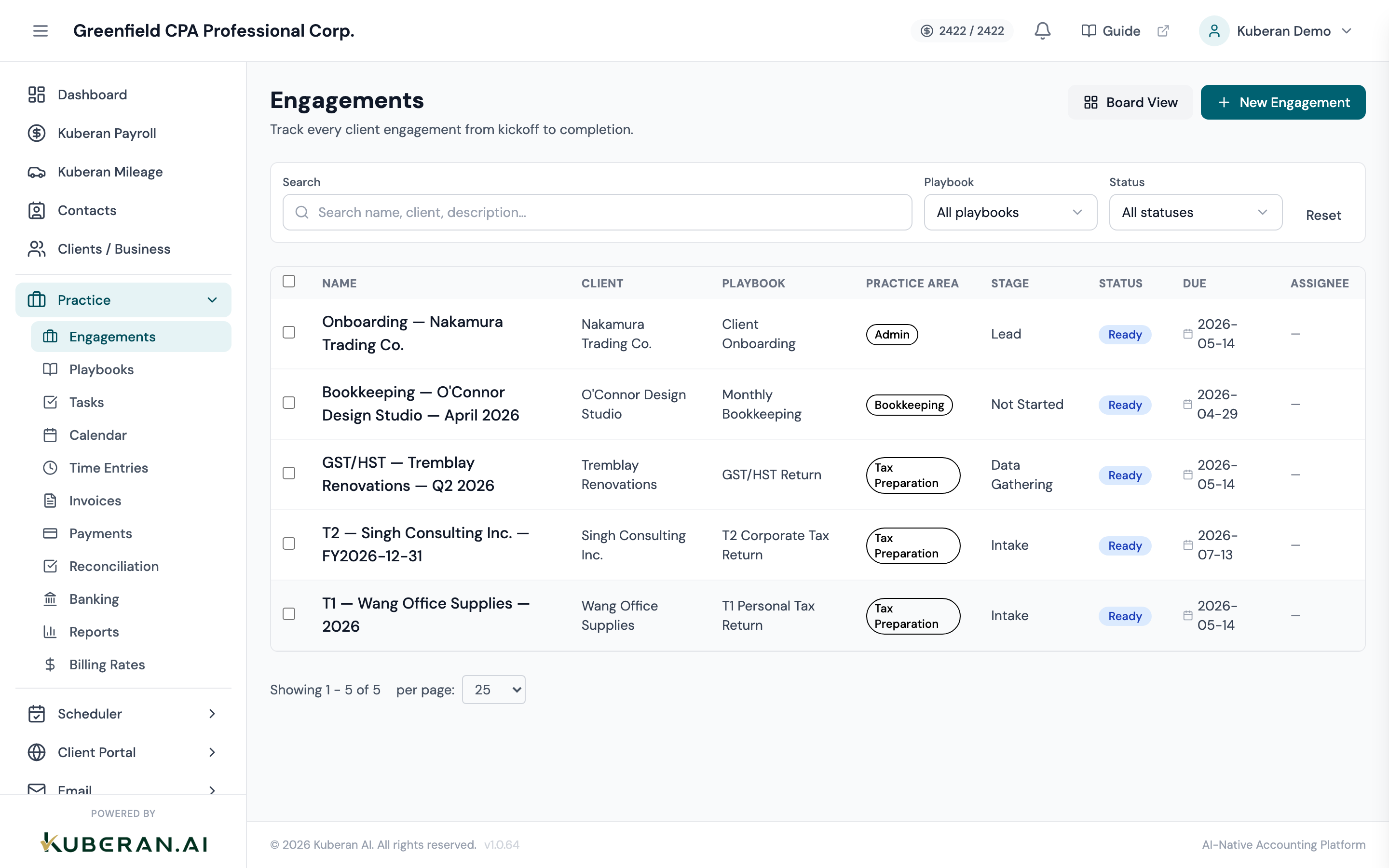
Everything in Practice Management is organised around the engagement. An engagement is a defined piece of work for a specific client — for example:
- “Maple Ridge Bakery Inc. — Monthly Bookkeeping — March 2025”
- “Chen Family Holdings — Corporate Tax Return — FY2024”
- “Okafor Consulting Ltd. — HST Filing — Q4 2024”
An engagement has:
- A client it belongs to
- A practice area (Bookkeeping, Tax Preparation, Payroll, Advisory, and so on)
- A status that moves through workflow stages defined by its playbook
- A due date and an assigned team member
- A task list — the individual checklist items, grouped by stage, that must be completed
- Time entries — billable and non-billable hours logged against it
- Invoices generated from those time entries
This structure means you always know exactly where a piece of work stands, who is on it, and what it will cost the client.
Playbooks: standardising your work
A playbook is a reusable engagement recipe. It defines the workflow stages and the default tasks under each stage, plus playbook-level defaults, billing, and an optional client intake form. When you create an engagement from a playbook, Kuberan AI generates those stages and tasks automatically.
For example, a “Monthly Bookkeeping” playbook might organise its tasks under stages like Intake, Reconciliation, Review, and Delivered:
- Download and import bank statements
- Reconcile chequing account
- Reconcile credit card accounts
- Categorise uncoded transactions
- Process accounts receivable and payable
- Review payroll entries
- Prepare GST/HST working paper
- Prepare adjusted trial balance
- Generate draft financial statements
- Partner review and sign-off
Every time you create a “Monthly Bookkeeping” engagement for any client, that same set of stages and tasks appears automatically. You do not have to remember the steps or type them in — the playbook does it for you.
Playbooks are the biggest lever you have for consistency. When every staff member follows the same playbook, the quality of work is predictable, training new staff is faster, and nothing gets missed at month-end.
See Using playbooks for the full guide on building and managing playbooks.
The time tracking pipeline
Time flows through Practice Management in a predictable sequence:
Log time entry → Link to engagement → Mark as billable → Review → Create invoice → Send → Record paymentLogging time: Team members log time entries directly against engagements. Each entry captures the date, hours, description, billing rate, and billable/non-billable flag. Time can be logged manually (entering hours after the fact) or using the live timer (starting and stopping a clock while working).
Unbilled time: Time entries accumulate on the engagement until you create an invoice. The reports under Practice > Reports show time across all engagements that has been logged but not yet billed — this is your revenue pipeline.
Invoicing: When you are ready to bill a client, you create an invoice from the engagement. Kuberan AI pulls in all billable time entries and presents them as draft line items. You can edit, add, or remove line items before sending. Once sent, those time entries are marked as billed.
Payment: When the client pays, you record the payment against the invoice. Kuberan AI marks the invoice as paid and the revenue shows up in your billing reports.
Firm-level banking vs. client books
An important distinction: the Banking and Reconciliation features in Practice Management apply to your firm’s own bank accounts — the accounts your practice uses to receive client payments and pay firm expenses.
This is separate from the Books module, which manages each client’s bank accounts and accounting records.
If you receive a payment from a client into your firm’s chequing account, that is a Practice Management banking transaction. If you are reconciling the bank account for a client’s business, that happens inside the client’s Books module.
Navigating Practice Management
The main screens are:
| Screen | What it’s for |
|---|---|
| Engagements | Create and manage all client engagements; switch between list and board views |
| Playbooks | Build and adopt reusable engagement recipes — stages, default tasks, billing, and intake forms |
| Tasks | See all tasks across all engagements in a unified list; filter by assignee and status |
| Calendar | View engagements, tasks, and due dates on a calendar |
| Time Entries | View all logged time across all engagements; filter and export |
| Invoices | Manage all practice invoices — draft, sent, paid, and overdue |
| Payments | Record and track client payments against invoices |
| Reconciliation | Reconcile the firm’s bank accounts against statements |
| Banking | Manage the firm’s own bank accounts and transactions |
| Reports | Run time, billing, and revenue reports |
| Billing Rates | Configure the rates used by playbooks and time entries |