
Tax Centre
Overview
The Tax Centre is where you configure a client’s GST/HST setup: the province they operate in, their registration details and filing frequency, the general-ledger accounts tax posts to, and the tax rates and tax groups applied to transactions. It has three tabs — Tax Settings, Tax Rates, and Tax Groups.
Preparing and filing an actual GST/HST return does not happen here. The return itself is generated on the Reports screen as the GST/HST Return Report (CRA GST34 format), and it can be filed from there with one click — see Preparing and filing a GST/HST return below. Because both the report and the filing read straight from the ledger’s tax accounts, the figures always stay in sync with the books.
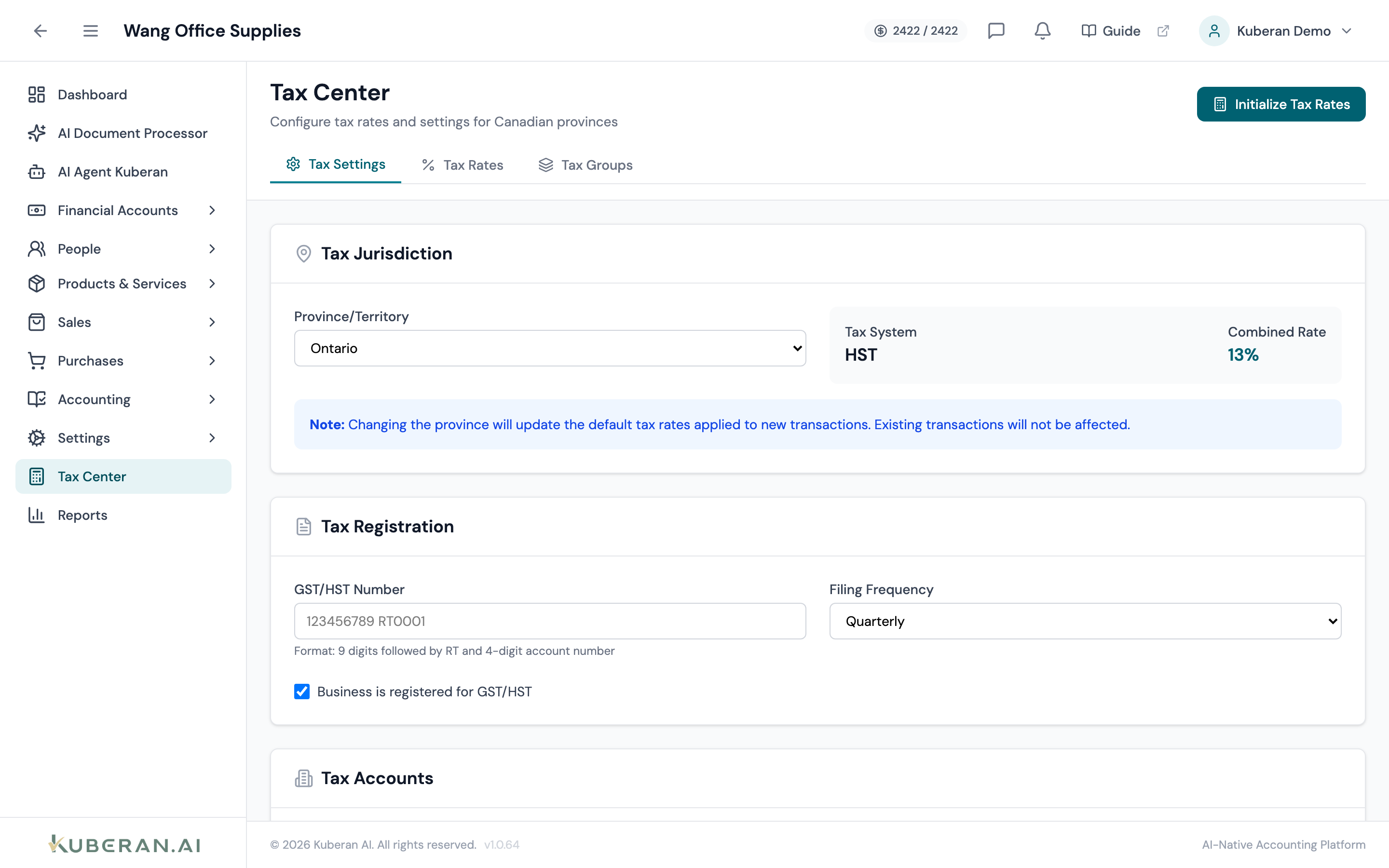
- (1) Tabs — Tax Settings, Tax Rates, Tax Groups
- (2) Province / Territory — sets the default tax system and combined rate
- (3) Tax Registration — GST/HST number and filing frequency
- (4) Tax Accounts — GL accounts for tax collected and tax paid (ITC)
- (5) Initialize Tax Rates — seeds the standard Canadian provincial rates and groups
Screen Layout
Header: The title and, on the right, context actions. When no rates exist yet, an Initialize Tax Rates button seeds the standard Canadian provincial rates and groups. On the Rates tab an Add Rate button appears; on the Groups tab a Create Group button appears.
Tabs: Tax Settings, Tax Rates, and Tax Groups.
Tax Settings tab
The client’s default jurisdiction. Selecting it shows the applicable Tax System (GST, HST, GST+PST, or GST+QST) and the Combined Rate. Changing the province updates the default rates applied to new transactions; existing transactions are unaffected.
The client’s CRA GST/HST account number (9 digits followed by RT and a 4-digit account number, e.g. 123456789 RT0001).
Shown only when the province is Quebec. The client’s Revenu Québec QST registration number.
Monthly, Quarterly, or Annually. This is validated against the reporting period when a GST/HST return is filed, so an off-cycle filing is rejected.
Toggle indicating whether the client is a GST/HST registrant.
Two mappings — Tax Collected (Sales) and Tax Paid (Purchases / ITC) — pointing at the GL accounts tax posts to. These are the accounts the GST/HST return and the filing journal entry read from and zero out.
Show tax breakdown on invoices (list GST and PST separately for GST+PST provinces) and Prices include tax (tax-inclusive pricing).
Click Save Settings to persist changes.
Tax Rates tab
Rates are grouped into cards by province, with a separate Special Tax Rates card for region-agnostic codes (Exempt, Zero-Rated). Each rate row shows Tax Code, Name, Rate, whether it is Compound, the Effective From → To range, an Active toggle, and an Edit action.
Use Add Rate to create a custom rate, or Edit to adjust one. The rate editor captures: Tax Code (HST / GST / PST / QST / Exempt / Zero Rated), Rate %, Name, optional Display Name, Region, Effective From / Effective To dates, a Compound flag (calculated on base + previous taxes), an ITC Claim % (100 = full ITC, 50 = meals & entertainment, 0 = non-recoverable), and an Active flag.
Tax Groups tab
Tax groups combine multiple rates for provinces that levy more than one tax (for example GST + PST). Each group card shows the group name, its combined rate, its member rates (with a Compound badge where applicable), region, effective dates, and status. Use Create Group or Edit to manage them. The group editor captures a Code, Region, Name, optional Display Name, an ordered list of member tax rates (each with its own Compound flag), effective dates, and an Active flag.
Preparing and filing a GST/HST return
The return is prepared and filed from the Reports screen, not the Tax Centre.
The GST/HST Return Report
Run the GST/HST Report for the reporting period. It renders in CRA GST34 format, reading directly from the client’s tax accounts:
| Line | Description |
|---|---|
| 101 | Sales and other revenue |
| 103 | GST/HST collected or collectible |
| 105 | Total GST/HST and adjustments for the period |
| 106 | Input tax credits (ITCs) |
| 108 | Total ITCs |
| 109 | Net tax (Line 105 minus Line 108) |
| 113 | Balance (refund or amount owing) |
Each amount can be drilled down to the contributing transactions.
File the return
- On the GST/HST Return Report, click File HST Return.
- The filing dialog shows the Filing Period (read-only) along with HST Collected, ITC Claimed, and the net Amount Owing or Refund Due.
- Pick the Bank Account the payment (or refund) flows through, set the Filing Date, and add an optional Memo.
- Click Create Filing JE. A snapshot of the report is auto-saved, and a balanced journal entry is posted that zeroes out the GST/HST Collected and ITC accounts and moves the net to or from the bank account.
The filing is idempotent per period — attempting to file the same period twice is rejected with a reference to the existing entry (void it first to refile). Filing into a locked period is blocked, and every filing is recorded in the audit log.
Actions
Initialize a client’s tax data
- Open the Tax Centre for a client with no rates configured.
- Click Initialize Tax Rates. The standard Canadian provincial rates and multi-tax groups are seeded.
- Review the seeded rates on the Tax Rates tab and groups on the Tax Groups tab; adjust or deactivate any that don’t apply.
Configure settings for a client
- On the Tax Settings tab, choose the Province / Territory.
- Enter the GST/HST Number (and QST Number for Quebec) and set the Filing Frequency.
- Map the Tax Collected and Tax Paid (ITC) accounts.
- Set the Display Options and click Save Settings.
Related
- Reports — The GST/HST Return Report is generated here and filed with File HST Return
- Bank Transactions — Apply the correct tax code so figures flow into the return
- Invoices — GST/HST collected on invoices flows into Line 103
- Bills — GST/HST paid on bills generates ITCs for Line 106
- Chart of Accounts — The GST/HST Collected and Paid (ITC) accounts mapped in Tax Settings