
Bulk SMS Campaigns
Overview
Bulk SMS Campaigns allow you to send a text message to a large group of clients at once — for example, a tax season reminder to all T1 clients, a document checklist to clients with outstanding requests, or a practice-wide announcement about extended hours. Messages are personalised using variables that are automatically replaced with each recipient’s information before sending. Campaigns can be sent immediately or scheduled for a future date and time. All campaigns are subject to CASL compliance rules, and Kuberan AI automatically excludes contacts who have opted out of SMS communications.
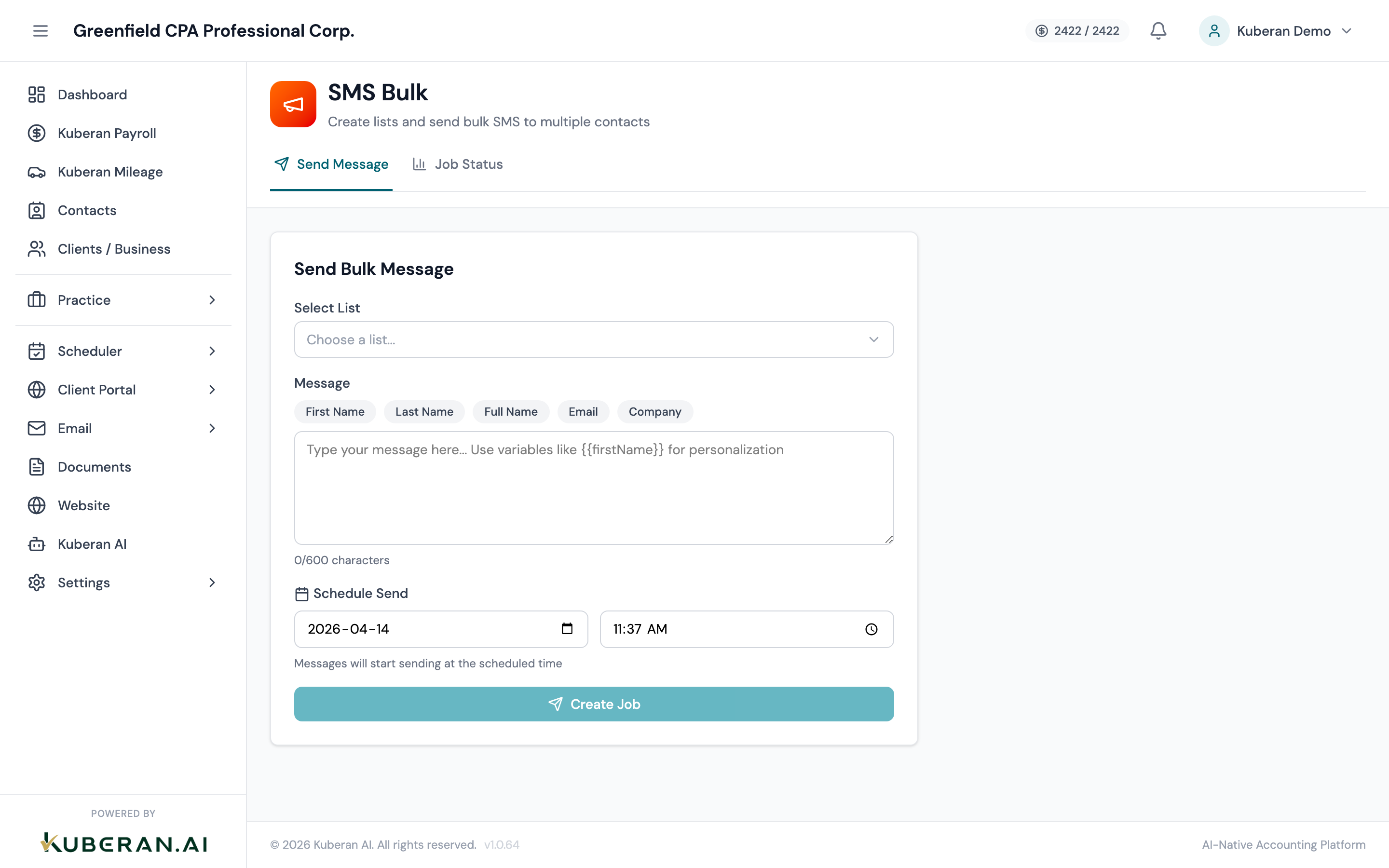
- (1) Create Campaign button
- (2) Campaign name
- (3) Status badge — Draft, Scheduled, Sent, or Cancelled
- (4) Recipient count and sent date
- (5) Edit, Duplicate, Cancel, and View Results actions
Screen Layout
Toolbar (top): Create Campaign button and a Status filter (All / Draft / Scheduled / Sent).
Campaign list: One row per campaign with columns for Name, Status, Recipients, Sent Date, and Actions.
Campaign Statuses
| Status | Meaning |
|---|---|
| Draft | Campaign created but not yet scheduled or sent. |
| Scheduled | Approved and queued to send at a future date and time. |
| Sending | Currently being transmitted (only visible briefly during large sends). |
| Sent | All messages have been dispatched. Delivery results are available. |
| Cancelled | Campaign was cancelled before sending (only Scheduled campaigns can be cancelled). |
Actions
Create a Campaign
- Click Create Campaign in the toolbar.
- Step 1 — Name your campaign. Enter an internal name (e.g., “Tax Season 2025 — T1 Reminder”). Clients do not see this name.
- Step 2 — Select recipients. Choose how to define your audience:
- By Tag: All contacts with a specific tag (e.g., all contacts tagged “T1 Client”). Tags are defined in the Contacts module.
- By Segment: Pre-built segments such as “All Active Clients,” “Clients with Outstanding Document Requests,” or “Clients with Appointments This Week.”
- Manual Selection: Search for and hand-pick individual contacts.
- Review the estimated recipient count. Contacts without a valid mobile phone number, or who have opted out, are automatically excluded. The estimated count reflects this exclusion.
- Step 3 — Compose message. Type your message in the text area. The character counter shows the length. Use variable placeholders to personalise the message:
{{first_name}}— recipient’s first name{{last_name}}— recipient’s last name{{appointment_date}}— next upcoming appointment date (if applicable){{balance_owing}}— outstanding invoice balance (if applicable)
- Step 4 — Schedule or send. Choose Send Now to dispatch immediately, or Schedule to pick a specific date and time. Consider sending during business hours (9 AM–6 PM) to avoid disturbing clients.
- Click Confirm and Send (or Save Schedule if scheduling). The campaign moves to Sent or Scheduled status accordingly.
View Campaign Results
Click View Results on any Sent campaign to see:
- Delivered — messages successfully delivered to the carrier
- Failed — messages that could not be delivered (invalid number, carrier rejection)
- Opted Out — any new opt-outs triggered by this campaign (STOP replies)
- Delivery rate — the percentage of successfully delivered messages
Individual recipient results show the name, number, delivery status, and timestamp.
Duplicate a Campaign
Open the Actions menu on any campaign and select Duplicate. A copy of the campaign is created in Draft status with the same message and recipient rules. This is useful for recurring campaigns (e.g., a monthly document reminder) — duplicate the previous month’s campaign, update the message if needed, and reschedule.
Cancel a Scheduled Campaign
Click Cancel on a Scheduled campaign. You will be prompted to confirm. Cancellation stops the campaign from sending; any messages already dispatched (in the case of a large send in progress) cannot be recalled.
Templates
Templates are reusable message bodies that can be used in both bulk campaigns and individual SMS conversations. To create a template:
- Open the Templates tab at the top of the Bulk SMS screen.
- Click Add Template.
- Enter a template name (internal only) and the message body with variable placeholders.
- Click Save.
Templates appear in the Use Template dropdown when composing individual SMS messages in the Conversations screen.
Tips
- Timing matters. CRA-related messages (e.g., “Your T4 is ready,” “Filing deadline is April 30”) sent two weeks before the deadline have much higher response rates than last-minute sends.
- Keep messages short and direct. SMS messages are most effective under 120 characters. State the action required, the deadline if any, and how to respond. Do not include links unless absolutely necessary (clients are rightfully wary of SMS links).
- CASL compliance: You must have express or implied consent to send commercial electronic messages to Canadian recipients. Kuberan AI automatically honours opt-outs, but maintaining a proper consent record is your practice’s responsibility.