
Invoices
Overview
The Invoices screen is the accounts receivable hub for the client’s books. Invoices are created for customers, emailed directly from the platform, and tracked through their full lifecycle — from draft to paid. A draft holds no accounting weight; when an invoice is finalized on an accrual-basis client, it posts the appropriate double-entry journal entry: a debit to Accounts Receivable and a credit to the revenue account, with GST/HST collected split to the tax-payable account. If a line item is an inventory-tracked product, the invoice also posts a Cost of Goods Sold entry (Debit COGS, Credit Inventory Asset) at the item’s average cost and reduces quantity on hand — on accrual-basis clients only; cash-basis books recognise revenue at payment time instead of at issuance. Payment recording applies the cash receipt against the open balance and clears the receivable. Overdue invoices surface in a dedicated Overdue dashboard, from which reminder emails can be sent.
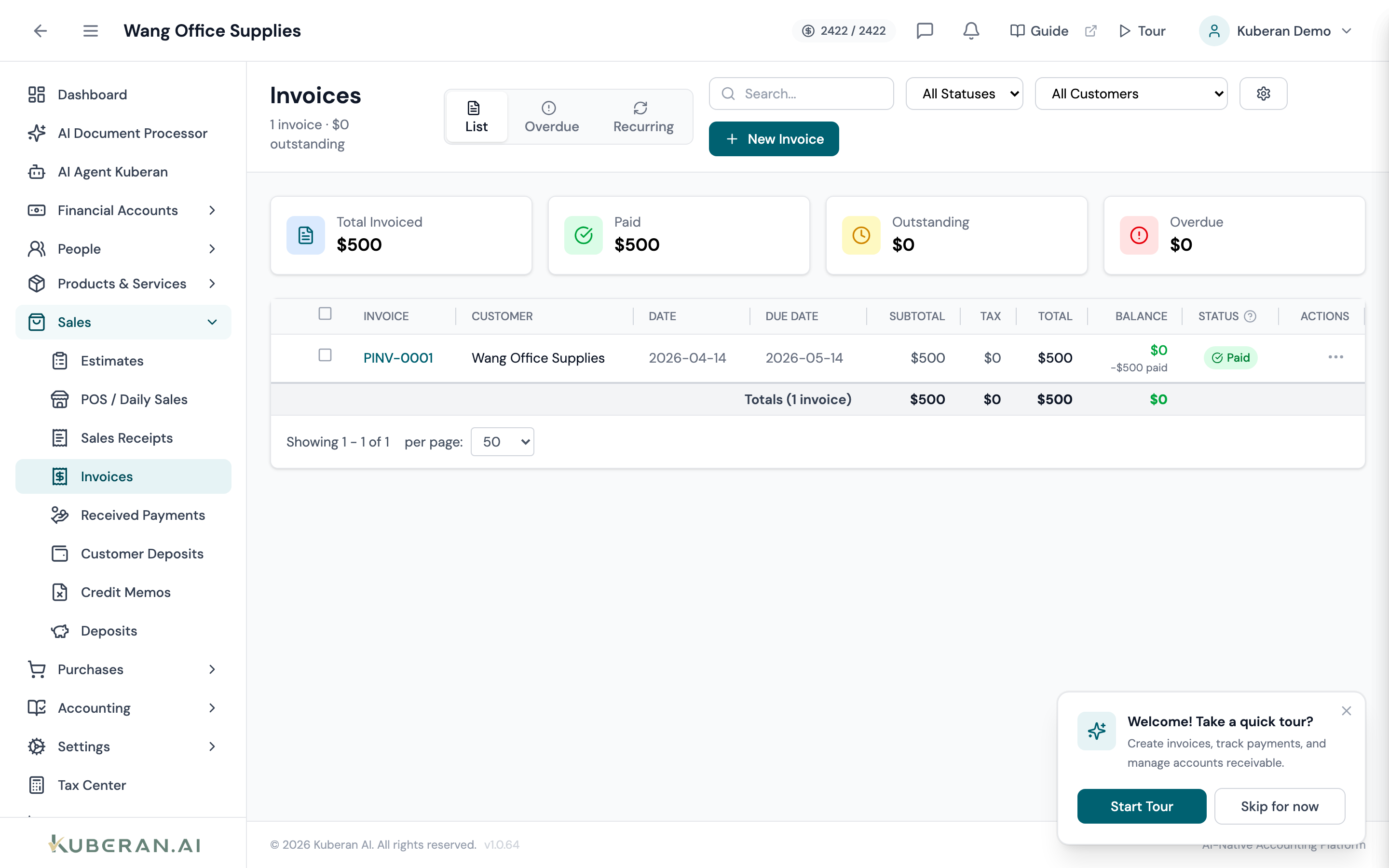
- (1) View tabs — List, Overdue, Recurring
- (2) New Invoice button — opens the invoice editor
- (3) Status badge — colour-coded invoice lifecycle stage
- (4) Balance column — remaining amount owed after payments and write-offs
- (5) Actions menu — finalize, send, record payment, void, and more
Screen Layout
View tabs (top): List (the normal invoice grid), Overdue (the collections dashboard with reminder controls), and Recurring (recurring-invoice templates).
Toolbar (List view): Search field, a Status filter dropdown, a Customer filter dropdown, and the New Invoice button. AR summary cards (Total Invoiced, Paid, Outstanding, Overdue) sit above the table.
Invoice table (centre): Each row is one invoice. Columns: Invoice, Customer, Date, Due Date, Subtotal, Tax, Total, Balance, Status, and Actions. Click any row to open the invoice detail view.
Invoice Statuses
| Status | Colour | Meaning |
|---|---|---|
| Draft | Amber | Being created; no invoice number yet; editable freely; not posted |
| Pending | Grey | Finalized with a number assigned and posted to the ledger; ready to send; still editable |
| Sent | Blue | Emailed to the customer or marked as sent |
| Viewed | Teal | Customer has opened the invoice |
| Partial | Yellow | One or more payments received but a balance remains |
| Paid | Green | Invoice balance is zero; fully settled |
| Overdue | Red | Past due date with an outstanding balance |
| Void | Grey | Cancelled; journal entries reversed; not counted in AR |
| Written Off | Grey | Uncollectible balance written off as bad debt |
UI Elements
View Tabs
Switch between the standard invoice List, the Overdue collections dashboard (groups outstanding invoices by customer and sends reminders), and the Recurring templates view.
Toolbar
Search by invoice number, customer name, or reference number. Partial matches are supported.
A single-select dropdown that filters the list by one lifecycle status (All Statuses, Draft, Pending, Sent, Viewed, Partial, Paid, Overdue, Void, Written Off).
Filters the list to a single customer.
Opens the invoice creation panel.
Table Columns
The invoice number (e.g., INV-0042); drafts show “Draft” until finalized. The numbering sequence can be configured in Settings. Clicking the row opens the invoice detail.
The customer this invoice was issued to.
The invoice date (or the date entered for backdated invoices).
Calculated from the invoice date plus the payment terms (e.g., Net 30).
The pre-tax subtotal, GST/HST, and the grand total including tax.
The remaining amount owed = Total − payments − any written-off amount. For fully paid invoices this is $0.00.
Per-row actions vary by status: View Details, Preview/Print (non-draft), Edit (Draft/Pending), Finalize (Draft), Send Invoice / Resend Invoice, Record Payment, Write Off as Bad Debt, Reverse Write-Off, Duplicate, Void (when unpaid), and Delete (Draft only).
Actions
Create an Invoice
- Click New Invoice. The invoice editor opens.
- Select the Customer. Contact details and default payment terms are pre-populated.
- Set the Invoice Date and verify the Due Date (calculated from payment terms, editable).
- Add line items. For each line: select an Item or type a description, enter quantity and unit price, choose the income Account from the account picker (or click Add new account in that picker to create one inline), and confirm the tax code. GST/HST is calculated automatically.
- Add Notes for the customer if needed.
- Review the subtotal, tax, and total at the bottom.
- Click Save as Draft to save without posting, or Create Invoice to finalize it (assigns a number and posts the journal entry). Sending is a separate step.
Send an Invoice
- Click ⋯ → Send Invoice on a finalized (Pending or later) invoice; use Resend Invoice to send it again.
- The Send Invoice dialogue shows the To address (from the customer record), a default subject line, and a customisable email body.
- Send it. The status changes to Sent. The customer receives an email with a link to view and pay the invoice in the client portal.
Record a Payment
- Click ⋯ → Record Payment on an invoice with an outstanding balance.
- Enter the Amount (capped at the balance due), the Payment Date, the Deposit Account (the bank/cash account that received the money), and the Payment Method (Cheque, Cash, EFT, Credit Card, Debit, E-Transfer, Wire Transfer, or Other). Add a Reference # and Notes if useful.
- Click Record Payment. The receivable is reduced by the payment amount. If the balance reaches zero, the status changes to Paid; a partial payment changes it to Partial.
For settling an already-sent invoice from the AR side — including splitting one payment across several invoices — see Received Payments.
Send Reminders on Overdue Invoices
- Switch to the Overdue view tab. Outstanding invoices are grouped by customer with their days-overdue and last-reminder date.
- Send a reminder to a customer from the dashboard. The reminder is recorded in the invoice’s email history.
Void an Invoice
Voiding reverses all journal entries associated with the invoice and marks it Voided. This is the correct method to cancel an invoice that was sent in error — do not delete a sent invoice. A posted invoice that contains an inventory-tracked item cannot be edited — void it and re-enter it instead.
- Click ⋯ → Void on the invoice row.
- Enter a Void Reason for the audit trail.
- Click Void Invoice. Reversing journal entries are created automatically. For inventory-tracked lines, the Cost of Goods Sold entry is reversed at the cost originally recorded and the quantity is restocked.
Tag Line Items to a Property
When the Properties module is enabled, each line item can be tagged with a Property, Unit, and Lease. Tagged lines feed the Property P&L report automatically.
- In the invoice editor, click the Property picker on any line item.
- Select a Property. The Unit and Lease pickers filter to options under that property.
- Optionally pick a Unit (for multi-unit buildings) and a Lease (for rent line items).
- Save. The
propertyId/unitId/leaseIdare persisted on the ledger line so both sides of the AR → Revenue posting carry the tag.
Residential-rent HST auto-exemption: line items tagged with a Property whose type is residential skip HST/GST automatically, regardless of the workspace tax code (HST, GST, GST+PST, GST+QST, PST, QST, SALES_TAX). Residential rent is exempt supply under the Excise Tax Act — the server overrides any line-level tax code for these rows so you don’t accidentally charge a tenant tax.
Auto-generated rent invoices (created by the monthly rent-invoice cron from RentSchedule rows) are tagged automatically and get the exemption as a matter of course.
Set Up a Recurring Invoice
Recurring invoices are managed from the Recurring view tab, which holds its own templates rather than repeating a specific existing invoice.
- Switch to the Recurring view tab and start a new recurring template.
- Choose the Customer and build the line items just like a normal invoice.
- Set the Frequency (Daily, Weekly, Bi-Weekly, Monthly, Quarterly, or Annually) and the Start Date, with an optional End Date.
- Optionally enable Auto-post (finalize each generated invoice automatically) and Auto-email (send it to the customer on generation).
- Save the template. From the Recurring list you can pause, resume, trigger a run manually, edit, view its generation history, or delete it.
Related
- Customers — Manage customer records and credit terms
- Items — Products and services used on invoice line items
- Inventory Accounting — COGS postings when an invoiced item tracks inventory
- Estimates — Create quotes and convert them to invoices
- Reports — AR Aging and Sales by Customer reports
- Tax Centre — GST/HST collected on invoices flows into the tax return