
Documents
Overview
The Documents screen is the central repository for all files associated with a client’s accounting file. Receipts, vendor invoices, bills, and bank, credit-card, and loan statements are uploaded here. When you upload a receipt, invoice, or bill, the AI document processor reads the file and extracts the key data — vendor name, date, amount, GST/HST breakdown, and line items — then lets you review it and confirm to create the matching accounting entries. Bank and credit-card statements are read line by line and routed to an institution-specific processor. Any document can be made visible to the client through the client portal.
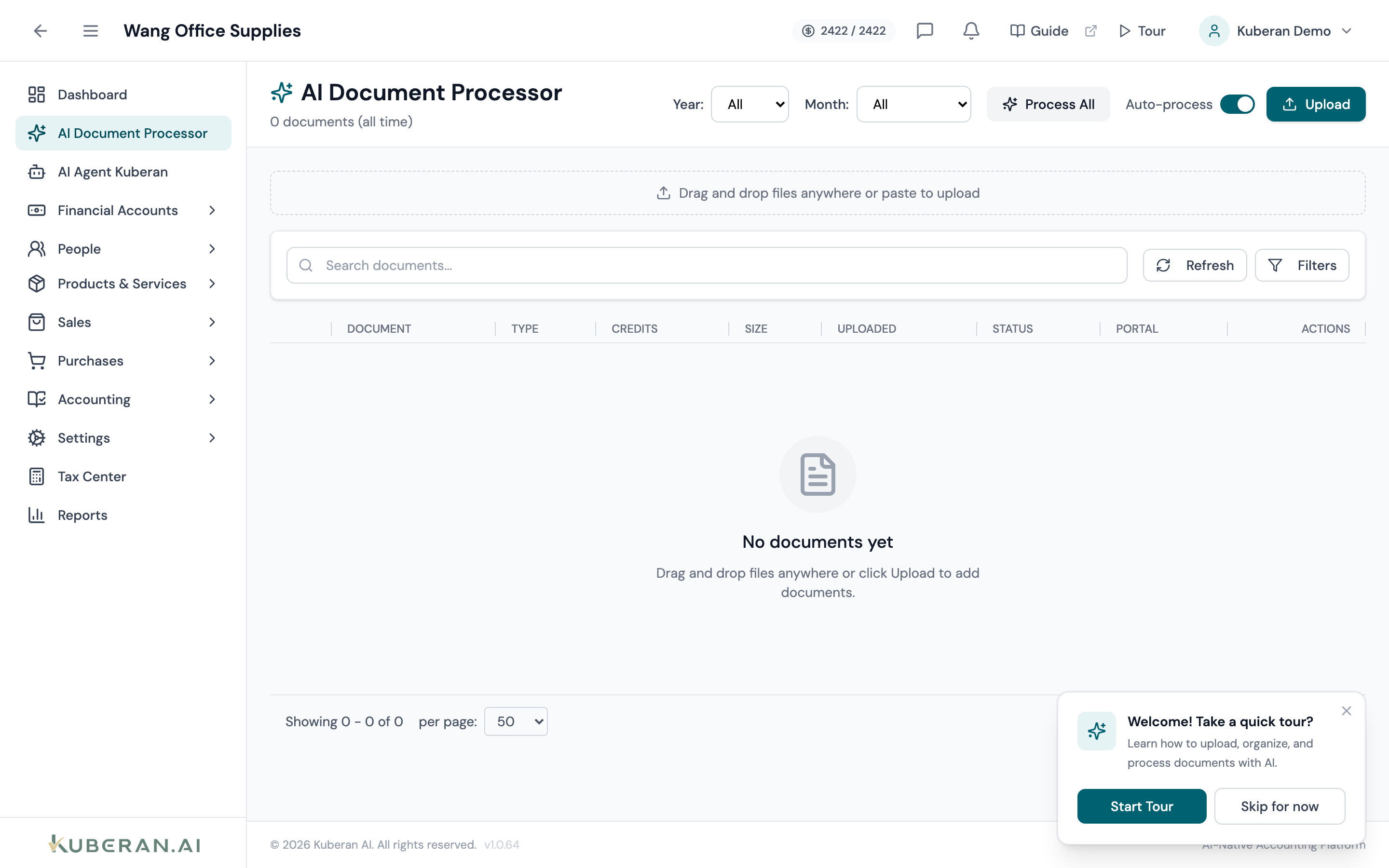
- (1) Search and filters — search by name and filter by Category, Year, and Month
- (2) Upload area — drag-and-drop anywhere, paste, or use the Upload button for single or batch uploads
- (3) Status badge — shows the AI identify/process/review state for each document
- (4) Document list — file, type, credits used, size, upload date, status, portal visibility, and actions
- (5) Preview modal — a side-by-side viewer (document on the left, extracted data on the right) opens when you preview a document
Screen Layout
The screen is a single document list with a search-and-filter bar above it — there is no folder tree.
Filters: A text search plus Category, Year, and Month dropdowns. Categories are a fixed set — Bank Statements, Credit Card, Loans, Line of Credit, Receipts, Invoices, Payroll, Cheque Scans, Other, and Multiple Docs — and are auto-detected from the file name on upload.
Document list: A table of every document for the client. Columns are Document (file name with badges), Type, Credits, Size, Uploaded, Status, Portal, and Actions. Multi-page or grouped documents (and cheque scans) expand in place to show their child pages.
Preview modal: Opening a document launches a full-screen, side-by-side preview — the file (image or PDF, with zoom and pan) on the left and its extracted data on the right, separated by a draggable divider. A Comments panel slides in from the right for per-document discussion.
UI Elements
Upload
Opens a file picker, or drop files anywhere on the page (paste and nested-folder drops are supported). Supported formats: PDF, JPG/JPEG, PNG, GIF, WebP, CSV, XLS, and XLSX. Maximum file size: 100 MB per file. Multiple files can be uploaded at once. Only PDF and image files (PDF, JPEG, PNG, GIF, WebP) are read by the AI processor; a dropped bank CSV is instead handed off to the bank-transaction Import CSV flow rather than OCR.
When on, newly uploaded documents are identified and processed by the AI automatically. Leave it off to run the steps manually per document.
Document List
The file name with a category-coloured icon, plus badges where they apply: a child-count badge (“N docs”), a Merged badge for grouped documents, and page-group badges for multi-page statements. A green check overlays documents that have been processed.
The AI-identified document type (e.g., Receipt, Invoice, Bill, Bank Statement, Credit Card Statement), or an em-dash if not yet identified.
The number of AI credits the document consumed during identification and extraction. AI usage is metered by credits (there is no per-plan document count limit).
The upload date and time.
The current state of the document in the AI pipeline. Common values:
- Pending / Queued — waiting to be identified or processed
- Identifying / Identified — the AI is (or has) determined the document type
- Processing / AI Categorizing — the AI is extracting and categorising data
- Review Required — extraction is complete and the draft is ready for your review
- Confirmed / Done — the extraction was confirmed and accounting entries were created
- Retry N/9 — a transient failure is being retried automatically
- Failed — processing could not complete A processed parent whose child pages still need review rolls up to Review Required.
A checkbox that controls whether the document is visible to the client in the client portal. Tick it to share the document; untick it to hide it again.
Per-row icon buttons: Preview, Download, Delete, and — for grouped documents — Ungroup. Depending on the document’s state, Identify, Process, and Reprocess buttons also appear on the row.
Actions
Upload a Document
- Click Upload, or drag files onto the page (you can also paste an image or drop a folder of files).
- Files appear in the list immediately. If Auto-process is on, the AI begins identifying and processing them; otherwise use the Identify and Process buttons.
- Processing runs in the background — the row shows live status and the list polls until it settles.
Identify, Process, and Review a Document
The AI works in two steps: Identify determines the document type, and Process extracts the data. When extraction is complete the status becomes Review Required, and you confirm the result to create the accounting entries.
- On an unidentified document, click Identify (or let Auto-process run). Then click Process to extract the data — or use Process All to run the whole list.
- When the status reads Review Required, open the document to see the side-by-side preview: the file on the left and the extracted data on the right (headed “Extracted Receipt / Bill / Invoice Information” or “Extracted Transactions”).
- Correct any fields the AI got wrong. For a bill or invoice, set each line’s account from the account picker (see below). Use Update (save icon) to persist edits without posting.
- Click Confirm & Create Entries. A confirmation dialog lists exactly what will be created — for a bill, for example, a Bill record, the vendor (auto-created if new), and the journal entries. Click Confirm to post. The document’s status becomes Confirmed.
- There is no separate “dismiss” action. If an extraction is wrong, use Reprocess to re-run it, Reclassify as Bill/Invoice to change its type, or Delete to remove the document.
Process a Bank or Credit-Card Statement
Statements are read page by page and routed to a processor matched to the institution. Kuberan has dedicated processors for TD, RBC, Scotiabank, CIBC (including CIBC Costco), BMO, and Meridian, for both bank and credit-card statements, plus generic processors for other institutions and for online-banking web printouts. Institution routing runs first, so an official statement is handled by its bank’s processor; the generic web-printout detection only applies afterwards, to unbranded online-banking exports.
- Upload the statement PDF and process it as above. For multi-page statements you can confirm page by page.
- In the preview, review the extracted transactions and assign each line to a GL account, then use Save Assignments before confirming.
- Confirm to create the entries. Cheque-scan documents can additionally be re-cut (Recut Cheques) and matched to statement lines (Associate Cheques).
Share a Document with the Client
- Tick the Portal checkbox on the document row.
- The document immediately becomes visible in the client’s portal under their Documents section.
- Untick the checkbox to hide it again.
Group, Delete, and Other Actions
- Group / Ungroup — select two or more documents and click Group N Docs to merge them (for example, the pages of one statement); use Ungroup to split them again.
- Delete — click the trash icon, or select several and use Delete Selected. If the document already created accounting entries, the confirmation shows a preview of the entries that will be reversed.
- Comments — open a document and use the Comments panel to leave notes on it.
Related
- Bank Transactions — Review and categorise transactions, including those created by the AI processor
- Bills — Create a bill directly from a vendor invoice uploaded here
- AI Agent — Ask the AI questions about documents and extracted data