
Daily sales
Overview
The Daily Sales / POS screen records a single summary entry for a day’s worth of point-of-sale activity, instead of one sales receipt per transaction. It is the right tool for retail, hospitality, and any high-volume cash business where you reconcile the till at the end of the day: enter the day’s net sales, the tax collected, and how the takings split across cash, card, and other tender.
A daily-sales entry moves through a small approval workflow — Draft → Approved → Posted — so it can be staged, reviewed, and only then committed. When posted, it books a journal entry with a single debit to the deposit account — a bank account or Undeposited Funds — for the full gross sales, a credit to the sales/revenue account for net sales, and a credit to sales-tax payable for the tax. The cash/card/other split drives the variance check only; it does not split the debit. A built-in variance check flags any day where the payment breakdown does not match gross sales, so over/short tills surface before they hit the books.
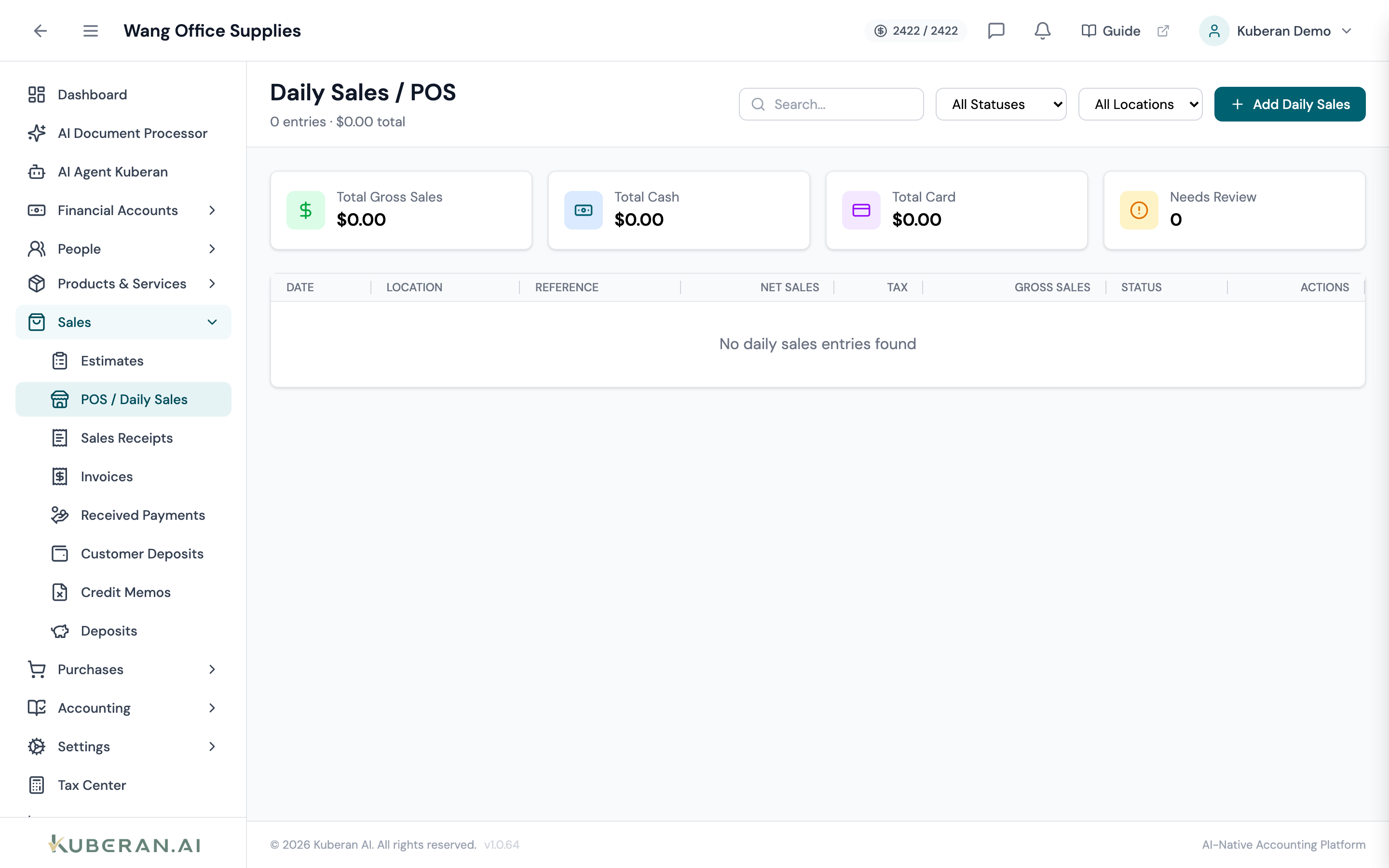
- (1) Summary cards — Total Gross Sales, Total Cash, Total Card, Needs Review
- (2) Add Daily Sales button — opens the entry form
- (3) Status badge — Draft, Approved, Posted, Needs Review, or Void
- (4) Net / Tax / Gross Sales columns
- (5) Row actions — view, edit, approve, post, mark for review, void
Screen Layout
Summary cards (top): Total Gross Sales, Total Cash, Total Card, and Needs Review (count).
Toolbar: Add Daily Sales button, a search field, and filters for Status and Location.
Entry table (centre): One row per day (per location). Columns: Date, Location, Reference, Net Sales, Tax, Gross Sales, Status, and Actions.
Statuses
| Status | Colour | Meaning |
|---|---|---|
| Draft | Amber | Being entered; freely editable, no ledger impact |
| Approved | Blue | Reviewed and ready to post |
| Posted | Green | Journal entry created; can no longer be edited |
| Needs Review | Orange | Flagged for accountant review (e.g., a variance) |
| Void | Grey | Reversed; the journal entry is backed out if it was posted |
UI Elements
Toolbar
Opens the daily-sales entry form.
Filter the list by workflow status or by sales location.
Entry Form Sections
Net Sales (required), Tax Rate (%) (defaults from settings), an auto-calculated Tax Amount, and a display-only Gross Sales total.
Cash, Card, and Other tender amounts. A variance warning appears if the three together do not equal gross sales.
Deposit To — Undeposited Funds or a specific bank account (a Bank Account picker appears when a bank is chosen).
Table Columns
Net Sales is pre-tax revenue; Gross Sales is Net plus Tax — the total the till should have taken.
Per-row: View, Edit (draft / needs-review), Approve (draft / needs-review), Post (approved), Mark for Review, and Void.
Actions
Record a Day’s Sales
- Click Add Daily Sales.
- Set the Date, optional Location, and a Reference # (e.g., a POS batch number).
- Under Sales Totals, enter Net Sales and confirm the Tax Rate. Tax and gross are calculated automatically.
- Under Payment Breakdown, enter Cash, Card, and Other. Clear any variance warning before posting.
- Under Deposit Settings, choose Deposit To (Undeposited Funds or a bank account).
- Click Create. The entry is saved as a Draft.
Approve and Post
- Review the draft, then click ⋯ → Approve. The status becomes Approved.
- Click ⋯ → Post. A dialog confirms the Deposit To account (Undeposited Funds or a bank account); then the journal entry is created — Debit the deposit account for gross sales, Credit sales for net sales, Credit sales-tax payable for the tax.
- Posted entries are locked. To correct one, Void it and re-enter.
Mark for Review / Void
Use Mark for Review to flag an entry (with a reason) for the accountant — useful for a till that is over or short. Void reverses a posted entry’s journal entry, or simply cancels an unposted one.
Daily Sales vs Sales Receipts
Use Daily Sales to book a whole day as one summarised entry with a tender breakdown. Use sales receipts when you need a per-customer, itemised record of each individual sale.
Related
- Sales Receipts — Itemised per-transaction sales
- Deposits — Move Undeposited Funds into the bank
- Chart of Accounts — Sales, cash, and tax-payable accounts used by postings
- Tax Centre — Sales tax collected flows into the return
- Reports — Sales and revenue reporting