
Portal Admin — Users
Overview
The Portal Users screen manages which contacts have login access to the client portal and what they are allowed to do once inside. Each portal user is linked to a contact record in your workspace and is associated with one or more client files. Permissions are set per user — a client’s accountant might have full access, while a junior bookkeeper at the same client might only have access to upload documents. From this screen you can invite new portal users, update their permissions, and revoke access when it is no longer needed.
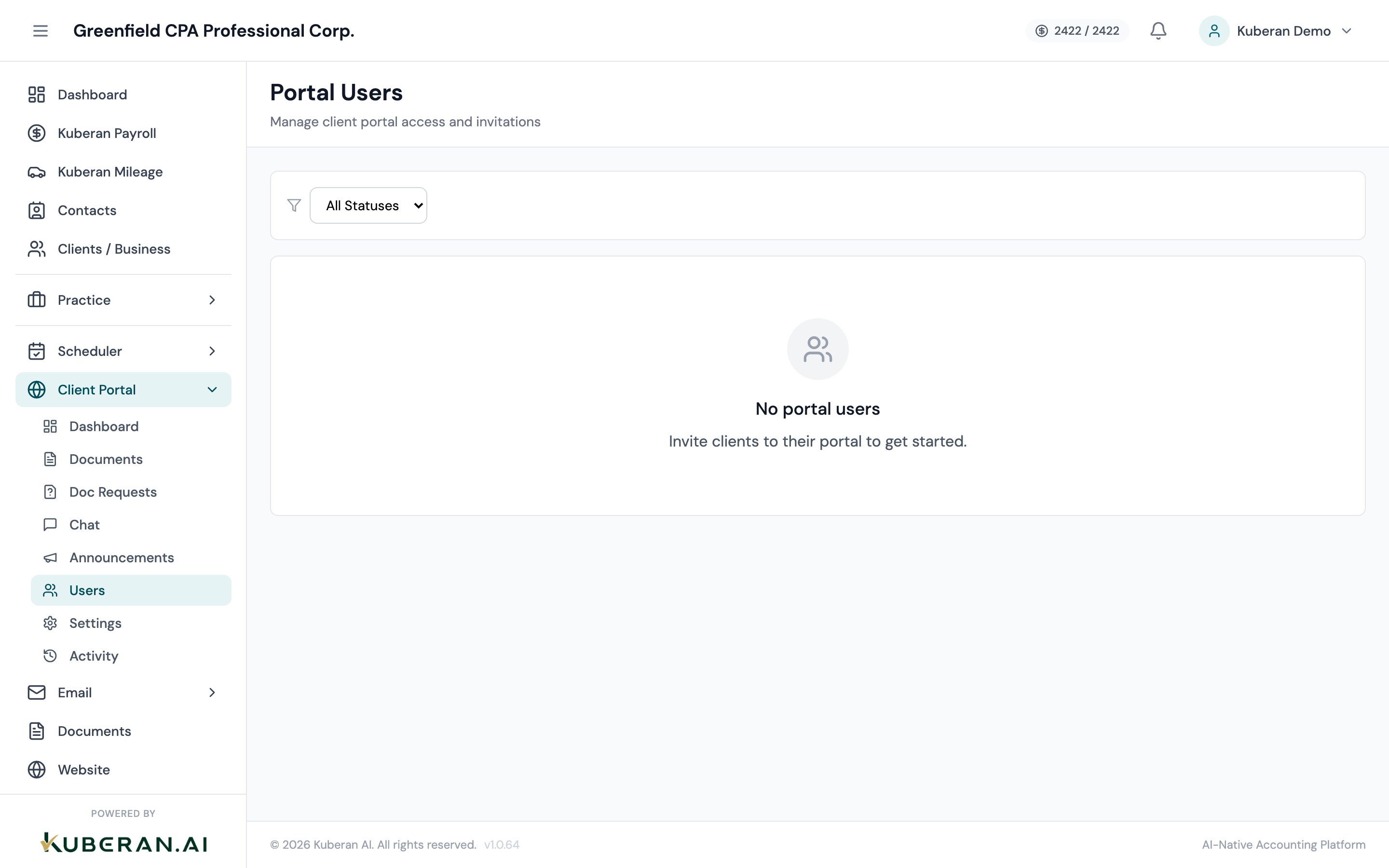
- (1) Invite User button
- (2) Contact name and email
- (3) Linked client(s)
- (4) Permission badges — Invoices, Documents, Chat
- (5) Last login date and status (Active / Invited / Revoked)
Screen Layout
Toolbar (top): Invite User button, search field, and a Status filter (Active / Invited / Revoked / All).
Users table: One row per portal user with columns for Name, Email, Linked Client(s), Permissions, Last Login, Status, and Actions.
User Statuses
| Status | Meaning |
|---|---|
| Invited | An invitation email has been sent but the user has not yet activated their account. |
| Active | The user has accepted the invitation and has an active portal account. |
| Revoked | Access has been removed. The user cannot log in. Their history is retained. |
Permissions
Each portal user has a set of permissions controlling what they can see and do in the client portal:
When enabled, the user can see all invoices for their linked client(s), view invoice details, and make payments (if online payment is configured). When disabled, the Invoices section is hidden from their portal.
When enabled, the user can view document requests and upload documents in response to them. They can also browse the Documents folder (limited to files explicitly shared with them). When disabled, the Documents section is hidden.
When enabled, the user can send and receive messages in the portal chat. When disabled, the Chat section is hidden.
When enabled, the user can book, reschedule, or cancel appointments through the online booking page linked to the portal. When disabled, the Appointments section is hidden.
When enabled, the user can view shared financial reports (e.g., financial statements shared by the CPA). This is an optional permission not enabled by default.
Actions
Invite a Portal User
- Click Invite User in the toolbar.
- Search for the contact you want to invite. The contact must already exist in the Contacts module.
- Select the client file(s) this user should have access to. A contact can be given access to multiple client files (e.g., a business owner accessing both their personal T1 file and their corporation’s file).
- Set the permissions for this user by toggling each permission on or off.
- Click Send Invitation. An email is sent to the contact’s email address with a unique invitation link.
The invitation link expires after 7 days. If the user does not activate within 7 days, resend the invitation from the Actions menu.
Update Permissions
- Find the user in the list and open their Actions menu.
- Select Edit Permissions.
- Toggle the permissions on or off as needed.
- Click Save. Changes take effect immediately — the user’s portal session is updated on their next page load.
Revoke Access
- Open the Actions menu on the user’s row.
- Select Revoke Access.
- Confirm the action.
The user can no longer log in to the portal immediately after revocation. All their uploaded documents and chat history are retained in Kuberan AI. To restore access, select Restore Access from the Actions menu — this does not require a new invitation; the user can log in with their existing credentials.
Resend Invitation
If a user is in Invited status and has not yet activated their account, open the Actions menu and select Resend Invitation. A new invitation email is sent with a fresh 7-day expiry link.
Tips
- Invite clients proactively during onboarding. Setting up portal access at the start of the client relationship establishes the digital communication channel from day one and makes future document collection much smoother.
- Minimum permissions: For most clients, View Invoices, Upload Documents, and Chat are sufficient. Only enable Book Appointments if your practice accepts self-serve booking for that client.
- Multiple users per client: Businesses often have a bookkeeper or office manager who uploads documents, and an owner who views invoices. You can invite both — each gets their own login with their own permission level.