
Reports
Overview
The Practice Reports screen is a tabbed dashboard of eight reports covering engagement workflow, billing, revenue, and accounts receivable. A single From/To date range in the header applies to the four time-bounded reports; each report renders its own table, and any tab can be exported to CSV or downloaded as a branded PDF.
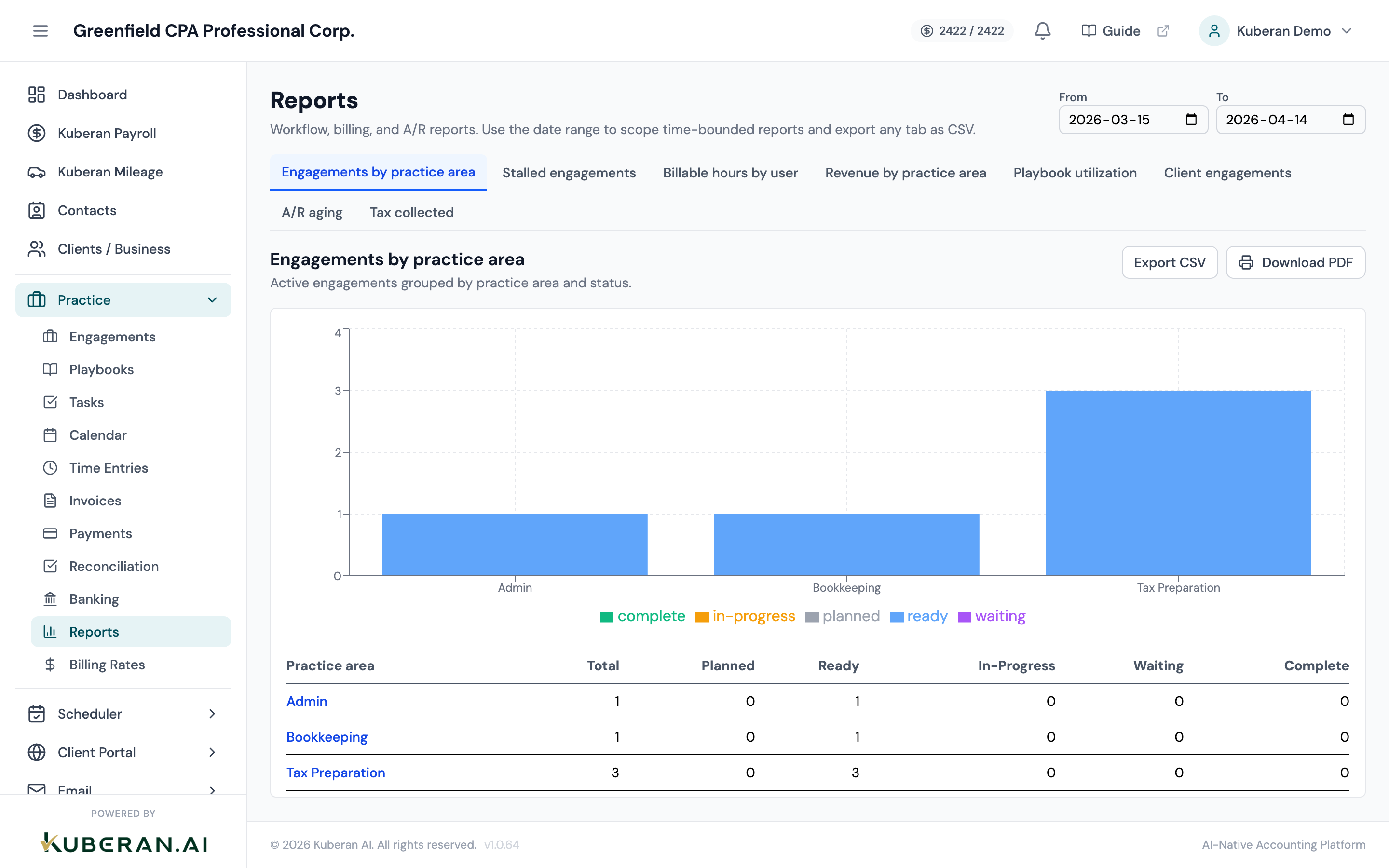
- (1) Tab bar — one tab per report (eight in total)
- (2) Global From/To date range in the header — applies to the four time-bounded reports
- (3) Threshold (days) input — appears only on the Stalled engagements tab
- (4) Export CSV button — downloads the active report's rows as CSV
- (5) Download PDF button — opens a server-rendered, firm-branded PDF of the active report
Screen Layout
Header: The report title and a global From / To date range. The date range scopes only the four time-bounded reports (see below); the other reports ignore it.
Tab bar: One tab per report. Switching tabs keeps the current date range.
Per-report controls: The Stalled engagements tab adds a Threshold (days) input. The Client engagements tab adds a client picker and loads on demand once a client is chosen.
Report body: The selected report’s table, with Export CSV and Download PDF buttons above it.
Reports
Engagements by practice area
Active engagements grouped by practice area, with a per-status breakdown (Planned, Ready, In-progress, Waiting, Complete).
Columns: Practice Area, Total, and a count for each status. Date range: Not applied.
Stalled engagements
Engagements that have sat in their current stage longer than the threshold you set (default 7 days).
Columns: Name, Client, Practice Area, Stage, Primary Status, Entered Stage At, Days In Stage. Controls: Threshold (days) input. Date range: Not applied.
Billable hours by user
Total hours per team member over the selected period, split into billable and non-billable, with the billable dollar value.
Columns: User, Total Hours, Billable Hours, Non-billable Hours, Total Amount. Date range: Applied.
Revenue by practice area
Invoice revenue attributed to practice areas via their linked engagements, for Practice-origin invoices in the period.
Columns: Practice Area, Invoice Count, Total. Date range: Applied.
Playbook utilization
How often each playbook is used and how long it takes to complete, for engagements created in the period (default range 90 days).
Columns: Playbook, Practice Area, Count, Completed Count, Avg Days To Complete. Date range: Applied.
Client engagements
All engagements for a single client, grouped by status, with billed and paid amounts and roll-up totals.
Columns: Name, Playbook, Practice Area, Primary Status, Due Date, Amount Billed, Amount Paid. Controls: Client picker (the report loads once a client is selected). Date range: Not applied.
A/R aging
Outstanding Practice invoices bucketed by how overdue they are: 0–30, 31–60, 61–90, and 90+ days.
Columns: Invoice Number, Customer, Issue Date, Due Date, Days Overdue, Amount Due, Bucket. Date range: Not applied.
Tax collected
The tax charged over the period, grouped by tax code.
Columns: Code, Jurisdiction, Taxable Base, Tax Amount. Date range: Applied.
UI Elements
Eight tabs: Engagements by practice area, Stalled engagements, Billable hours by user, Revenue by practice area, Playbook utilization, Client engagements, A/R aging, and Tax collected. Switching tabs retains the current date range.
A single global date range in the header. It scopes the four time-bounded reports — Billable hours by user, Revenue by practice area, Playbook utilization, and Tax collected. The other reports ignore it.
Appears only on the Stalled engagements tab. Sets how many days an engagement must have been in its current stage to count as stalled (default 7).
Appears only on the Client engagements tab. The report loads once you choose a client.
Downloads the active report’s rows as a CSV file. For time-bounded reports the current date range is included; for Stalled engagements the threshold is included.
Opens a server-rendered PDF of the active report in a new tab. The PDF is branded with your firm name in the header. As with CSV, the date range and stalled-days threshold are passed through where they apply.
Actions
Run a Report
- Click the report you want in the tab bar.
- If the report is time-bounded (Billable hours by user, Revenue by practice area, Playbook utilization, Tax collected), set the From/To range in the header.
- For Stalled engagements, set the Threshold (days). For Client engagements, choose a client from the picker.
- The report table refreshes automatically as you change these inputs.
Export a Report
- Open the report tab you want to export and set any date range, threshold, or client controls.
- Click Export CSV for raw data, or Download PDF for a firm-branded formatted report.
- The CSV downloads to your device; the PDF opens in a new tab where you can save or print it.
Related
- Time Entries — Source data for Billable hours by user
- Invoices — Source data for Revenue by practice area, A/R aging, and Tax collected
- Engagements — Source data for the workflow reports