
Settings — Phone Line
Overview
The Phone Line Settings screen configures the dedicated business phone number used by Kuberan AI for SMS messaging and (optionally) inbound calls. The phone number is provisioned through Twilio and appears as the caller ID / sender ID for all outbound SMS messages from your workspace. You can choose the area code to match your practice’s city, set up a voicemail greeting for missed calls, configure call forwarding to your office line, and control whether SMS is enabled for the number. This is a workspace-level setting — there is one phone number per workspace.
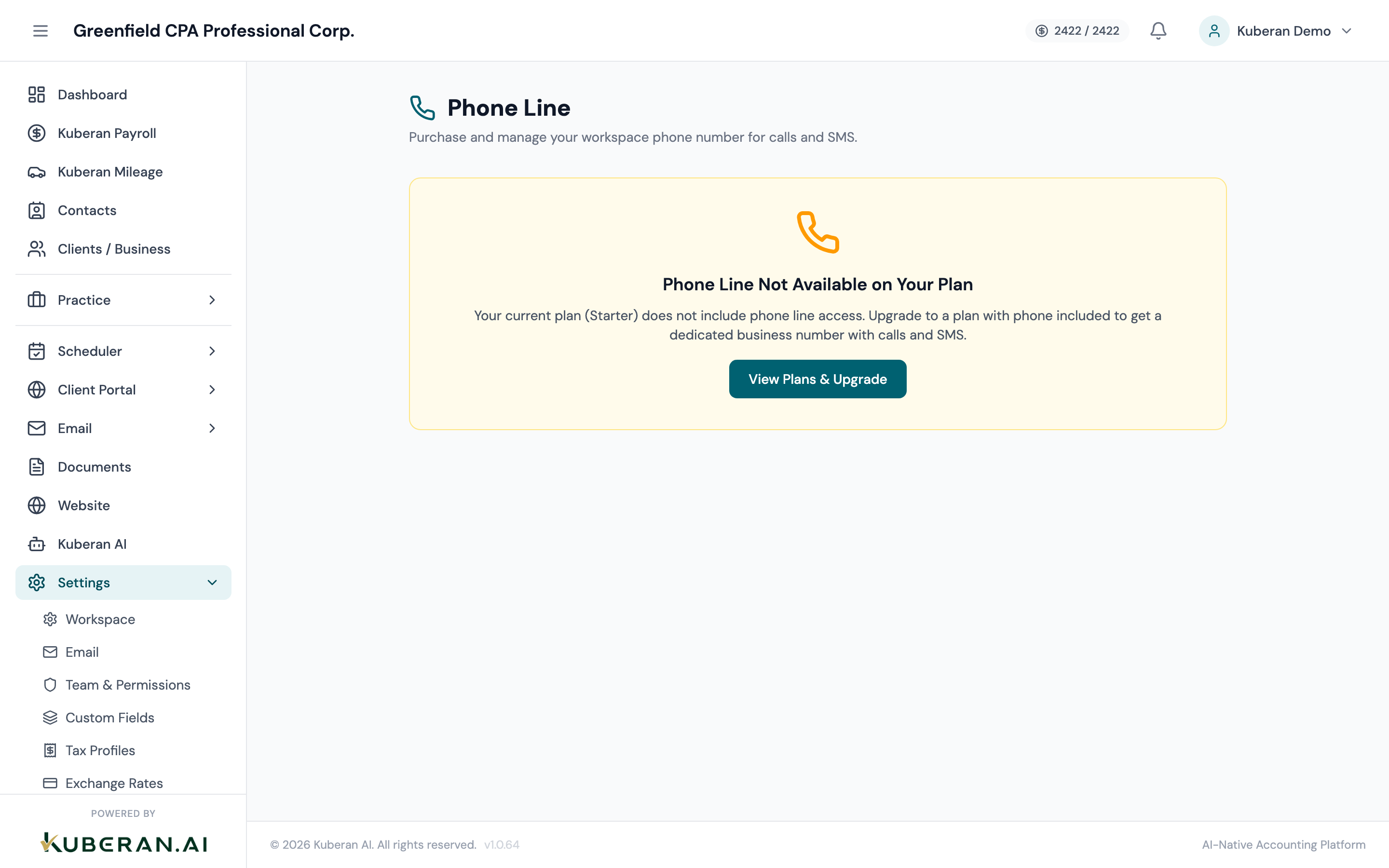
- (1) Provisioned phone number display
- (2) Change Number / Choose Area Code
- (3) Voicemail Greeting — record or upload
- (4) Call Routing — forward to office number
- (5) SMS Enabled toggle
Phone Number
Your workspace’s provisioned Twilio phone number in E.164 format (e.g., +1 416 555 0123). This number is used as the sender for all outbound SMS messages and is the number clients call or text to reach your practice through Kuberan AI.
When provisioning a new number or requesting a change, enter a Canadian area code to search for available numbers in that area. For example, enter 416 for Toronto, 604 for Vancouver, or 403 for Calgary. Kuberan AI searches available Twilio inventory and shows matching numbers to choose from.
Changing your number: If you change the provisioned number, the old number is immediately released and can no longer receive messages. Any clients who have the old number saved will need to be notified. Changing numbers is irreversible.
Voicemail Greeting
Configure the audio greeting played to callers who reach voicemail. Options:
- Text-to-Speech: Type a greeting message and Kuberan AI generates an audio file using a natural-sounding voice. Useful for getting set up quickly.
- Upload Audio: Upload an MP3 or WAV file of a pre-recorded greeting. Maximum file size 5 MB.
- Record in Browser: Use your computer’s microphone to record a greeting directly in the browser.
A good voicemail greeting includes: your practice name, a confirmation that the caller has reached the right number, and instructions for leaving a message or alternative contact options (e.g., “You can also text this number or send a message through your client portal.”).
When enabled, a notification is sent to your workspace (and optionally via email) whenever a new voicemail is received. The voicemail audio and a transcription are available in the Phone module.
Call Routing
When enabled, incoming calls to the Twilio number are forwarded to a phone number you specify (e.g., your office landline or your mobile). Enter the forwarding number in the field provided in standard format (+1 followed by 10 digits).
The phone number to forward calls to. Must be a valid Canadian or US number. Required when Call Forwarding is enabled.
The number of seconds to ring the forwarding number before falling back to voicemail. Default is 20 seconds. Adjust based on how quickly your office answers calls.
If Call Forwarding is disabled, inbound calls go directly to voicemail.
SMS
Master toggle for SMS functionality. When enabled, your provisioned number can send and receive SMS messages, which appear in the SMS Conversations and Bulk SMS modules. When disabled, the number cannot send or receive texts. Disabling SMS does not affect call functionality.
When enabled, clients can send picture messages (MMS) to your number. Images received via MMS appear in the conversation thread and can be saved to the Documents module. Requires SMS to be enabled.
Provisioning a Phone Number for the First Time
If your workspace does not yet have a phone number:
- Open Phone Line Settings. You will see a prompt to provision a number.
- Enter your preferred area code.
- Browse the available numbers and select one.
- Click Provision Number. The number is activated immediately.
- Configure the voicemail greeting, call routing, and SMS settings.
A provisioned phone number is billed at a small monthly rate through your Kuberan AI subscription (see Subscription Settings for current rates).
Tips
- Use a local area code. Clients are more likely to respond to SMS messages from a local number than from an unrecognised toll-free or out-of-area number.
- Enable call forwarding to your office line. This means clients who call the Kuberan AI number reach a live person rather than voicemail, which improves the client experience significantly.
- Do not use the Twilio number for personal calls. The number is a business line shared by the workspace. All calls and texts are logged in Kuberan AI and visible to any team member with the SMS permission.