
Email Inbox
Overview
The Email module brings your practice’s client email directly into Kuberan AI, so you can manage client correspondence alongside your accounting and payroll work without switching between tools. It connects to Gmail or Outlook via OAuth, meaning your emails stay in your existing email account — Kuberan AI reads and sends on your behalf. Emails are automatically linked to client records based on the sender’s email address. The module includes AI-assisted reply drafting, which reads the email thread and suggests a professional response that you can review and edit before sending.
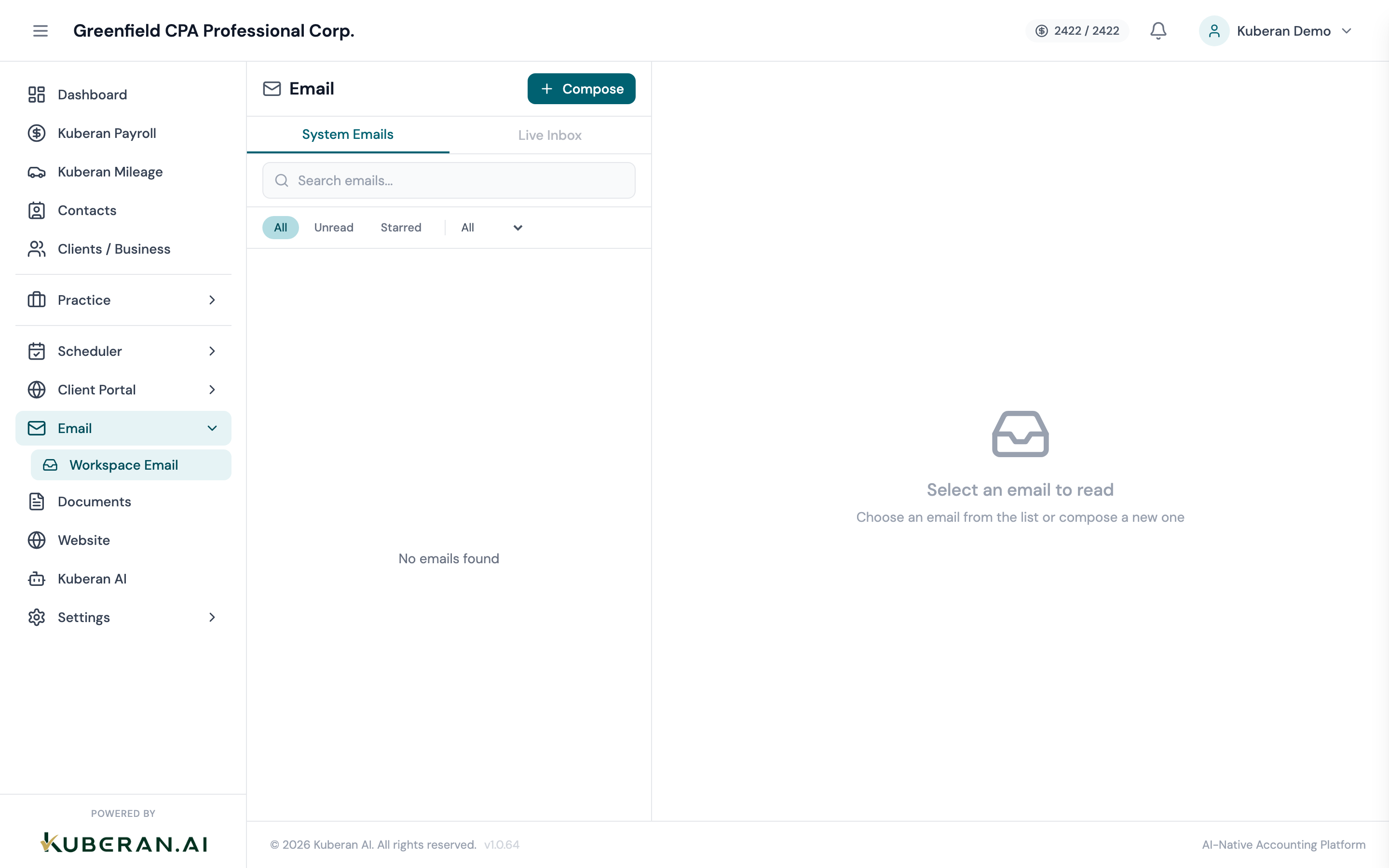
- (1) Conversation list — sender, subject, and timestamp
- (2) Integration status indicator — Gmail or Outlook connected
- (3) Label filter — filter conversations by label
- (4) Open thread on the right — full conversation history
- (5) AI Draft Reply button — generates a suggested response
- (6) Compose button — start a new email
Screen Layout
Left panel — Conversation list: Shows all email threads, sorted by most recent activity. Each row shows the sender’s name or email, the subject line, a snippet of the latest message, and the timestamp. Unread threads appear in bold. Labels appear as coloured pills next to the subject.
Right panel — Thread view: Shows the full email thread for the selected conversation, with the compose area at the bottom.
Integration Status
The top of the inbox shows whether your email account is connected. Gmail connected or Outlook connected (green) means emails are syncing normally. A red warning indicates an authentication error — click the badge to re-connect. Email integration is configured per user in the Profile & Integrations section of your account settings.
Each team member can connect their own email account. Emails sent from a team member’s account are associated with that team member in the conversation thread.
UI Elements
Conversation List
Unread conversations have a bold sender name and a blue dot on the left edge. Opening the conversation marks it as read.
If the sender’s email address matches a contact in your workspace, the contact’s name and a link to their record appears beneath the subject line. Click the link to open the contact’s record without leaving the email.
Coloured labels applied to the conversation. Labels are workspace-defined (e.g., “Urgent,” “Awaiting Docs,” “Tax Season”). Click the label icon on a conversation to add or remove labels. Use the label filter in the toolbar to show only conversations with a specific label.
Thread View
Opens the reply compose area below the latest message in the thread. Your email account’s signature is included automatically.
Reads the full email thread and generates a suggested reply. The draft appears in the compose area for your review. Edit freely before sending — the AI suggestion is a starting point, not a final answer. The AI is context-aware: it references client names, prior commitments mentioned in the thread, and common CPA practice communication norms.
Opens the forward compose area with the selected message quoted. Enter the recipient address and add any notes before sending.
Actions
Compose a New Email
- Click Compose in the top-left of the inbox.
- Enter the recipient’s email address. Kuberan AI will suggest contacts from your workspace as you type.
- Add a subject line and body.
- Optionally attach files from your computer or from the client’s Documents folder.
- Click Send or Save as Draft.
Apply a Label
Open any conversation. Click the label icon (tag icon) in the thread view toolbar. Select one or more labels from the dropdown or type a new label name to create it. Labels applied here are visible in the conversation list.
Filter by Label
Click the Labels dropdown in the toolbar of the conversation list. Select a label to show only conversations with that label. Click All Conversations to clear the filter.
Tips
- AI Draft Reply works best when the thread has context — a back-and-forth conversation with client details, questions, or requests. Single-line emails produce generic drafts; always review before sending.
- Shared inbox vs. personal inbox: The Email module shows conversations from the connected user’s inbox only. If your practice uses a shared inbox (e.g., info@yourpractice.ca), connect that account in Settings to have it appear here for all users with the Email permission.
- Email is not encrypted end-to-end through Kuberan AI — it uses your email provider’s standard security. Do not send SINs, full financial statements, or other sensitive documents directly in the email body. Use the Documents module and secure portal sharing instead.