
Vendors
Overview
The Vendors screen maintains a directory of all suppliers, contractors, and service providers associated with the client’s books. Each vendor record stores contact details, address, a business number / tax ID, payment terms, and tax-reporting flags for year-end 1099 (US) and T4A (Canada) reporting. Vendor records link to bills, purchase orders, vendor credits, and bank transactions, and the detail panel summarises how much has been spent with each vendor.
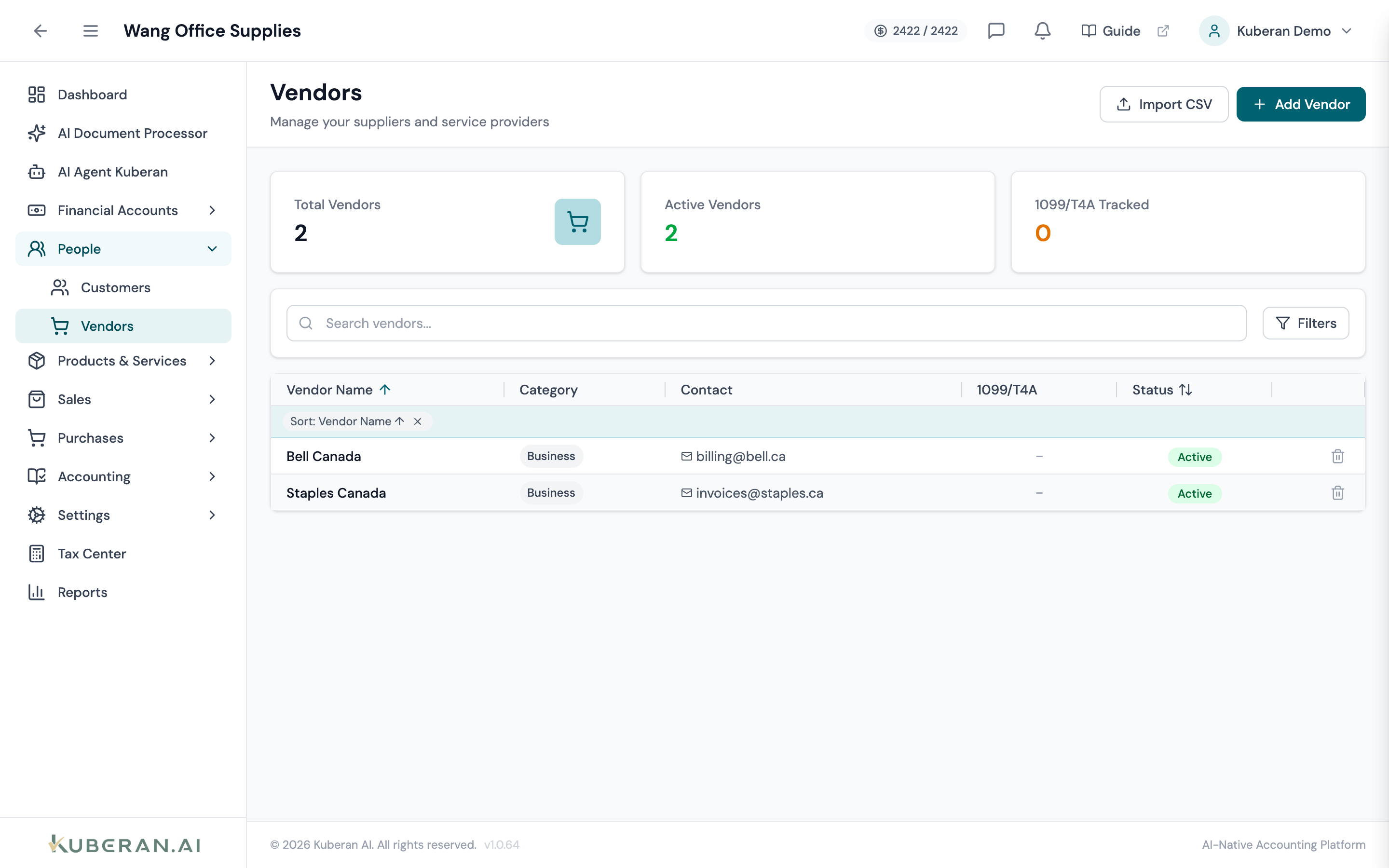
- (1) Add Vendor button — opens the New Vendor form
- (2) Search field — find vendors by name, display name, email, or phone
- (3) Summary cards — Total Vendors, Active Vendors, 1099/T4A Tracked
- (4) 1099/T4A column — shows which tax-tracking flags are set
- (5) Delete icon — removes the vendor, or marks it inactive if it has linked records
Screen Layout
Summary cards (top): Total Vendors, Active Vendors, and 1099/T4A Tracked.
Toolbar: Search field, an Import CSV button, an Add Vendor button, and a Filters toggle that reveals Status, Type, and Tax Tracking selects.
Vendor table (centre): Each row is one vendor. Columns: Vendor Name, Category, Contact, 1099/T4A, Status, and a delete action. Click any row to open the vendor detail panel.
UI Elements
Toolbar
Filters the list by vendor name, display name, email, or phone as you type.
Expands three selects: Status (All / Active / Inactive), Type (All Types plus each vendor type), and Tax Tracking (All / 1099 Tracked / T4A Tracked).
Bulk-import vendor records from a CSV file.
Opens the New Vendor form.
Table Columns
The vendor’s display name (and legal name beneath it). Click the row to open the vendor detail panel showing spend totals, recent activity, and editable info.
The vendor’s type label: Individual, Business, Supplier, Contractor, Service Provider, or Other.
The vendor’s email and phone.
Badges indicating whether the vendor is tracked for 1099 (US) and/or T4A (Canada) year-end reporting.
Active or Inactive.
Removes the vendor. If the vendor has linked records it is marked inactive instead of deleted (see below).
Vendor Detail Panel
Clicking a vendor row opens a slide-in detail panel (not a tabbed layout). It contains:
- Header: status and type badges, 1099/T4A badges, and a Delete button.
- Stat tiles: Total Spent, Avg per Txn, current-year spend, and prior-year spend.
- Recent Activity: a toggle between Transactions and Bills. Each bill row opens that bill in a new tab.
- Editable info tiles: Basic Information, Contact Information, Address, Tax & Business, and Notes. Each tile has an inline Edit control.
Vendor Type
Vendor classification, used for filtering and reporting: Individual, Business (default), Supplier, Contractor, Service Provider, or Other.
Tax Reporting
Flags the vendor for year-end 1099 reporting.
Flags the vendor for year-end T4A reporting for eligible contractors and service providers.
The vendor’s SIN, EIN, or Business Number, used for tax-slip reporting. A separate HST Number can be recorded in the Tax & Business tile when editing an existing vendor. Handle tax identifiers with care in accordance with PIPEDA and your firm’s privacy policy.
Payment Details
Default terms for this vendor: Due on Receipt, Net 15, Net 30, Net 45, or Net 60. Editable from the Tax & Business tile.
Preferred payment method: Cheque, EFT, Wire, Credit Card, E-Transfer, or Other.
Actions
Create a Vendor
- Click Add Vendor in the toolbar.
- Enter the Vendor Name (required) and optionally a Display Name and Type.
- Under Contact Information, add Email, Phone, and Website.
- Under Tax Reporting, tick Track for 1099 reporting (US) and/or Track for T4A reporting (Canada) if applicable, and enter the Business Number / Tax ID.
- Under Address, add Street, City, Province/State, Postal Code, and Country.
- Add any Notes and save.
Payment terms, payment method, and the HST number are set afterward by opening the vendor and editing the Tax & Business tile.
Edit a Vendor
Open the vendor detail panel and use the inline Edit control on any tile (Basic Information, Contact, Address, Tax & Business, or Notes) to change that section, then save.
Delete a Vendor
- Click the delete icon on the vendor row, or the Delete button in the detail panel.
- If the vendor has linked transactions, the confirmation dialog warns that it will be marked inactive instead of deleted (the confirm button reads Mark Inactive).
- If the vendor has no linked bills, purchase orders, or vendor credits, it is permanently deleted.
Related
- Bills — Create and pay vendor bills
- Vendor Payments — Pay outstanding bills
- Vendor Credits — Record credits owed by a vendor
- Bank Rules — Link bank rule actions to vendor records
- Reports — Expenses by Vendor report