
Journal Entries
Overview
The Journal Entries screen provides direct access to the general ledger through manual debit and credit entries. Most transactions in Kuberan AI create journal entries automatically (invoices, bills, bank categorisation, payments), but certain adjustments require manual entries: depreciation, accruals, prepaid expense amortisation, owner draws, opening balance entries, and year-end adjustments. Every entry must balance — total debits must equal total credits — before it can be posted. Entries can be saved as a Draft first, then posted later. A posted entry cannot simply be deleted; instead you void it, which — for a posted entry — automatically posts an offsetting reversal so the general ledger stays intact and auditable.
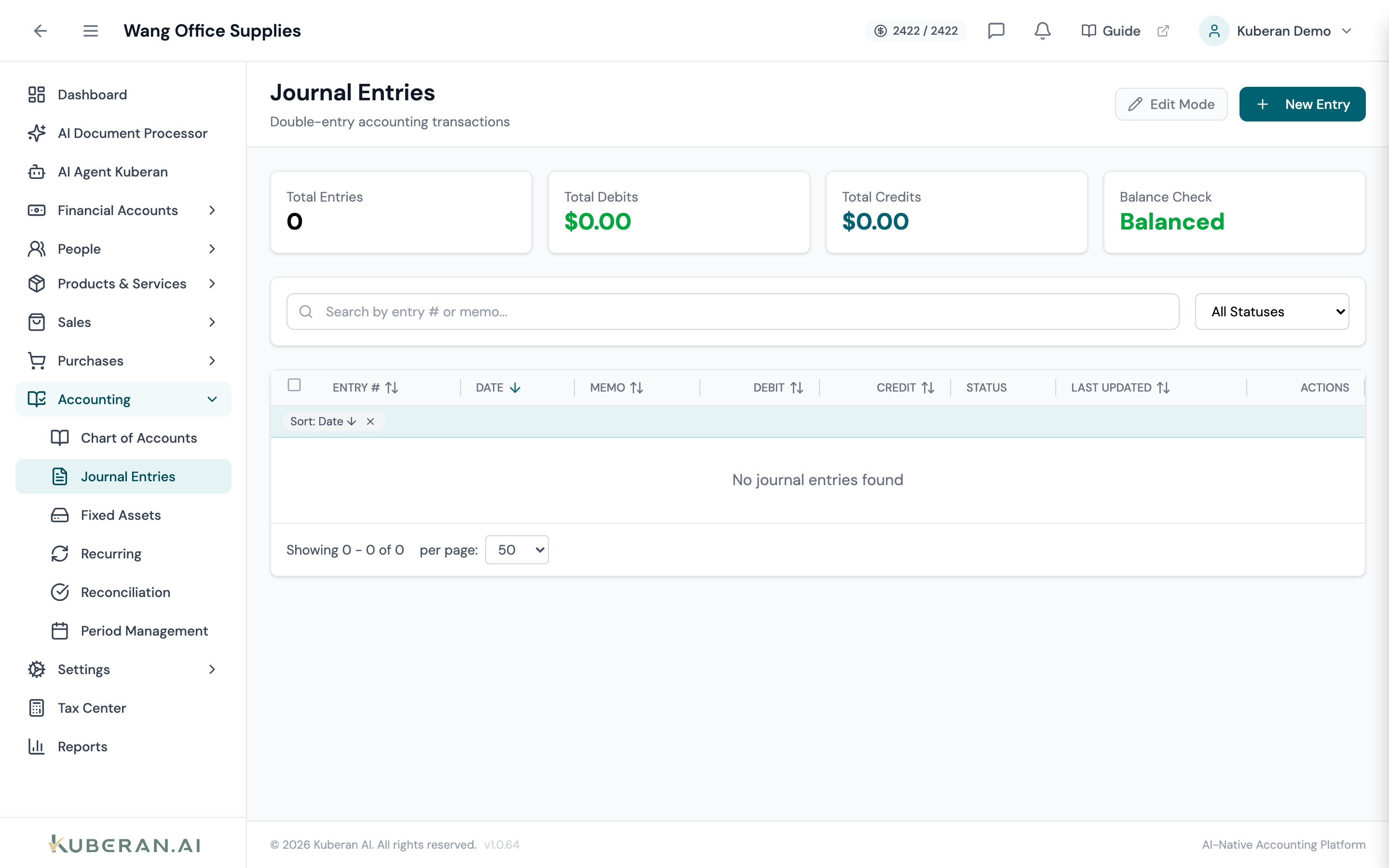
- (1) New Entry button — opens the New Journal Entry slide-panel
- (2) Entry # column — system-assigned reference (e.g. JE-0156)
- (3) Debit / Credit totals — must be equal for a posted entry
- (4) Status badge — Draft, Posted, or Void
- (5) Row actions — View, plus Edit/Post/Delete (drafts) or Void (posted)
Screen Layout
Header (top): An Edit Mode button (opens a spreadsheet-style bulk editor for draft entries) and a New Entry button.
Summary cards: Total Entries, Total Debits, Total Credits, and a Balance Check indicator (Balanced / Unbalanced across the loaded entries).
Filters: A search field and a status dropdown.
Journal Entry table (centre): One row per entry. Columns: Entry #, Date, Memo, Debit, Credit, Status, Last Updated, and Actions. Clicking a row opens the entry in a read-only view panel.
UI Elements
Header and Filters
Opens the New Journal Entry slide-panel.
Opens a spreadsheet-style editor for fast inline editing of multiple entries at once. Only Draft rows are editable; posted and void rows are read-only. Disabled when there are no entries.
Search by entry number or memo.
Filter by entry status: All Statuses, Draft, Posted, or Void.
Table Columns
System-assigned journal entry reference, shown as JE-<number>. The number is assigned when the entry is created, so drafts carry a number too.
The transaction date of the entry. This determines which accounting period the entry falls in.
A brief description of the entry’s purpose (e.g., “Depreciation — Equipment — December 2024”).
The sum of all debit lines in this entry.
The sum of all credit lines. For a posted entry, Debit equals Credit.
Draft (amber) — saved but not yet posted to the ledger; editable and deletable. Posted (green) — posted to the general ledger; account balances are updated. Void (grey) — the entry has been reversed/cancelled.
Timestamp of the most recent change to the entry.
Per-row actions. View is always available. Draft entries also show Edit, Post, and Delete. Posted entries show Void.
Bulk Actions
Select one or more Draft entries with the row checkboxes (only drafts are selectable). A bulk action bar appears with Post Selected and Void Selected.
New Journal Entry Panel
The New Journal Entry slide-panel contains:
- Date (required) — sets the accounting period the entry lands in.
- Memo — a short description of the entry.
- Lines — a grid with columns Account, Debit, and Credit, plus a per-line memo field directly beneath each line. Every entry needs at least two lines.
- Add Line — appends another line. A line can be removed with the × control once there are more than two lines.
- Totals footer — running Debit and Credit totals with a Balanced / Difference indicator.
- Notes — free-text internal notes.
- Save as Draft and Save & Post buttons (Save & Post is disabled until the entry balances).
The line Account picker
Each line’s Account cell is a single inline search. Click the cell and start typing — the picker filters your chart of accounts, grouped by account type (Asset, Liability, Equity, Income, Expense) with subgroups. Pick a match to fill the cell. If the account you need doesn’t exist yet, choose Add New at the bottom of the list to open the Add Account panel; the newly created account is selected back onto the line automatically.
A line may carry a debit or a credit, not both — entering an amount in one column disables the other for that line.
Standard Patterns
| Entry Type | Debit | Credit |
|---|---|---|
| Record depreciation | Depreciation Expense | Accumulated Depreciation |
| Accrue an expense | Expense Account | Accrued Liabilities |
| Record prepaid expense | Prepaid Expense (Asset) | Cash / Bank |
| Amortise prepaid | Expense Account | Prepaid Expense (Asset) |
| Owner draw | Owner’s Draw (Equity) | Cash / Bank |
| Correct a categorisation error | Correct Account | Incorrect Account |
Actions
Create a Journal Entry
- Click New Entry. The New Journal Entry panel opens.
- Set the Date. This places the entry in the corresponding accounting period.
- Enter a Memo that identifies the purpose of the entry.
- On the first line, click the Account cell, type to search, and pick the account (or Add New to create one). Enter either a Debit or a Credit amount, and an optional line memo.
- Click Add Line and complete at least one more line. The Totals footer must read Balanced before the entry can be posted.
- Add any Notes if needed.
- Click Save & Post to post the entry to the ledger immediately, or Save as Draft to save it for later. Posted entries update account balances right away.
Edit a Journal Entry
Draft entries can be edited freely. Posted entries can be edited only when they are manual, adjustment, or closing entries — auto-created entries (from invoices, bills, bank transactions, and so on) must be corrected by editing their source document instead.
- Open the entry and click Edit (drafts), or Edit on a posted manual/adjustment/closing entry.
- Editing a posted entry first shows a warning that the change will directly modify your financial records; you may enter an optional reason for edit, which is written to the audit trail.
- Adjust the date, memo, lines, or notes. The entry must still balance.
- Save. A posted entry keeps its status and entry number; the change is logged in the audit trail.
Void a Journal Entry
Voiding is how you cancel a posted entry. For a posted entry, voiding automatically posts an equal-and-opposite reversal (dated today) and marks the original as Void — the standard way to back out an accrual or correct a posted mistake. For a draft entry, voiding simply marks it Void without any reversal.
- Open a posted entry (or select drafts for a bulk void) and click Void.
- Confirm in the dialogue. For posted entries the message notes that a reversal entry will be created.
- The original is marked Void; for posted entries a linked reversal entry is posted.
Voiding is blocked if the original entry’s date falls in a locked period, and a reversal entry can’t itself be voided (undo by re-posting the original values as a new entry).
Delete a Draft Journal Entry
- Open or locate a Draft entry and click Delete.
- Confirm in the dialogue. Deletion permanently removes the draft.
Only draft entries can be deleted. Posted entries must be voided instead.
Related
- Chart of Accounts — Accounts available for journal entry lines
- Periods — Locked periods block edits, voids, and postings dated within them
- Reconciliation — Reconciled entries are locked against editing
- Reports — General Ledger and Trial Balance reflect all posted journal entry lines