
Received payments
Overview
The Received Payments screen records money received from customers and applies it against their open invoices. This is the accounts-receivable settlement step: a payment reduces the customer’s outstanding balance and clears (or partially clears) the receivable.
Each payment posts a journal entry that debits the deposit account (a bank account, or Undeposited Funds if you batch deposits) and credits Accounts Receivable. A payment can be applied to one invoice, split across several, or left unapplied as a credit on the customer’s account until you decide where it belongs. The list tracks how much of each payment has been applied versus how much is still floating.
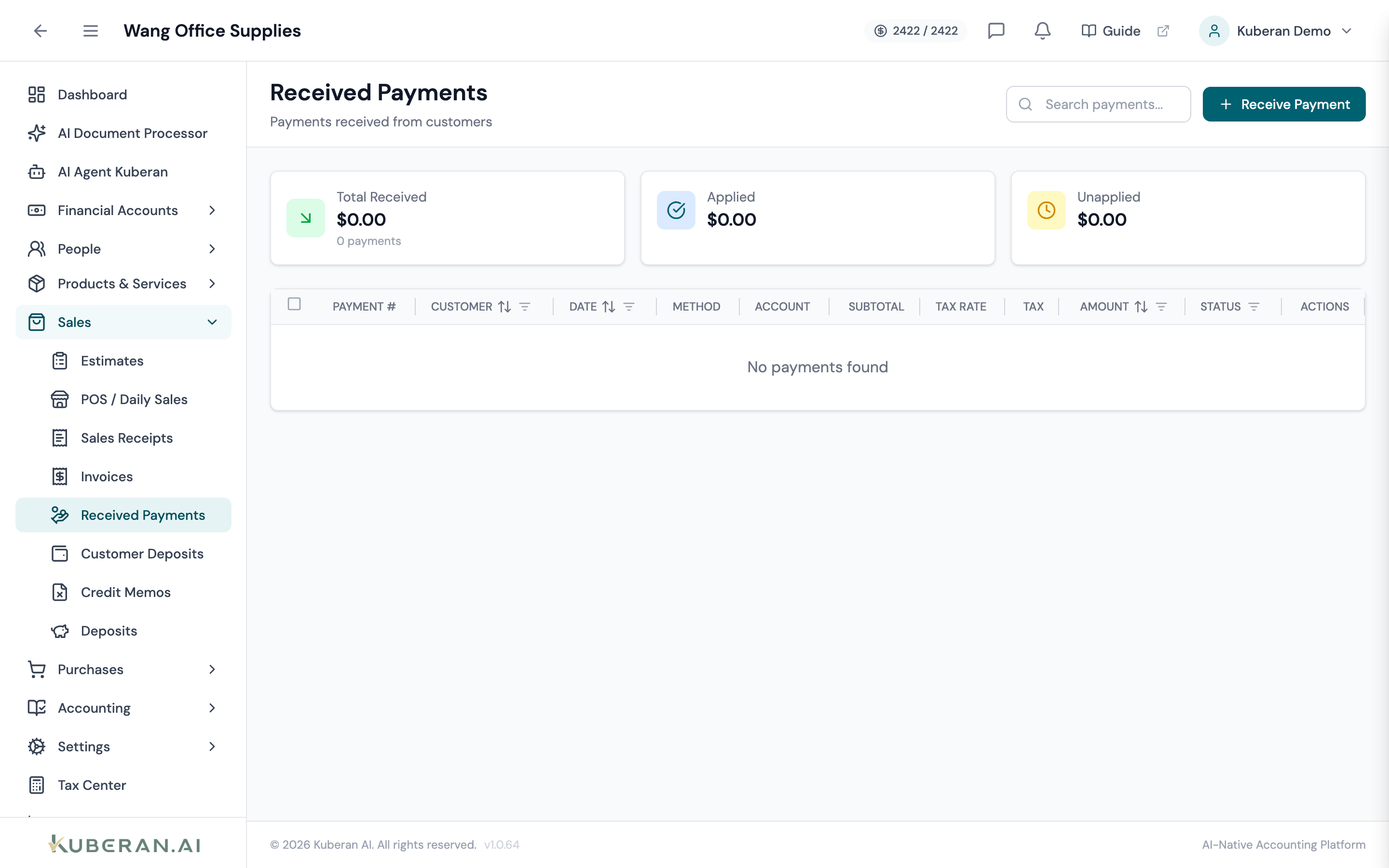
- (1) Summary cards — Total Received, Applied, Unapplied
- (2) Receive Payment button — opens the payment form
- (3) Status badge — Applied, Partial, Unapplied, or Void
- (4) Amount column — total payment received
- (5) Actions menu — view or void
Screen Layout
Summary cards (top): Total Received (amount + count), Applied (total applied to invoices), and Unapplied (total still floating).
Toolbar: Receive Payment button and a search field (by payment number, customer, or reference).
Payment table (centre): One row per payment. Columns: Payment #, Customer, Date, Method, Account, Subtotal, Tax Rate, Tax, Amount, Status, and Actions.
Statuses
| Status | Colour | Meaning |
|---|---|---|
| Applied | Green | Fully applied to invoices; nothing unapplied |
| Partial | Blue | Some of the payment is applied; a balance remains unapplied |
| Unapplied | Amber | Received but not yet applied to any invoice |
| Void | Grey | Reversed; the journal entry and all applications are backed out |
UI Elements
Toolbar
Opens the payment form to record a new customer payment.
Search by payment number, customer name, or reference. A Clear control appears when a search is active.
Table Columns
Auto-incremented payment number. Click to open the payment detail panel.
The deposit account the payment was received into (a bank account or Undeposited Funds).
The total amount received. The status badge shows how much of it has been applied.
Per-row actions: View and Void (non-void payments only). From the detail panel you can also Edit the revenue account, tax rate, memo, and reference.
Actions
Receive a Payment
- Click Receive Payment. The payment form opens.
- Select the Customer (required). Their open invoices load below.
- Enter the Payment Date and Amount received.
- Choose the Payment Method (Cash, Cheque, EFT, Credit Card, Bank Transfer, Other). If Cheque, a Cheque Number field appears.
- Choose Deposit To — a bank account, or Undeposited Funds if you will batch this with other receipts on a deposit.
- Under Apply to Outstanding Invoices, enter how much to apply to each open invoice. Leave amounts blank to keep the payment unapplied.
- Add a Memo if needed and click Receive Payment.
The receivable is reduced by each applied amount. If an invoice’s balance reaches zero it becomes Paid; a partial application makes it Partially Paid.
Apply or Re-apply Later
If you saved a payment unapplied (or only partly applied), reopen it from the list and apply the remaining balance against the customer’s invoices. The status moves from Unapplied → Partial → Applied as you allocate it.
Void a Payment
- Click ⋯ → Void on the payment row.
- Confirm. The journal entry is reversed and every invoice application is removed, restoring those invoices’ balances.
Received Payment vs Sales Receipt
A received payment settles an existing invoice (it touches Accounts Receivable). A sales receipt records a sale paid in full at point of sale, with no invoice and no receivable. Use received payments only when an invoice already exists.
Related
- Invoices — The receivables that payments are applied against
- Customers — Customer records and balances
- Deposits — Batch Undeposited Funds into a single bank deposit
- Sales Receipts — Paid-in-full sales with no receivable
- Customer Deposits — Advance payments held before an invoice exists
- Reports — AR Aging reflects applied and outstanding balances