
Payroll Dashboard
Overview
The Payroll Dashboard is the home screen for a single client’s payroll. It surfaces the information a payroll administrator needs at the start of each day — when the next pay run is due, how many employees are active, the total from the last pay run, and the amount of any upcoming CRA remittance. Quick action buttons let you jump directly into creating a pay run or recording a remittance payment without navigating away.
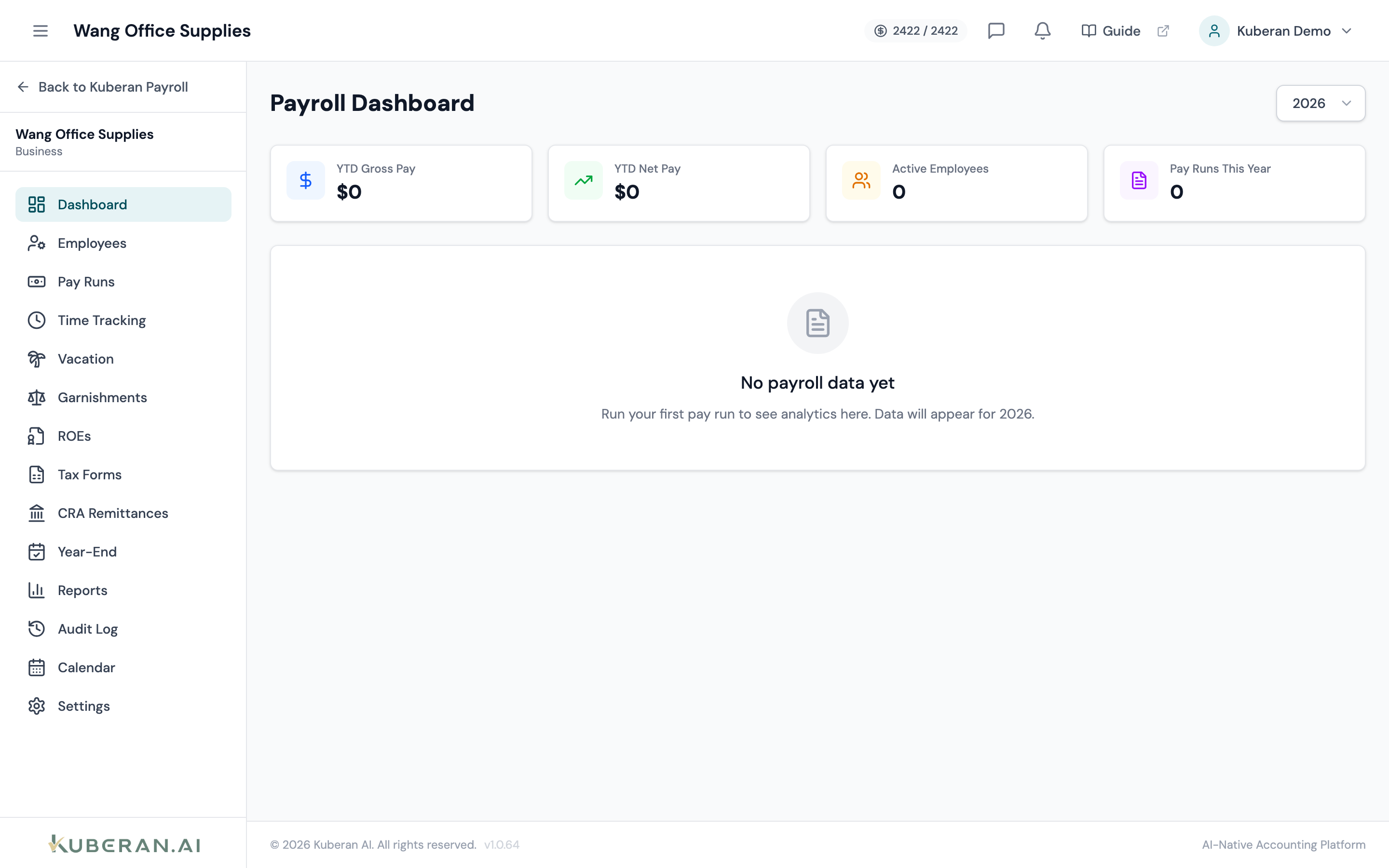
- (1) Next Pay Date card — shows days remaining
- (2) Active Employees card — count with link to employee list
- (3) Last Pay Run card — total net pay and date
- (4) Upcoming Remittance card — amount owing and due date
- (5) Quick Actions — Start Pay Run, Record Remittance
Screen Layout
The dashboard consists of a row of four summary cards followed by a quick actions bar and a recent pay history table.
Summary cards (top row): Next Pay Date, Active Employees, Last Pay Run, and Upcoming Remittance — each card is clickable and navigates to the related sub-page.
Quick Actions bar: Prominent buttons for the two most common payroll tasks.
Recent Pay History table: The five most recent pay runs shown inline, with a link to the full Pay Runs list.
Summary Cards
Next Pay Date
Displays the date of the next scheduled pay run based on the pay schedule configured in Payroll Settings. Also shows a countdown in days (e.g., “in 4 days”). If the pay period is overdue — meaning the pay date has passed and no pay run has been processed — the card highlights in amber as a reminder. Click the card to open Pay Runs.
Active Employees
The total number of employees currently in Active status. This count excludes terminated employees. Click the card to jump to the Employees list. A secondary line shows the count of employees on salary versus hourly, if applicable.
Last Pay Run
Shows the total net pay amount and the date of the most recently processed pay run. If no pay runs have been processed yet, this card shows “No pay runs yet.” Click the card to open the Pay Runs list.
Upcoming Remittance
Displays the total amount owing for the next CRA payroll remittance (CPP employer + employee, EI employer + employee, and income tax deducted) along with the remittance due date. The card highlights in red if the due date is within seven days or has passed. Click the card to open the CRA Remittances page.
Quick Actions
Opens the Create Pay Run flow. Kuberan AI pre-selects the current open pay period based on your pay schedule and pre-populates each active employee’s earnings. You can review and adjust before approving.
Opens the Record Remittance Payment form for the next outstanding remittance period. Enter the payment date, method (e.g., online banking, My Business Account), and confirmation number, then save.
Recent Pay History
The Recent Pay History table shows the last five pay runs in reverse chronological order. Each row displays:
- Pay period — the start and end dates of the period covered
- Status — Draft, Processing, Processed, or Voided
- Employees paid — the number of employees included in the run
- Total gross — gross pay before deductions
- Total net — net pay after all deductions
Click View All Pay Runs at the bottom of the table to navigate to the full Pay Runs list.
Tips
- If the Upcoming Remittance card shows $0 for a period in which you processed a pay run, check that the pay run status is Processed (not Draft). Only processed pay runs contribute to the remittance calculation.
- The Next Pay Date card only appears when at least one pay schedule is configured. Set up your pay schedule in Payroll Settings before processing your first pay run.
- The dashboard is scoped to the currently selected client. Use the breadcrumb at the top of the page to switch clients or return to the Payroll client list.