
Manage tasks
The Tasks screen is your firm’s unified work queue. Tasks are created inside individual engagements — manually on the engagement’s Tasks tab, or automatically through playbooks — and the Tasks screen brings them all together so managers can see the full picture: what is still open, what is overdue, what is unassigned, and who is carrying it.
Navigating to Tasks
In the left sidebar, click Practice, then click Tasks. Open Practice > Tasks
The screen opens on the My Tasks tab, showing the incomplete tasks assigned to you.
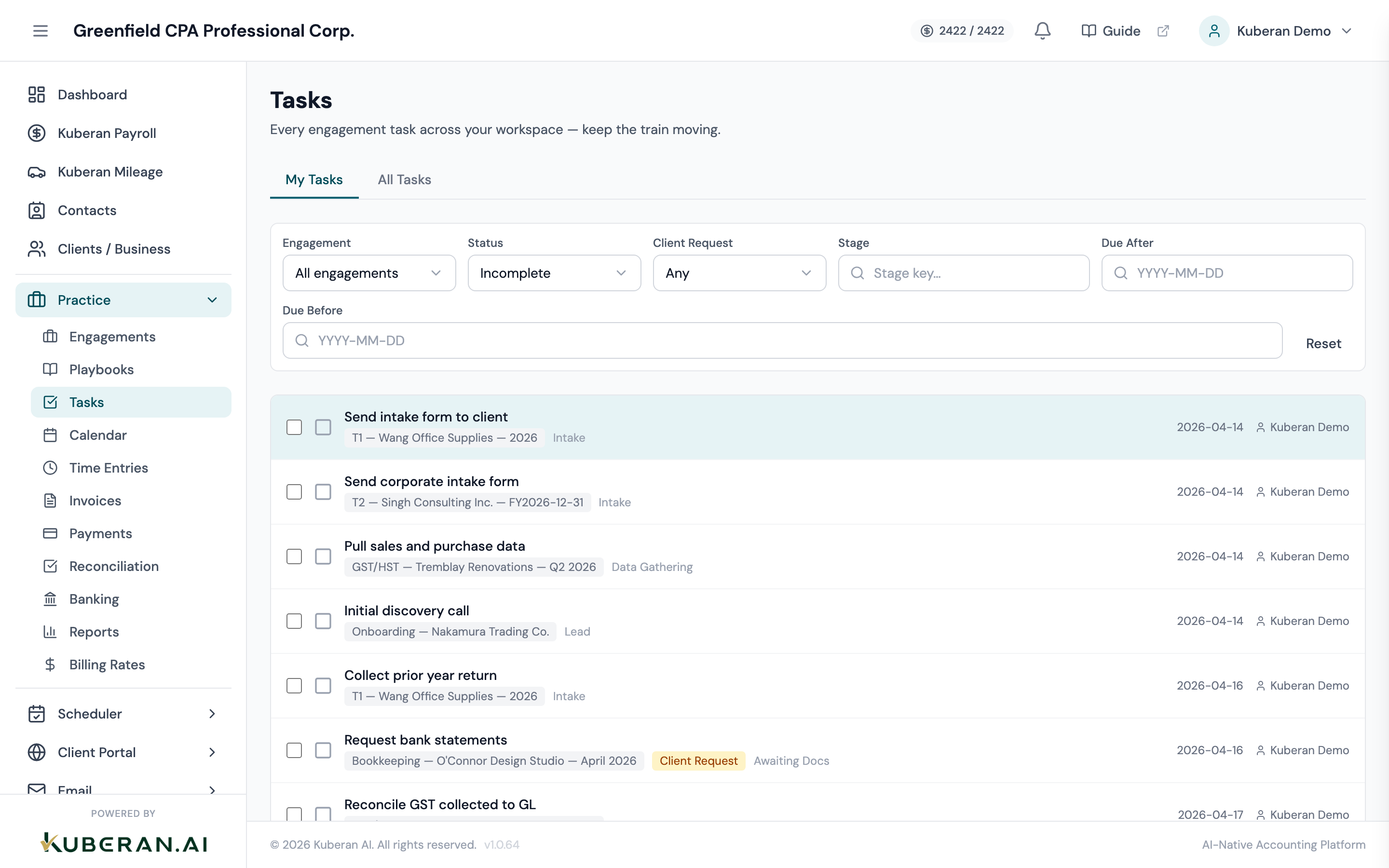
My Tasks vs All Tasks
Two tabs sit at the top of the list:
- My Tasks — only the tasks assigned to you. This is your personal daily queue and the default view.
- All Tasks — every task across the workspace, regardless of who it is assigned to. This is the manager’s firm-wide view.
Understanding the task list
Each row in the task list shows:
- Complete toggle — a checkbox-style icon at the far left; click it to complete or reopen the task
- Task name — what needs to be done (shown in strikethrough once complete)
- Engagement — a chip linking to the engagement (and client) the task belongs to
- Client Request badge — an amber badge when the task is flagged as the client’s responsibility
- Stage — the playbook stage the task belongs to, when set
- Due date — the task-level due date, when set
- Assignee — the team member responsible, when set
Click anywhere on a row to open its detail panel on the right, where you can edit every field.
Filtering the task list
The filter bar sits below the tabs. You can combine any of these:
| Filter | What it does |
|---|---|
| Engagement | Show only tasks belonging to one engagement |
| Status | Incomplete (default), Complete, or All |
| Client Request | Any, Client only, or Internal only |
| Stage | Match tasks by their playbook stage key |
| Due After | Tasks due on or after a date (YYYY-MM-DD) |
| Due Before | Tasks due on or before a date (YYYY-MM-DD) |
Keyboard shortcuts
The list supports quick keyboard navigation:
- j / k — move the selection down / up
- x — toggle the selected task complete
- enter — open the selected task’s engagement
Bulk completing tasks
To complete several tasks at once, tick the checkbox at the left of each row. A bulk action bar appears above the list showing the selected count.
- Click Mark Complete to complete every selected task.
- Click Clear to deselect.
Bulk complete is the only bulk action on this screen — reassigning and due-date changes are made one task at a time in the detail panel.
Adding and editing tasks
Adding a task
Tasks are always created inside an engagement, not on the Tasks screen. Open the engagement, go to its Tasks tab, and add the task there. It then appears on the Tasks screen automatically.
Editing a task
Click any row to open the detail panel. Every field edits inline and saves automatically (text fields when you click away, dropdowns and dates as you change them):
- Name and Description
- Status — Not Started, In Progress, Blocked, or Done
- Priority — Low, Medium, High, or Urgent
- Assignee — any workspace member, or Unassigned
- Due date
- Client Request flag
The panel also shows the parent engagement, a comments thread, and a quick Mark complete / Re-open button.
Marking a task complete
Click the complete toggle at the left of the row, press x while the row is selected, or use the Mark complete button inside the detail panel. Completed tasks drop out of the default Incomplete view; switch the Status filter to Complete or All to see them again.
Client requests
A task can be flagged as a client request — work the client is responsible for, such as uploading documents, signing a form, or supplying information, rather than firm work.
- When a client-request task is created inside an engagement, the client’s contact is emailed to let them know an action is required.
- The task then carries an amber Client Request badge in the list, and you can isolate these tasks with the Client Request = Client only filter.
- You can toggle the flag on or off later from the detail panel; toggling it there updates the badge without re-sending the email.
Integrating tasks with the calendar
Kuberan AI’s calendar shows tasks with due dates alongside engagements, deadlines, and scheduled events. To view tasks in the calendar:
- Go to Practice > Calendar
- In the calendar filters, enable Tasks
- Tasks with due dates appear on the calendar on their due date
Overdue tasks
Tasks past their due date are still work you owe. To find them, use the Due Before filter with today’s date (or an earlier one) while Status is set to Incomplete — the result is every open task that should already be done.
Managers should review overdue tasks regularly and either:
- Update the due date to a realistic future date if the work is still in progress
- Reassign or follow up with the assignee if the task has stalled
- Mark it complete if the work was done but the task was never checked off
Common questions
Can I create a task directly on the Tasks screen? No. The Tasks screen is a cross-engagement view. Create tasks on an engagement’s Tasks tab; they then appear here.
Is there a board or Kanban view? No. Tasks are shown as a list. Use the tabs, filters, and Status values (Not Started, In Progress, Blocked, Done) to organise your view.
Are completed tasks visible? Yes. They are hidden by default (the Status filter starts on Incomplete). Switch Status to Complete or All to see finished tasks.