
Payroll — Year-End Checklist
Overview
The Year-End Checklist guides you through the mandatory steps required to close out a payroll year for a client. Canadian payroll year-end involves reconciling all payroll totals against CRA remittance records, generating T4 slips for every employee, filing the T4 Summary with the CRA, and officially closing the year so that the new year’s payroll begins cleanly. Kuberan AI tracks the status of each step and prevents you from advancing until prerequisites are complete.
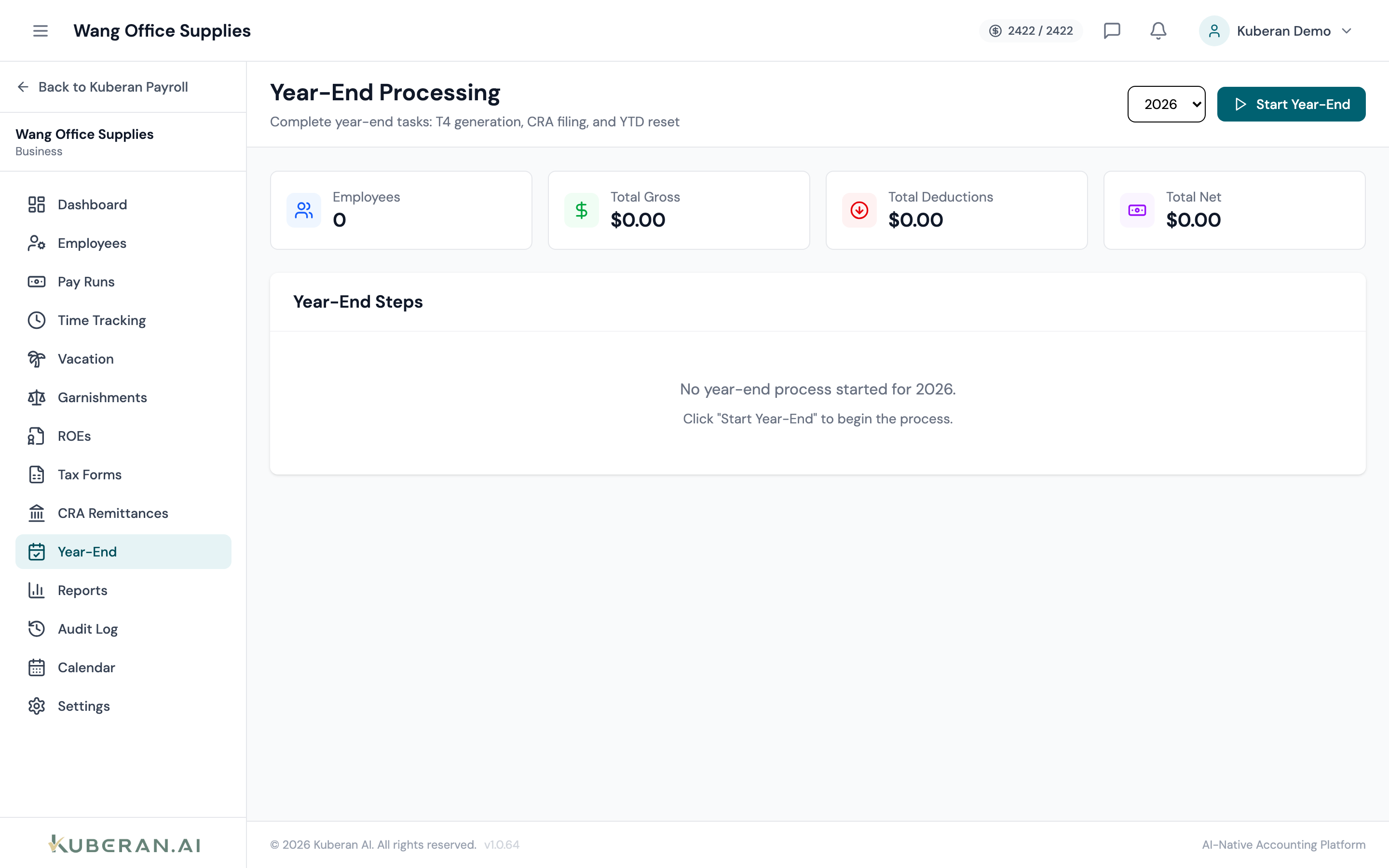
- (1) Year selector — choose the payroll year to close
- (2) Step 1 — Reconcile Payroll status indicator
- (3) Step 2 — Generate T4s status indicator
- (4) Step 3 — File T4 Summary status indicator
- (5) Step 4 — Close Payroll Year status indicator
Screen Layout
The checklist displays four sequential steps. Each step shows a status icon, a description, an action button, and an expandable details panel with step-specific information.
Status indicators:
- Grey circle — Not started
- Amber circle with exclamation — Requires attention (issues found)
- Blue spinner — In progress
- Green checkmark — Complete
Checklist Steps
Step 1 — Reconcile Payroll
Before generating T4s, confirm that every pay run for the year has been processed and that your total remittances match what the CRA expects.
What Kuberan AI checks:
- All pay runs for the year are in Processed status (no Drafts or voided runs with unresolved corrections)
- Total CPP remitted matches total CPP deducted across all pay runs
- Total EI remitted matches total EI deducted across all pay runs
- Total income tax remitted matches total income tax deducted
- No employees have CPP or EI over-deductions (year-end balancing may be required)
Click Run Reconciliation to trigger the check. A reconciliation report is generated showing any discrepancies. Resolve each discrepancy before proceeding — this may involve recording a missed remittance, voiding and correcting a pay run, or issuing a year-end adjustment pay run.
Downloads a detailed reconciliation report showing the per-employee and per-period breakdown of CPP, EI, and income tax. Useful for CRA audit defence and internal review.
Step 2 — Generate T4s
Once reconciliation is complete, generate T4 slips for all employees.
- Click Generate T4s. Kuberan AI creates a Draft T4 for every employee who received remuneration during the year.
- Review each T4 in the Tax Forms screen. Pay particular attention to employees who hit the annual CPP or EI maximum mid-year — their deductions should stop at the maximum.
- Distribute T4s to employees. T4s must be given to employees by the last day of February.
Step 2 is marked complete once at least one T4 exists in Filed status for the year.
Step 3 — File T4 Summary
The T4 Summary (form T4SUM) consolidates totals from all T4 slips and must be filed with the CRA. Employers with more than one employee are required to file electronically via My Business Account or a third-party transmitter.
- Click Generate T4 Summary to compile the T4SUM form.
- Review the totals — they should match your reconciliation report from Step 1.
- Click Download T4 Summary PDF to get the form, or click File with CRA to transmit electronically (requires CRA credentials in Payroll Settings).
- After filing, click Mark T4 Summary as Filed to advance this step.
Step 4 — Close Payroll Year
Closing the year archives all payroll data for the completed year and rolls forward the following year’s pay schedule, TD1 amounts, and employee records.
- Click Close Payroll Year.
- Review the summary of what will be archived.
- Confirm by clicking Close Year.
Closing the year is permanent. All processed pay runs and T4 data for the closed year become read-only. New pay runs can only be created against the new open year.
Tips
- Do not close the year until you are certain all amendments are complete. Once closed, corrections must be handled through amended T4 slips filed separately with the CRA.
- Year-end adjustments for CPP over-deductions must be handled in a year-end adjustment pay run before closing. Employees who turned 18 or 70 mid-year may have had excess CPP deducted.
- Keep the reconciliation report on file for at least six years. The CRA may request it during a payroll audit.