
Settings — Subscription
Overview
The Subscription Settings screen shows your current Kuberan AI plan, what is included, and how much of your plan’s limits you have used. From here you can upgrade to a higher tier, downgrade to a lower tier, update your payment method, view your billing history, and cancel your subscription. Only the workspace Owner can access this screen. All billing is processed in Canadian dollars.
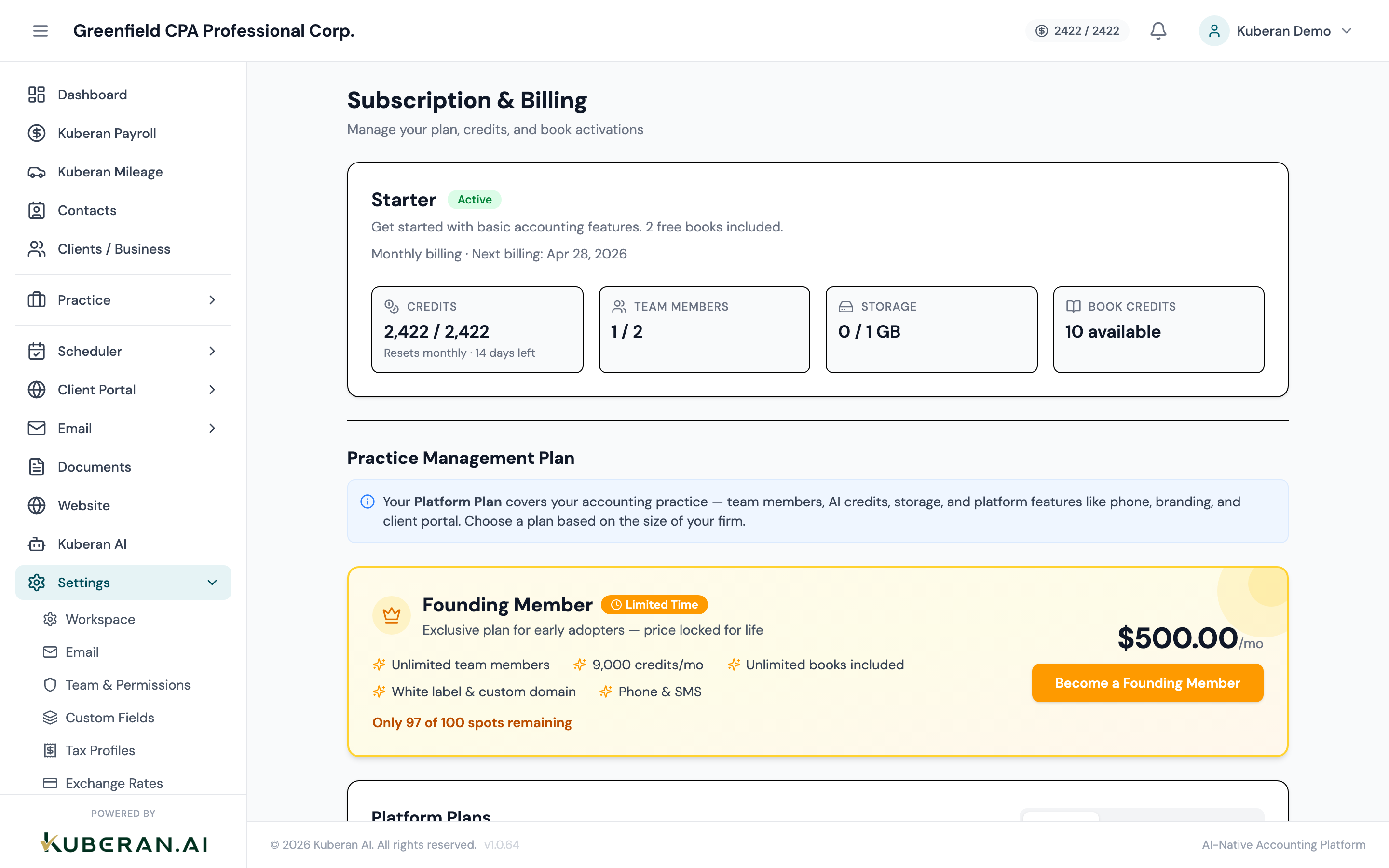
- (1) Current plan name and monthly price
- (2) Usage meters — clients, team members, storage
- (3) Upgrade / Downgrade Plan button
- (4) Billing History table
- (5) Payment Method section
Current Plan
The name of your current subscription tier (e.g., Starter, Professional, Firm). Displays alongside the monthly or annual price and the renewal date.
Shows whether you are billed Monthly or Annually. Annual billing typically offers a discount compared to month-to-month. The next billing date is shown here.
Usage Metrics
Usage meters show how much of each plan limit you have consumed in the current billing period. Meters update in real time.
The number of client records with Active status against the plan’s client limit. Archived clients do not count towards the limit. If you approach the limit, a warning banner appears on the Dashboard.
The number of active workspace users (any role) against the plan’s seat limit. Revoked users do not count.
The total file storage used across all documents in your workspace, against the storage limit. Shown in GB. If you exceed the storage limit, new file uploads are blocked until you either upgrade or delete unused files.
The number of SMS message segments sent in the current billing month against the plan’s SMS allotment. Overage charges apply if the limit is exceeded (see Overage Rates below).
Upgrade or Downgrade
- Click Change Plan.
- A plan comparison table is shown, highlighting what is included at each tier.
- Select the desired plan.
- Upgrading: The difference in price is prorated for the remainder of the current billing period and charged immediately to the payment method on file. New limits take effect immediately.
- Downgrading: The new lower price takes effect at the start of the next billing period. Your current limits remain until then. If your current usage exceeds the lower plan’s limits, you are prompted to reduce usage before the downgrade takes effect.
- Confirm the change.
Billing History
The Billing History table shows every invoice generated by Kuberan AI for your workspace subscription, in reverse chronological order. Each row shows:
- Invoice Date — the date the invoice was generated
- Amount (CAD) — total charged including any overage fees
- Status — Paid, Unpaid, or Refunded
- Download — link to download the invoice PDF
Click Download on any row to get a PDF invoice for your practice’s accounting records.
Payment Method
Shows the card type and last four digits of the credit or debit card currently on file, along with the expiry date. Payments are processed securely through Stripe.
Opens a secure Stripe-hosted payment form to enter new card details. The new card is saved and used for the next billing cycle. The old card is removed.
Cancellation
- Scroll to the bottom of the Subscription Settings screen and click Cancel Subscription.
- A prompt asks you to confirm and explains what happens at cancellation.
- Confirm the cancellation.
What happens when you cancel:
- Your subscription remains active until the end of the current billing period.
- After the billing period ends, your workspace enters a read-only state for 30 days — you can log in and export data but cannot make changes.
- After the 30-day grace period, the workspace and all its data are permanently deleted.
Data export is strongly recommended before cancellation. Use the Export All Data button (available in the cancellation flow) to download a full backup of your clients, contacts, documents, and financial records.
Tips
- Annual billing saves money. If your practice is established and you are confident in using Kuberan AI long-term, switching to annual billing typically provides a 10–20% discount compared to monthly.
- Check usage before downgrading. If your current active client count is close to the lower plan’s limit, downgrading could lock you out of adding new clients unexpectedly. Review usage carefully before confirming.
- Billing is in CAD. All prices, invoices, and charges are in Canadian dollars. If your practice operates in USD, currency conversion is handled by your card issuer at their rate.