
Payroll — Records of Employment (ROE)
Overview
A Record of Employment (ROE) must be issued whenever an employee experiences an interruption of earnings — most commonly when they are terminated, laid off, or take a leave of absence. The ROE is the document that determines an employee’s eligibility for Employment Insurance benefits, so accuracy is critical. Kuberan AI pre-fills the ROE form from payroll data, including insurable hours, insurable earnings, and the final pay information. From this screen you can create ROEs, submit them electronically to Service Canada, and file amendments when corrections are needed.
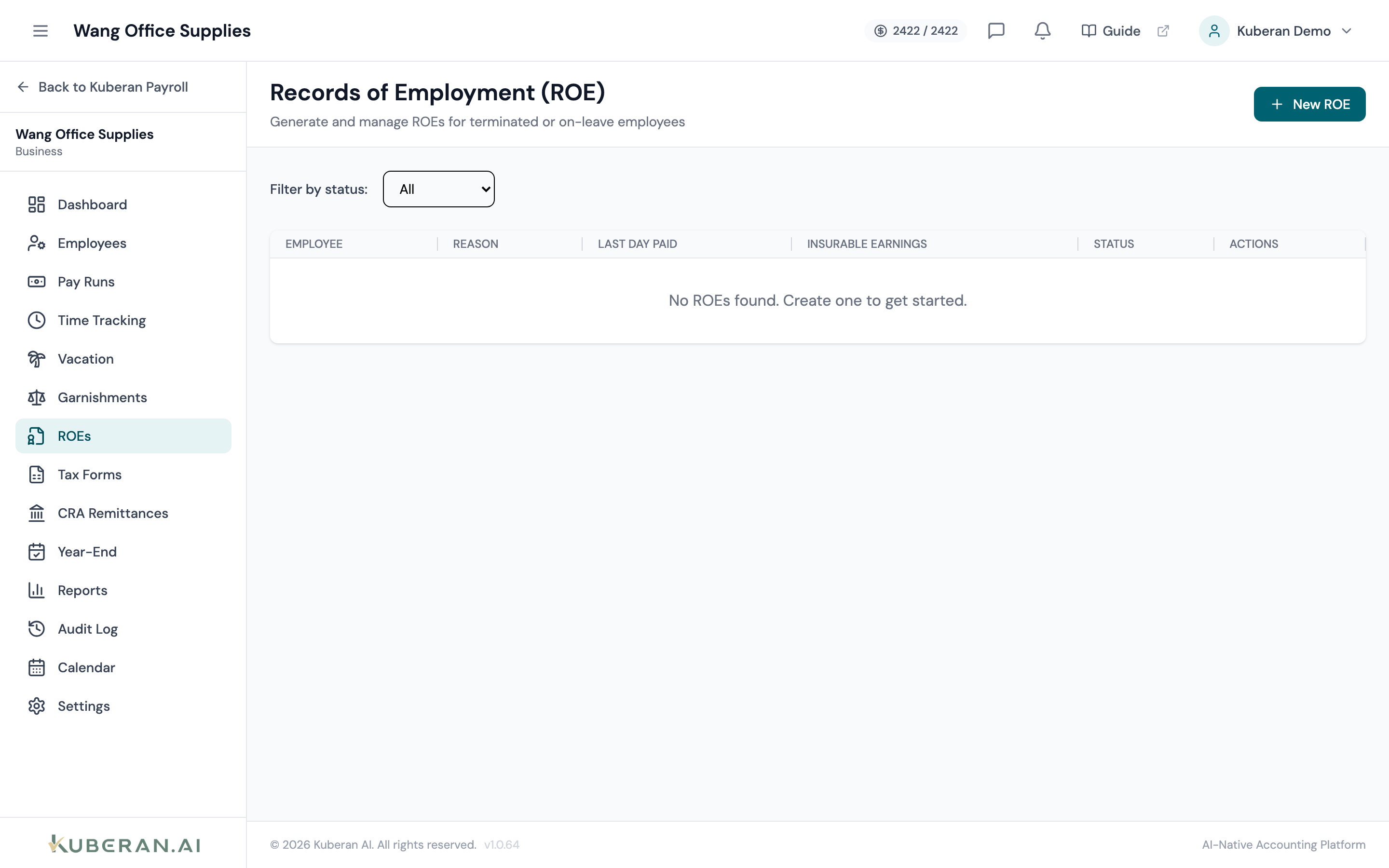
- (1) Create ROE button
- (2) Employee name
- (3) Reason for separation code (e.g., A — Shortage of Work)
- (4) First day worked and last day paid
- (5) Insurable earnings total and submission status
Screen Layout
Toolbar (top): Create ROE button and a year filter.
ROE table: One row per ROE showing the employee, reason for separation, first day worked, last day worked, total insurable earnings in the reference period, and current status.
Table Columns
The employee’s full legal name as recorded in their employee profile. Clicking the name opens the employee record.
The Service Canada separation code. Common codes include: A (Shortage of Work / End of Contract), B (Strike or Lock-out), D (Illness or Injury), E (Quit), K (Other), M (Dismissal), N (Leave of Absence), P (Parental). Kuberan AI prompts you to select the code when creating the ROE.
The employee’s very first day of work for this employer, as recorded in their employee profile start date.
The last date the employee was paid (Block 11 on the ROE form). This is often different from the last physical day worked when vacation pay is paid out at termination.
The total insurable earnings in the 52-week reference period (or since the employee’s hire date if shorter). This amount is calculated from pay run data and is used by Service Canada to determine EI benefit amounts.
Draft — created but not yet submitted. Submitted — electronically filed with Service Canada. Amended — a correction has been filed after the original submission.
Actions
Create an ROE
- Click Create ROE in the toolbar.
- Select the employee from the dropdown. Only terminated or separated employees appear in this list; if the employee is still active, terminate them first via the Employees screen.
- Kuberan AI pre-fills Blocks 10 through 17 from payroll data:
- Block 10 — First day worked
- Block 11 — Last day for which paid
- Block 12 — Final pay period ending date
- Block 15A/B — Total insurable hours and earnings in the reference period
- Block 17C — Vacation pay
- Select the reason for separation (Block 16).
- Add any notes or special amounts (e.g., severance, statutory holiday pay) in the relevant blocks.
- Review the pre-filled data carefully, make corrections as needed, and click Save ROE.
Submit to Service Canada
- Open the ROE in Draft status and review all blocks.
- Click Submit to Service Canada.
- Kuberan AI transmits the ROE electronically via the Service Canada Web Service. A confirmation number is returned and stored against the ROE record.
- The ROE status changes to Submitted. Service Canada typically makes the ROE available to the employee within 24–48 hours.
Electronic submission through ROE Web requires that the client’s Service Canada credentials are configured in Payroll Settings. If credentials are not set up, you can download a PDF ROE and submit it manually via your Service Canada account.
Amend an ROE
- Find the submitted ROE and click Amend in the Actions menu.
- Correct the block(s) that require updating. The amendment form highlights changed fields.
- Enter the reason for the amendment.
- Click Submit Amendment. Service Canada replaces the original ROE with the amended version.
Tips
- Issue the ROE promptly. The ROE must be issued within 5 calendar days of the interruption of earnings, or within 5 calendar days of the first pay day after the interruption. Late ROEs can delay the employee’s EI benefits.
- Insurable hours (Block 15A) must include all hours worked, including overtime and statutory holiday hours. Kuberan AI tallies these from hourly time entries; salary employees are assigned a default of 35 or 40 hours per week — confirm which applies before submitting.
- Serial numbers are assigned by Service Canada. Do not create a new ROE to replace an error — always use the Amend function to preserve the serial number chain.