
Scheduler Settings
Overview
Scheduler Settings controls everything about how your practice’s appointment booking system behaves. It defines when your office is open, what services clients can book, how much notice is required for online bookings, and whether appointments are separated by buffer time. The online booking page — accessible to clients through a link you share — pulls all of its configuration from this settings screen. Most settings take effect immediately; changes to business hours or services are reflected on the booking page within seconds.
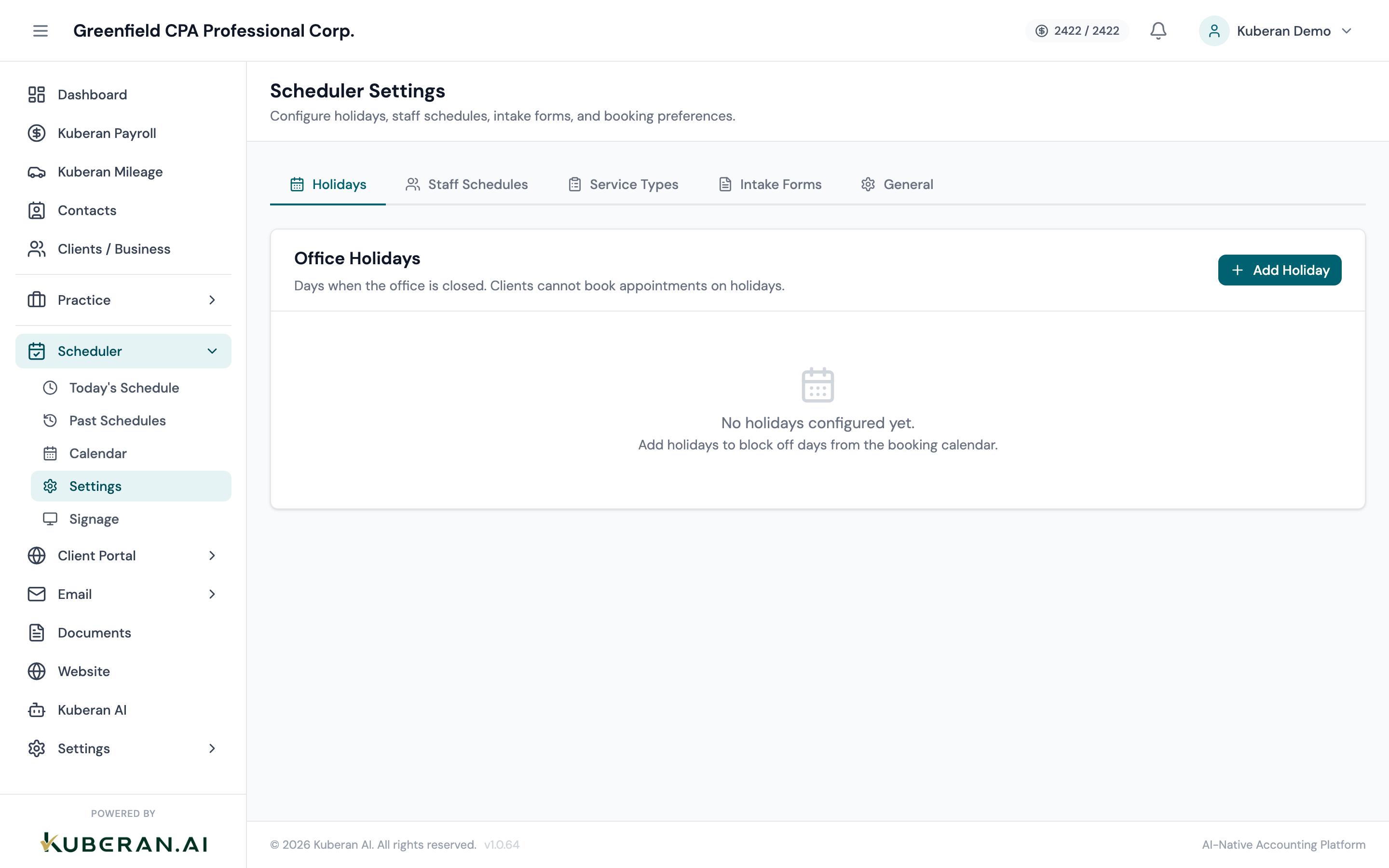
- (1) General tab — booking lead time and buffer settings
- (2) Business Hours tab — open hours per day of the week
- (3) Services tab — service list with duration, price, and colour
- (4) Online Booking tab — booking page URL and availability rules
General
The minimum number of hours in advance that a client must book an appointment online. For example, a lead time of 24 means clients cannot book any appointment starting within the next 24 hours — they would need to call or walk in for same-day bookings. Set to 0 to allow immediate online bookings.
The number of minutes automatically added between consecutive appointments. For example, a 15-minute buffer means that if one appointment ends at 10:00 AM, the next available slot is 10:15 AM. Buffers appear as blocked time on the calendar and are not bookable by clients. Set to 0 for back-to-back appointments.
The minimum number of hours of notice required for a client to cancel an appointment via the portal. Cancellations with less notice than this threshold prompt a warning message on the portal, though cancellation is still permitted.
When enabled, Kuberan AI shows a confirmation prompt when you attempt to create an appointment that overlaps with an existing one for the same staff member. Does not block the booking — it is a soft warning only.
Business Hours
The Business Hours tab defines your office’s open hours for each day of the week. These hours determine which time slots are shown as available on the online booking page.
Enable or disable each day of the week. Disabled days (e.g., Sunday) are shown in grey on the calendar and are not bookable online.
Set the start and end time for each enabled day. For example, Monday 9:00 AM to 5:00 PM. You can set different hours for different days. Lunch breaks can be modelled by adding a specific service or blocked time slot, rather than splitting the business hours.
Services
Each service in the list represents a type of appointment that clients can book. Services appear as options on the online booking page and are used to colour-code appointments in the calendar.
Opens the New Service form.
New Service form fields:
| Field | Description |
|---|---|
| Name | The service name as it appears to clients on the booking page (e.g., “Initial Tax Consultation,” “T1 Return Review”). |
| Duration | The default length of the appointment in minutes. Clients see this when booking. |
| Price | The price displayed on the booking page. Set to $0 for complimentary services or leave blank to show “Contact for pricing.” |
| Colour | The colour used for this service type in the calendar view. Choose a distinct colour for each service to make the calendar easy to read at a glance. |
| Description | An optional description shown to clients on the booking page explaining what the service includes. |
| Active / Inactive | Inactive services are hidden from the booking page and from the new appointment form. Use this to temporarily remove a service without deleting it. |
Online Booking
The public URL of your practice’s booking page (e.g., yourbookings.kuberanai.com/your-practice). Share this link on your website, in email signatures, or in SMS messages to allow clients to book appointments directly. The page is always live; you can temporarily hide services by setting them to Inactive.
Master toggle to enable or disable all online booking. When disabled, the booking page shows a message that online booking is currently unavailable. Existing appointments are unaffected.
When enabled, clients must provide a phone number when booking online. Useful for SMS appointment reminders.
A short message shown to clients after they successfully book an appointment online. Use this to set expectations (e.g., “Please bring two pieces of ID and your most recent Notice of Assessment.”).
Tips
- Buffer time is your friend. A 10–15 minute buffer prevents back-to-back appointments from running together and gives staff time to complete notes and prepare for the next client.
- Service pricing on the booking page is for informational purposes only — it does not create an invoice automatically. You still need to create invoices manually or through the engagements module.
- Update business hours for tax season. If your office has extended hours from February to April, update the Business Hours tab accordingly so the online booking page reflects the correct availability.