
Chart of Accounts
Overview
The Chart of Accounts (CoA) is the master list of all financial accounts used in a client’s double-entry ledger. Every transaction, bank import, invoice, and bill maps to one or more accounts here. Accounts are grouped into six top-level types — Assets, Liabilities, Equity, Income, Cost of Goods Sold, and Expenses — and each account carries a sub-type that drives its placement on the financial statements. Accounts can be nested as parent and sub-accounts (a sub-account must share its parent’s type). Account numbers can be assigned to match the client’s existing numbering convention. Each account can also carry a GIFI code so the books map cleanly to the client’s T2 / T2125 tax return. A new client file can be seeded with a standard set of accounts (each with GIFI codes already assigned); accounts can be added, edited, or deactivated at any time.
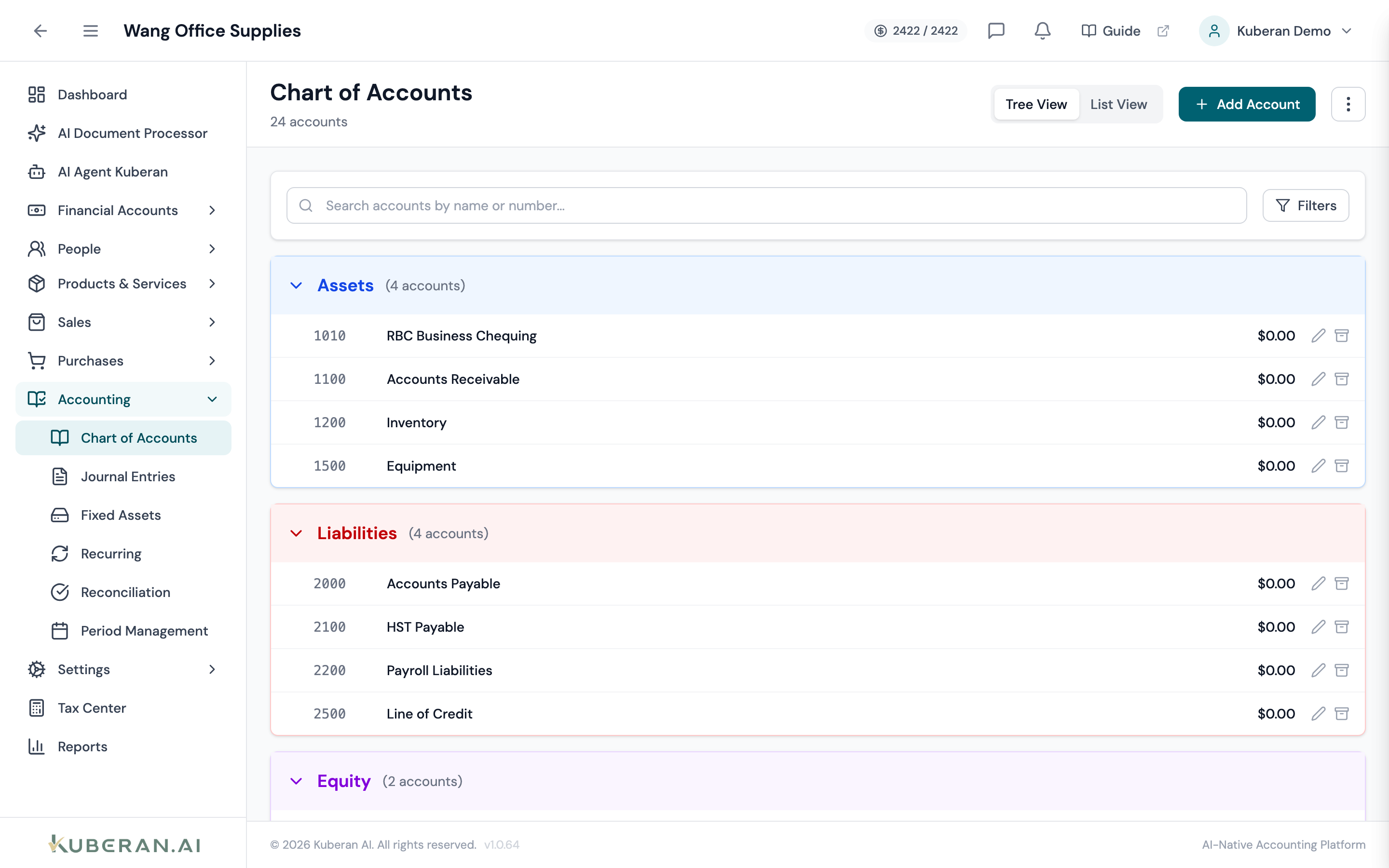
- (1) Type sections — Assets, Liabilities, Equity, Income, COGS, Expenses collapsible groups
- (2) Account number column — optional numbering for account identification
- (3) Sub-account indentation — child accounts are visually nested under parents
- (4) Balance column — current balance for each account
- (5) Add Account button — add a new account to the hierarchy
Screen Layout
Header (top): The Tree View / List View toggle, the Add Account button, and a ⋮ actions menu (Import, Export, Copy from…).
Search & filters: A search field, plus a Filters button that reveals the Account Type filter, a Show inactive accounts checkbox, and a Missing GIFI only checkbox.
Account tree / list (centre): In Tree View, accounts are grouped into collapsible type sections with sub-accounts indented under their parents. In List View, all accounts appear in a single sortable table. When a client file has no accounts yet, the page shows an Initialize Default Accounts prompt instead.
Account Types
| Type | Normal Balance | Purpose |
|---|---|---|
| Asset | Debit | Resources owned by the business (cash, receivables, inventory, equipment) |
| Liability | Credit | Amounts owed to others (payables, credit cards, loans, HST payable) |
| Equity | Credit | Owner’s interest in the business (retained earnings, owner’s capital) |
| Income | Credit | Revenue from business activities (sales, service income) |
| Cost of Goods Sold | Debit | Direct costs of the goods and services sold |
| Expense | Debit | Operating costs incurred to generate income |
UI Elements
Header & Toolbar
Switches between the grouped, indented Tree View and a flat List View table. Both show the same accounts.
Opens the Add Account panel.
Import — bring a chart of accounts in from a file. Export — download the current chart of accounts. Copy from… — copy the chart of accounts from another client in your workspace.
Searches by account name, account number, or description. In Tree View, parents of a matching account stay visible so the hierarchy doesn’t collapse.
Reveals the filter row: an Account Type dropdown (All Types, Asset, Liability, Equity, Income, Cost of Goods Sold, Expense), a Show inactive accounts checkbox, and a Missing GIFI only checkbox.
When ticked, the list shows only accounts that do not yet have a GIFI code mapped. Use it as a pre-flight check before exporting the trial balance to tax software — a clean list means every account will land on a return line.
Account Columns (List View)
Optional numeric identifier (e.g., 1100 for Cash, 4000 for Sales), shown in a monospace font. The numbering scheme is free-form — use whatever convention matches the client’s prior chart of accounts.
The account name as it appears in reports and transaction entry. A short description, if set, appears beneath it.
The account type (Asset, Liability, Equity, Income, COGS, Expense). Set at creation and cannot be changed once transactions exist.
A more granular classification within the type — for example Bank, Accounts Receivable, Fixed Asset, Credit Card, Long-term Liability, Retained Earnings, Sales, Cost of Goods Sold, or Meals & Entertainment. Drives placement on the financial statements.
The 4-digit CRA GIFI code mapped to this account (monospace). A dash is shown if no code is mapped yet. Drives the GIFI Summary report and the trial-balance export consumed by T2 / T2125 tax software.
The account’s current balance in CAD.
Active (green) or Inactive (grey). Inactive accounts are hidden unless Show inactive accounts is ticked.
Two per-row icons: Edit (pencil) and Deactivate (archive). System accounts and already-inactive accounts cannot be deactivated.
Actions
Create an Account
- Click Add Account. The Add Account panel opens.
- Select the Account Type: Asset, Liability, Equity, Income, Cost of Goods Sold, or Expense.
- Select the Subtype appropriate for this account (the choices change with the type).
- Enter the Account Number. A suggested next number for the chosen type is pre-filled — accept it or overwrite it.
- Enter the Account Name, and an optional Description.
- To make this a sub-account, select a Parent Account (only accounts of the same type appear). Leave it as None for a top-level account.
- Optionally tick Tax-related account so the account is flagged in tax reports.
- For Expense accounts, optionally set an ITC Restriction (%) — leave blank for full input tax credit, enter 50 for meals & entertainment, or 0 for no ITC.
- Optionally set the GIFI Code. Start typing a code or a description to search the bundled CRA RC4088 list, then pick the matching line — the picker is pre-biased toward the GIFI section that fits the account type you chose. Codes must be 4 digits (1000–9999); leaving it blank simply means “no GIFI mapped”.
- Click Add Account. The account appears in the tree immediately and is available in all transaction entry screens.
Edit an Account
- Click the Edit (pencil) icon on the account row. The Edit Account panel opens.
- The account number, type, and subtype are read-only and cannot be changed after creation — the panel shows them for reference along with the current balance.
- Update the Name, Description, Parent Account, the Tax-related account flag, or the Active checkbox.
- For Income, COGS, and Expense accounts you can also set Tax exempt (no HST/GST applies) or choose a Default Tax Rate that is applied automatically when the account is used during categorization. Expense accounts additionally expose the ITC Restriction (%) field.
- Update the GIFI Code if needed. If you enter a code that is not in the bundled CRA list, the field accepts it but flags it — verify it against RC4088 before relying on it for a tax export.
- Click Save.
Deactivate (and Reactivate) an Account
Deactivating hides an account from all transaction-entry dropdowns without deleting historical balances. The account still appears in reports for periods when it had activity.
- Click the Deactivate (archive) icon on the account row and confirm. The account moves to Inactive status and is removed from transaction-entry pickers.
- System accounts cannot be deactivated — the icon is disabled for them.
- To bring an account back, tick Show inactive accounts in the filters, open the account with Edit, tick Active, and click Save.
Related
- Bank Transactions — Assign transactions to chart-of-accounts categories
- Journal Entries — Post manual debits and credits to any account
- Reconciliation — Match bank accounts to ledger balances
- Reports — General Ledger and Trial Balance reports use this hierarchy