
Scheduler — Digital Signage
Overview
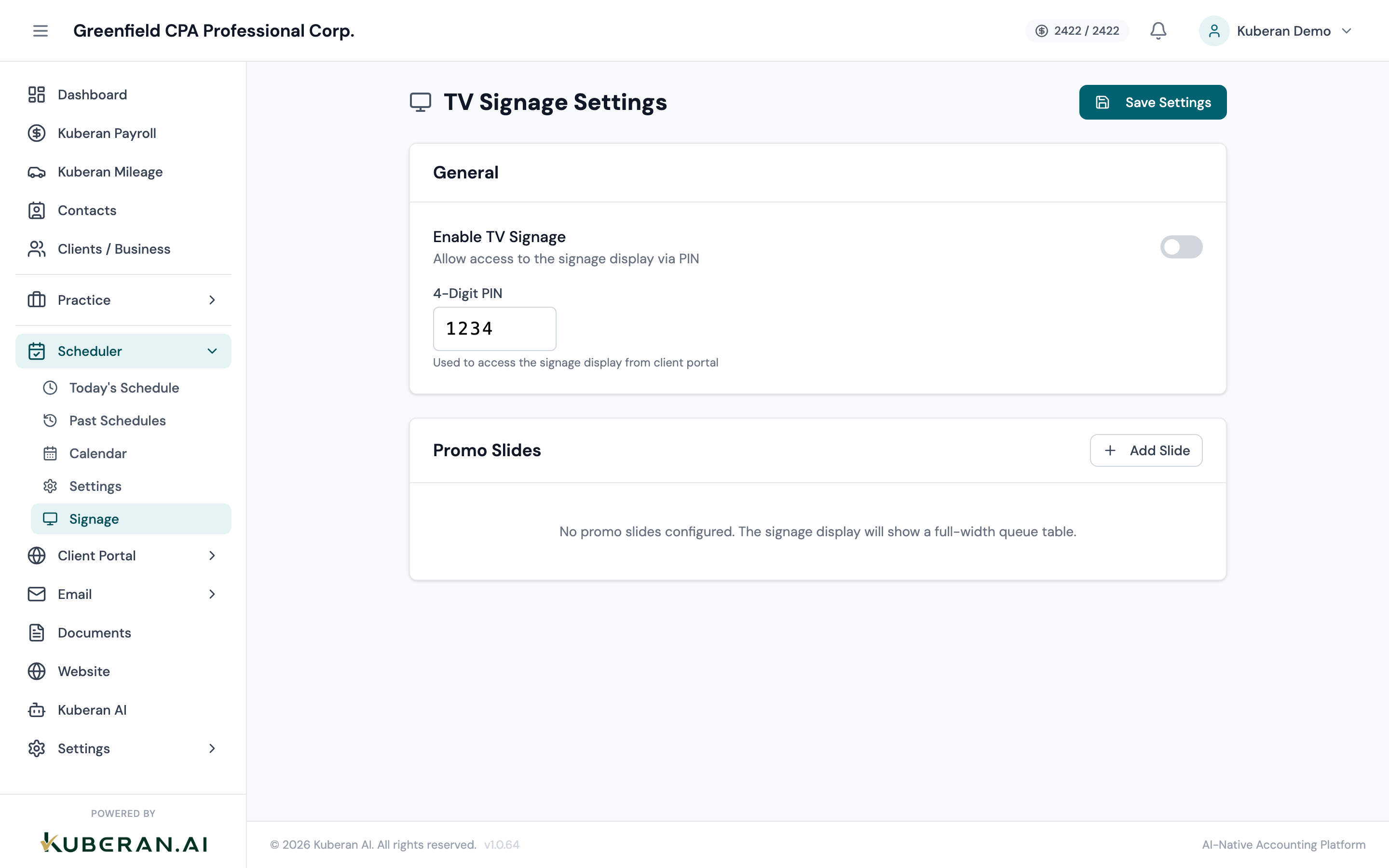
The Digital Signage feature turns any TV or monitor in your waiting room into a professional client-facing display. The display shows clients who are currently checked in and waiting, a now-serving announcement when it is their turn, your practice logo and branding, and any custom message or announcements you want to display. The signage screen is a simple browser-based display — load the TV URL on any device with a browser (a Smart TV, a Chromecast, an iPad, or a laptop) and it will update automatically as the schedule changes.
- (1) Practice logo and name
- (2) Now-Serving panel — client name in large text
- (3) Waiting queue — names of clients currently waiting
- (4) Custom message area — scrolling text or announcement
- (5) Current time display
Screen Layout
The Digital Signage settings screen (in the Kuberan AI app) and the TV display (the URL you put on your TV) are separate.
Settings screen (Kuberan AI app): Configure the display appearance, manage the waiting queue, and send now-serving calls.
TV display (browser URL): The output screen your clients see. It auto-refreshes when changes are made from the settings screen.
TV Display URL
A unique URL generated for your workspace (e.g., display.kuberanai.com/your-workspace). Open this URL on the device connected to your waiting room TV. The page will remain active and update in real time. Bookmark it on the TV browser or set it as the browser’s home page so it loads automatically when the TV turns on.
To copy the TV URL, click the Copy URL button on the Digital Signage settings screen. You can also use the Preview button to see what the display looks like in your browser before putting it on the TV.
Waiting Room Queue
The queue shows the names of clients who have checked in and are waiting to be seen. Clients are added to the queue in two ways:
- Staff check-in: From the Today’s Schedule screen, click Check In on a confirmed appointment when the client arrives. Their name is added to the queue automatically.
- Walk-in kiosk check-in: If a kiosk tablet is set up in the waiting room, clients can check themselves in by tapping their name or entering their appointment details. The kiosk URL is on the Digital Signage settings screen.
Shows all clients currently checked in and waiting, in the order they arrived. Each entry shows the client’s first name (last names are hidden by default for privacy). Click a name in the queue list on the settings screen to remove them from the queue (use this when they have been served and left).
Now-Serving Announcements
Promotes the next client in the queue to the now-serving panel on the TV display. Their name appears in large text in the primary panel, and a chime sound plays on the TV display (can be disabled). The previous now-serving client’s name moves down to the “Please proceed to the desk” section for a configurable number of seconds before disappearing.
If you need to call a client out of queue order, click their name in the queue list and select Call Now from the context menu. Their name jumps to the now-serving panel immediately.
Custom Message
A text message that scrolls across the bottom of the TV display (ticker-style) or is shown as a static block, depending on the layout chosen. Use this for announcements such as “Tax season extended hours: weekdays until 8 PM,” or “Please have your T-slips ready.” The message updates on the display within a few seconds of saving.
Appearance Settings
Upload your practice logo (PNG or SVG, recommended minimum 200×200 px). The logo appears in the top-left corner of the TV display.
The primary accent colour used for the now-serving panel and header bar. Set this to match your practice’s brand colours. Changes are reflected immediately on the preview.
The background colour of the TV display. Defaults to white. Dark backgrounds (e.g., dark navy or charcoal) can look more professional on large TV screens in bright rooms.
When enabled, a soft chime sound plays on the TV display whenever a now-serving call is made. Disable this if the waiting room is quiet or if the TV has no speakers.
Displays the current time in the corner of the TV display. On by default.
Tips
- Use a dedicated device for the TV display. A $50 Fire TV Stick or a spare tablet works well. Load the TV URL in Chrome or Safari and set the browser to full-screen mode. Turn off the screen saver to keep the display always visible.
- Privacy: By default, only the client’s first name is shown in the queue and now-serving panel. You can change this in appearance settings to show first name + last initial if clients have similar first names.
- Kiosk mode: The walk-in kiosk is a separate URL designed for a touch-screen tablet at the reception desk. Clients tap their name from the day’s appointment list or enter their name to add themselves to the queue. This reduces reception staff workload during busy periods.