
Engagements Board View
Overview
The Engagement Board presents one playbook’s pipeline as a Kanban board. You first select a playbook, and the board renders a column for each of that playbook’s stages. Dragging a card from one column to another moves the engagement to that stage and records the move in its stage history. This visual layout is ideal for spotting bottlenecks — a crowded “In Review” column may signal a review capacity constraint, while a full “Waiting on Client” stage highlights follow-ups.
Because stages are defined per playbook, the board always shows a single playbook at a time. Switch playbooks from the picker at the top of the page. Toggle back to the table with the List View button.
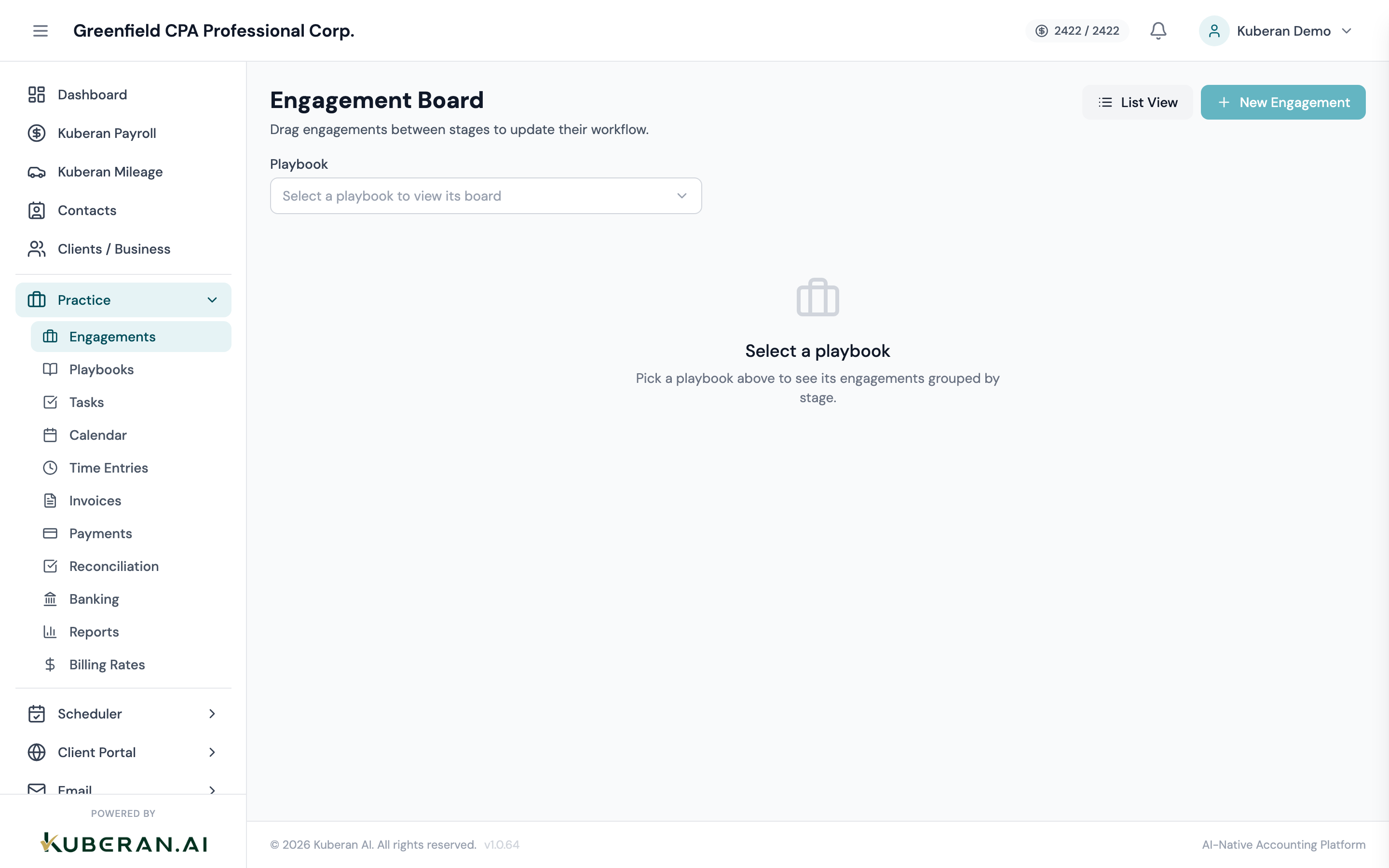
- (1) Playbook picker — choose which playbook's board to display
- (2) Stage column header — coloured dot, stage name, and card count
- (3) Engagement card — name, client, priority, status badge, due date, assignee role
- (4) List View button — returns to the table view
- (5) New Engagement button — enabled once a playbook is selected
Screen Layout
The board is a horizontally scrollable canvas that appears once a playbook is chosen.
Toolbar (top): The page heading, a List View button, and a New Engagement button (disabled until a playbook is selected).
Playbook picker: A required selector beneath the toolbar. Until you pick a playbook, the board shows a “Select a playbook” prompt instead of columns.
Stage columns: One column per stage of the selected playbook, ordered left to right by the playbook’s stage order. Each header shows a coloured dot (the stage’s colour), the stage name, and a count of the cards in that column. Empty stages still render as columns so you can drop cards into them.
Cards: Each card shows the engagement name, client name, a priority pill, the primary-status badge, the due date, and the role of the first assigned team member.
UI Elements
Required selector at the top of the board. Choose a playbook to load its stages and engagements. Changing the playbook re-renders the whole board.
Returns to the tabular Engagements list.
Opens the New Engagement dialog with the current playbook pre-selected. Disabled until a playbook is chosen.
Shows a coloured dot (the stage’s configured colour), the stage name, and a rounded badge with the number of engagement cards currently in that stage.
Clickable card representing a single engagement. The card body shows: engagement name (bold), client name, a priority pill, the primary-status badge, the due date, and the assigned team member’s role. Clicking the card opens the Engagement detail panel on the right.
Small pill in the card’s top-right showing the engagement’s priority: Low, Medium, High, or Urgent.
Actions
Drag a Card to a New Stage
Moving a card between columns is the primary way to advance an engagement through its playbook’s pipeline.
- Click and hold an engagement card, then drag it to the target stage column. Begin the drag by moving a few pixels so it isn’t mistaken for a click.
- The target column highlights when you hover over it. Release the card to drop it.
- The engagement moves to that stage optimistically, and a “Engagement moved” confirmation appears. A new entry is added to the engagement’s stage history with a timestamp.
- If the move fails on the server, the card snaps back to its original column and an error is shown.
Create an Engagement from the Board
- Select the playbook whose board you’re viewing (if you haven’t already).
- Click New Engagement. The creation dialog opens with that playbook pre-selected.
- Fill in the client, name, stage, and any other fields, then click Create. See Create an engagement for the full walkthrough.
- The board refreshes and the new engagement appears in its starting stage column.
View Engagement Detail
- Click anywhere on an engagement card.
- The Engagement detail panel slides in from the right, overlaying the board.
- From the detail panel you can edit fields, change the stage, browse tasks, log time, review invoices, and read the activity log.
- Click the × or press Escape to close the panel and return to the board.
Auto-Advance Between Stages
A playbook stage can be configured to advance automatically once its exit conditions are met — for example, when the last task in the stage is completed. When that happens, the engagement moves to the next non-terminal stage on its own. The automated move is recorded in the engagement’s stage history (labelled auto-advance), so you can distinguish it from manual drags.
Related
- Engagements List — Table view of all engagements with filters and bulk stage moves
- Playbooks — Define the stages, colours, and auto-advance rules the board renders
- Tasks — Manage individual tasks within each engagement
- Calendar — See engagement deadlines alongside task due dates in a time-based view