
Banking
Overview
The Banking screen manages your accounting firm’s own bank accounts and transactions — distinct from the client bookkeeping found in the Books module. This is where you track the firm’s operating account, savings, credit card, and trust accounts, import bank statements, and label each transaction with a simple transaction-type category. Bank rules can automate that labelling so that recurring payees (rent, payroll, software subscriptions) are categorised instantly when a statement is imported.
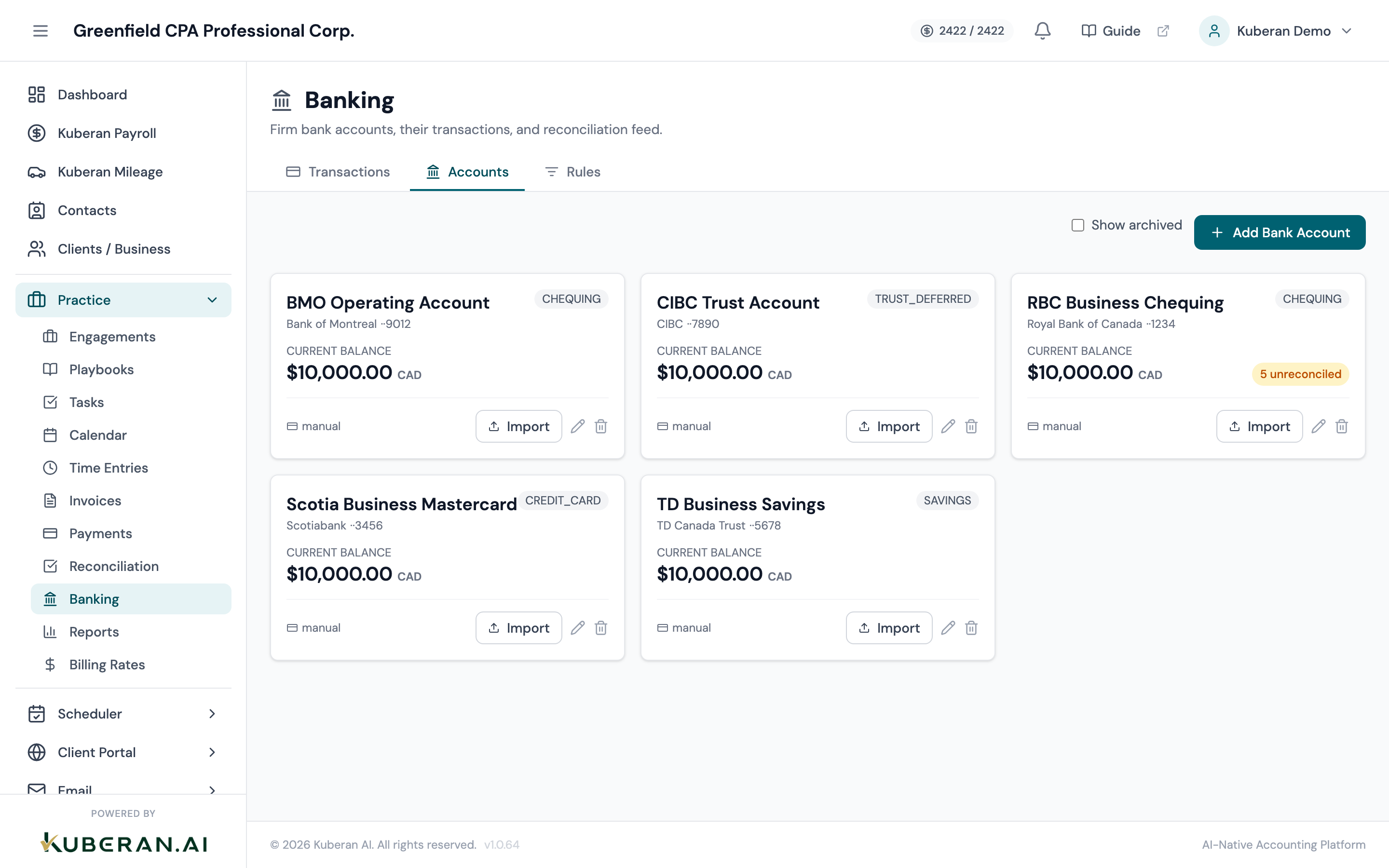
- (1) Tab bar — Transactions (default), Accounts, and Rules; the active tab is stored in the ?tab= URL parameter
- (2) Transactions tab — imported transactions for the selected account, with filters
- (3) Accounts tab — firm bank account cards with balances and unreconciled counts
- (4) Import statement button — import a CSV, OFX, or QBO file (disabled until an account is selected)
- (5) Rules tab — manage auto-categorisation rules applied on import
Screen Layout
The Banking screen has a single tab bar with three tabs. The active tab is stored in the ?tab= query parameter so the URL is shareable and browser back/forward work.
Transactions tab (default): The transaction ledger. A filter row provides Account, Search, Status, Category, and a From/To date range. Rows are selectable for bulk categorisation, and a duplicate-detection banner appears when potential duplicates are found.
Accounts tab: Firm bank accounts shown as cards. Each card shows the account name, institution and last four digits, account type, current balance and currency, an unreconciled-transaction count, and its sync source.
Rules tab: A table of bank rules that auto-categorise transactions when a statement is imported.
Transactions Tab
UI Elements
Opens the import dialogue to upload a CSV, OFX, or QBO file. This button is disabled until an account is selected in the Account filter — imports always target a specific account.
An amber banner appears above the filters when the workspace contains potential duplicate transactions (rows with a matching account, amount, and description within ±1 day). Click Show groups to list each suspected group; matching rows are highlighted amber in the table with a “dup?” tag.
Filters the ledger to one firm account. Defaults to All accounts. Selecting a specific account also enables the Import statement button.
Filters transactions by their description text.
Reconciliation-status filter. Options: All, Unreconciled, Matched, Reconciled, Ignored.
Filters by transaction-type category: Deposit, Withdrawal, Transfer, Fee, Interest, Refund, or Other. Note this is a fixed transaction-type enum, not a chart-of-accounts list.
Two date inputs that bound the ledger to a date range.
Appears in a bulk action bar once one or more rows are selected via their row checkboxes. Pick a category from the adjacent dropdown and click Set category to apply it to every selected transaction at once. There is no per-row category dropdown — categorisation is done through this bulk action (or automatically by bank rules on import).
Transaction Row Columns
Each row begins with a checkbox. Selecting rows reveals the bulk action bar. The header checkbox selects or clears every row currently shown.
Transaction date from the imported statement.
The description string from the bank statement. Rows flagged as potential duplicates show a small amber “dup?” tag here.
The transaction-type category (Deposit, Withdrawal, Transfer, Fee, Interest, Refund, Other). Read-only per row — change it with the bulk Set category action or a bank rule.
Transaction amount. Positive amounts (credits) show in green; negative amounts (debits) show in red.
The reconciliation status of the transaction (e.g. Unreconciled, Reconciled).
Shown in the Actions column for any transaction that is not yet reconciled. Clicking it marks the transaction reconciled directly, without matching it to a client payment — useful for bank fees, interest, and transfers. This action writes an entry to the reconciliation audit log.
Import dialogue
Choose CSV, OFX, or QBO. CSV files are auto-detected; if auto-detection fails, a column mapper opens so you can assign the Date, Amount, and Description columns manually.
Select the statement file to upload. After import, a toast reports how many transactions were imported, skipped, and parsed.
Accounts Tab
UI Elements
Opens a wizard with three tabs: Plaid Link (automated bank connection), Manual (enter account details yourself), and CSV Import (manual entry plus an inline first import).
A checkbox in the toolbar. Archived accounts are hidden by default; tick this to include them in the list so you can review or restore them.
Each account is a card showing the account name (a link to that account’s transactions), institution and last four digits, account type, current balance with currency, and — when applicable — an “unreconciled” count badge. Clicking the account name opens the Transactions tab filtered to that account.
Plaid-linked accounts show Sync Now to pull the latest transactions. Manually managed accounts show Import, which jumps to the Transactions tab for that account so you can upload a file.
Opens the Edit Bank Account modal. You can change the account name, institution, last four digits, account type (Chequing, Savings, Credit Card, Trust / Deferred, Other), and currency.
Archives the account. This is a soft delete — the account’s transactions are preserved and the account is simply hidden from the list. Use the Show archived toggle to bring it back into view.
Rules Tab
Bank rules automatically categorise imported bank transactions. Rules are applied in priority order, lowest number first, and they run on import — they are not applied retroactively to transactions already in the ledger.
Opens a blank New Rule modal. Rules are only created here, from the Rules tab — there is no “create rule from this transaction” shortcut on the Transactions tab.
An internal label for the rule (e.g. “Shopify — Deposit”).
How the rule’s value is compared against the transaction’s description field. Options: Contains, Starts with, Equals, Regex.
The text (or regular expression) to match against the transaction description, e.g. SHOPIFY.
The transaction-type category the rule applies when it matches (e.g. deposit, fee, transfer).
Optional notes automatically written onto matched transactions.
Numeric priority, defaulting to 100. When multiple rules match, the one with the lowest priority number is applied first.
Each rule row has an on/off toggle. Disabled rules are dimmed and skipped on import. Rows also expose edit and delete actions.
Actions
Add a Bank Account
- On the Accounts tab, click Add Bank Account.
- Choose a tab: Plaid Link for an automated live bank feed, Manual for a file-import-only account, or CSV Import to create the account and upload a first statement in one step.
- For Plaid Link: an account record is created first, then the Plaid Link flow opens for you to authenticate and select the account to connect.
- For Manual / CSV Import: enter the account name, institution, last four digits, account type (Chequing, Savings, Credit Card, Trust / Deferred, or Other), and currency.
- Save. The new account appears as a card on the Accounts tab.
Import Transactions
- On the Transactions tab, choose the target account in the Account filter. (The Import statement button stays disabled until an account is selected.)
- Click Import statement.
- Select the Format (CSV, OFX, or QBO) and choose your file.
- Click Import. For CSV files, Kuberan AI attempts to auto-detect the columns; if it can’t, a column mapper opens so you can assign the Date, Amount, and Description columns yourself.
- A confirmation toast reports the counts imported, skipped, and parsed. Bank rules run automatically against the newly imported rows.
- If potential duplicates are detected, the amber duplicate-detection banner appears — click Show groups to review them.
Categorise Transactions
- On the Transactions tab, tick the checkbox on each transaction you want to label. A bulk action bar appears showing how many rows are selected.
- Choose a transaction-type category from the dropdown in the action bar.
- Click Set category. The category is applied to every selected row at once, and the selection clears.
Create a Bank Rule
- Go to the Rules tab and click Add Rule. A blank New Rule form opens.
- Enter a Rule Name.
- Choose a Match Type (Contains, Starts with, Equals, or Regex) and enter the Match Value to compare against the transaction description.
- Set the Category the rule should apply, and optional Notes.
- Set the Priority (default 100; lower numbers are applied first).
- Click Create Rule. The rule takes effect on the next import — it does not re-categorise transactions already in the ledger.
Manually Reconcile a Transaction
- On the Transactions tab, find a transaction that has no matching client payment (a bank fee, interest, or transfer).
- Click the Reconcile link in that row’s Actions column.
- The transaction is marked reconciled and an entry is written to the reconciliation audit log. For matching deposits to client payments instead, use the Reconciliation workspace.
Related
- Reconciliation — Match imported deposits to outstanding client payments
- Reports — Firm workflow, billing, and A/R reports
- Payments — Client invoice payments that reconciliation matches against bank deposits