
Dashboard
Overview
The Dashboard is the first screen you see after logging in to Kuberan AI. It gives you a real-time summary of your practice at a glance — active engagements, outstanding invoices, recent activity across all modules, upcoming client deadlines, and shortcuts to the actions you perform most often. Every widget on the dashboard reflects live data from the rest of the application; there is nothing to configure before it becomes useful.
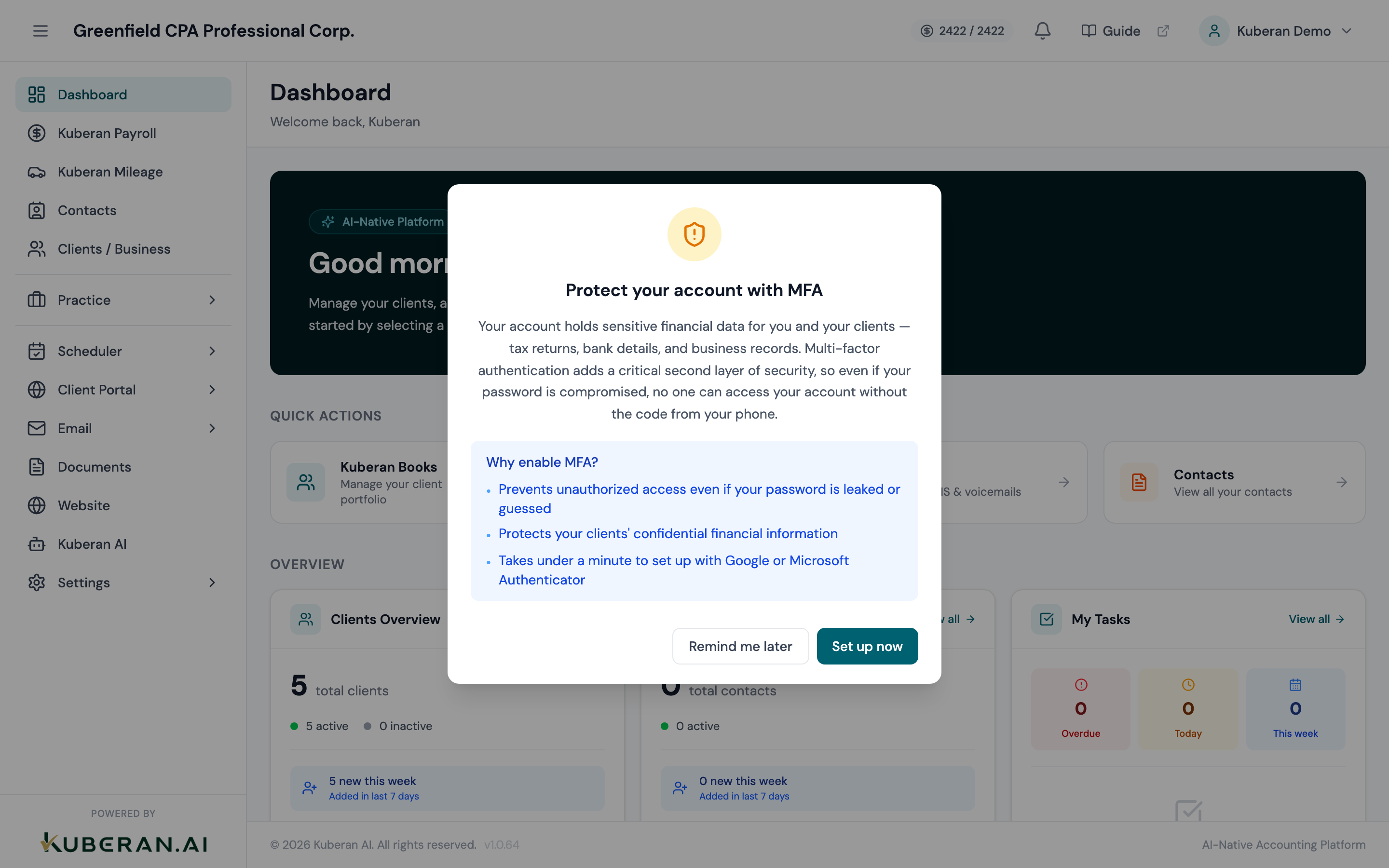
- (1) Active Engagements widget — count and status breakdown
- (2) Outstanding Invoices widget — total owing and overdue amount
- (3) Recent Activity feed — timestamped events across all modules
- (4) Quick Actions bar — add engagement, log time, create invoice
- (5) Upcoming Deadlines calendar preview — next 30 days
Screen Layout
The dashboard is divided into five zones arranged in a two-column grid with a full-width activity feed at the bottom.
Top row: Active Engagements widget (left) and Outstanding Invoices widget (right).
Middle row: Quick Actions bar spanning the full width.
Bottom row: Recent Activity feed (left, wider) and Upcoming Deadlines calendar (right).
Widgets
Active Engagements
Displays the total count of engagements currently in progress across all clients. The widget breaks the count into status lanes: In Progress, Awaiting Client, Under Review, and Overdue. Click any status label to jump to the Engagements list pre-filtered to that status.
The overdue count is highlighted in red when one or more engagements have passed their due date without being marked complete. This indicator persists until all overdue engagements are resolved or rescheduled.
Outstanding Invoices
Shows the total dollar amount of unpaid invoices across all clients, split into Current (not yet due) and Overdue (past due date). The currency reflects your workspace default set in Settings. Click the widget to open the Invoices list filtered to unpaid invoices.
Both amounts update immediately when a payment is recorded, an invoice is voided, or a new invoice is issued.
Quick Actions
Opens the New Engagement drawer pre-populated with today’s date as the start date. Select the client, engagement type, and assigned team member, then save to add it to your active list.
Opens the Time Entry form. Choose the client, engagement, and activity type, enter the duration, and save. The entry is immediately visible in the Time & Billing module and reflected in the engagement’s billable hours.
Opens the New Invoice drawer. Select the client, add line items manually or import from unbilled time entries, set the due date, and issue or save as a draft.
Recent Activity Feed
A reverse-chronological log of events across all Kuberan AI modules for your workspace. Each entry shows the event type, the client or record it relates to, the team member who performed it, and a relative timestamp (e.g., “2 hours ago”). Events include engagement status changes, invoice payments, document uploads, payroll runs, and CRA remittance recordings.
The feed shows the most recent 50 events. Click View All Activity at the bottom of the feed to open the full audit log, which is filterable by module, team member, and date range.
Upcoming Deadlines Calendar Preview
A compact calendar view spanning the next 30 days. Days with one or more deadlines are marked with a coloured dot. Hovering over a date reveals a tooltip listing each deadline — engagement due dates, CRA remittance due dates, T4 filing deadlines, and any custom milestones you have added. Click a date to open the full calendar filtered to that day.
Deadlines are automatically populated from active engagements, payroll remittance schedules, and the CRA tax calendar. You can also add custom deadlines from the Engagements or Calendar modules.
Tips
- Overdue count stays at zero if all your engagements have due dates set. Engagements without a due date never count as overdue, so it is good practice to always set one when creating an engagement.
- Invoice widget shows $0 until you create your first invoice. It will populate as soon as invoices are issued.
- The activity feed is workspace-wide. If you want to see only your own activity, use the full audit log and filter by your user name.