
Transfers
Overview
A transfer records money moving between two of the client’s own accounts — chequing to savings, or a payment that pays down a credit card. Both sides must be a bank or credit-card account. Because the money never leaves the business, a transfer is not income or expense: it simply moves a balance from one account to another with a balanced journal entry.
Posting a transfer credits the source (From) account and debits the destination (To) account for the same amount. Transfers can be staged as Pending and posted later (individually or in bulk), and a posted transfer can be voided, which writes a reversing entry.
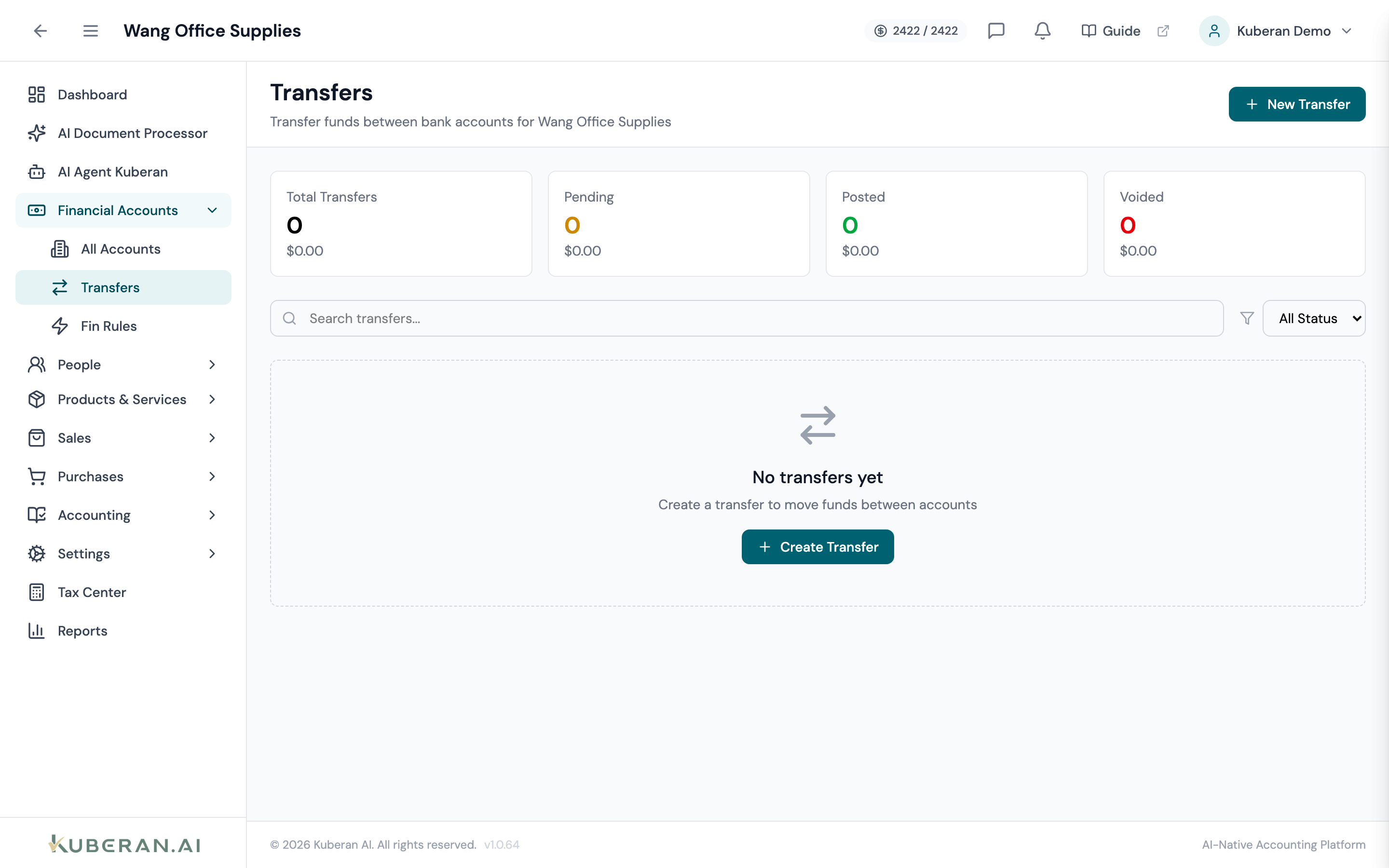
- (1) Summary cards — Total Transfers, Pending, Posted, Voided
- (2) New Transfer button
- (3) From Account → To Account columns
- (4) Status badge — Pending, Posted, or Void
- (5) Row actions — view, edit, post, delete, void
Screen Layout
Summary cards (top): Total Transfers, Pending, Posted, and Voided — each with a count and amount.
Toolbar: New Transfer button, a search field, and a Status filter. Selecting rows reveals Post Selected / Void Selected bulk actions.
Transfer table (centre): Columns: Transfer # (with memo beneath), Date, From Account, To Account, Amount, Status, and Actions.
Statuses
| Status | Colour | Meaning |
|---|---|---|
| Pending | Amber | Staged but not yet posted; no ledger impact |
| Posted | Green | Journal entry created; balances moved |
| Void | Red | Reversed; a reversing entry has been posted |
UI Elements
Toolbar
Opens the transfer form.
Bulk-post pending transfers or bulk-void posted ones from the selection bar.
Form Fields
Required. The bank or credit-card account the funds leave. The current “To Account” is excluded from this list.
Required. The bank or credit-card account the funds arrive in. The current “From Account” is excluded.
Required. The amount to move (minimum 0.01).
Shown when creating a new transfer. Tick to post on save; leave unticked to save a Pending transfer for posting later.
Table Columns
Per-row: View, plus Edit / Post / Delete for Pending transfers and Void for Posted transfers.
Actions
Create a Transfer
- Click New Transfer.
- Set the Date.
- Choose the From Account and the To Account (each excludes the other).
- Enter the Amount and an optional Memo.
- Tick Post transfer immediately to post now, or leave it to save a Pending transfer.
Post a Pending Transfer
Click ⋯ → Post on a Pending row, or select several and click Post Selected. Posting books the entry — Credit the From account, Debit the To account.
Void a Transfer
- Click ⋯ → Void on a Posted transfer.
- Confirm. A reversing journal entry is created, undoing the balance movement.
Transfer vs Deposit
A transfer moves money between two of the client’s own accounts. A deposit moves received customer funds out of Undeposited Funds into the bank. Use a transfer for own-account movements; use a deposit to clear Undeposited Funds.
Related
- Bank Accounts — The accounts a transfer moves funds between
- Bank Transactions — Where each side of the transfer appears
- Deposits — Moving Undeposited Funds into the bank
- Journal Entries — The balanced entry a transfer posts
- Reconciliation — Both sides clear when statements are reconciled