
Credit memos
Overview
A credit memo records an amount the business owes back to a customer — for a return, a billing error, a price adjustment, or goodwill. It is the sales-side mirror of a vendor credit: where a vendor credit reduces what you owe a supplier, a credit memo reduces what a customer owes you.
When posted, a credit memo creates a journal entry (typically a debit reversing the original revenue and a credit to Accounts Receivable, with GST/HST adjusted). The credit is then applied to an open invoice to reduce its balance, or refunded to the customer as cash. The list tracks each memo’s applied amount and remaining balance.
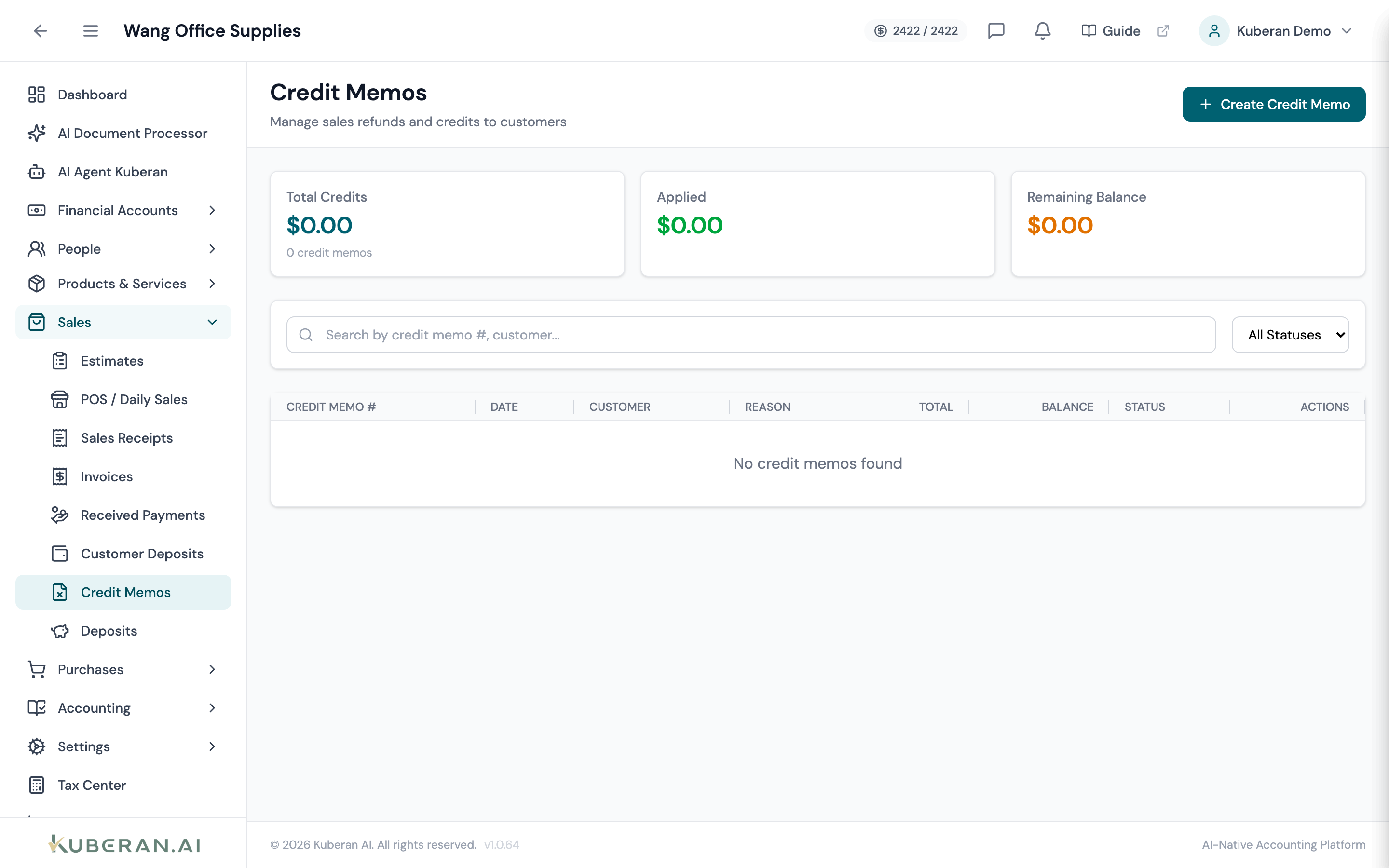
- (1) Summary cards — Total Credits, Applied, Remaining Balance
- (2) Create Credit Memo button
- (3) Status badge — Draft, Posted, Applied, Refunded, Void
- (4) Balance column — credit still available to apply
- (5) Actions menu — post, apply to invoice, issue refund, void
Screen Layout
Summary cards (top): Total Credits (amount + count), Applied, and Remaining Balance.
Toolbar: Create Credit Memo button, search, and a Status filter.
Memo table (centre): Columns: Credit Memo #, Date, Customer, Reason, Total, Balance, Status, and Actions.
Statuses
| Status | Colour | Meaning |
|---|---|---|
| Draft | Grey | Created but not posted; no ledger impact |
| Posted | Blue | Journal entry created; available to apply |
| Applied | Green | Applied to one or more invoices |
| Refunded | Purple | Refunded to the customer as cash |
| Void | Red | Reversed; the entry is backed out |
UI Elements
Editor Fields
Required. The customer the credit is issued to.
Why the credit was issued: Return, Damaged Goods, Billing Error, Price Adjustment, Goodwill, or Other. An optional Reason Note adds detail.
Each line: Description, Qty, Rate, an optional income Account, and a Taxable checkbox.
Posts the journal entry on save instead of saving a draft.
Table Columns
The remaining credit available to apply or refund.
Per-row: View Details, Post Credit Memo (draft), Apply to Invoice (when a balance remains), Issue Refund (when a balance remains), and Void Credit Memo (only while nothing is applied).
Actions
Create a Credit Memo
- Click Create Credit Memo.
- Select the Customer and enter the Date.
- Choose a Reason and add an optional Reason Note.
- Add line items: Description, Qty, Rate, and an income Account. Tick Taxable where GST/HST applies.
- Add a Memo if needed.
- Tick Post immediately to post now, or leave it to save a draft.
Post a Draft
Click ⋯ → Post Credit Memo to create the journal entry. Posting cannot be undone — void instead if you need to reverse it.
Apply to an Invoice
- Click ⋯ → Apply to Invoice on a posted memo.
- Select the Invoice (filtered to the customer’s unpaid invoices) and enter the Amount to Apply (up to the remaining balance).
- Confirm. The invoice balance is reduced and the memo’s status becomes Applied.
Issue a Refund
- Click ⋯ → Issue Refund.
- Enter the Refund Amount (up to the remaining balance) and an optional Reason.
- Confirm. A refund is recorded and the status becomes Refunded.
You can also Preview & Download PDF of the credit memo from its detail panel.
Void a Credit Memo
A credit memo can be voided only while nothing has been applied. Voiding reverses the posted journal entry.
Related
- Invoices — The receivables that credit memos are applied against
- Customers — Customer records and balances
- Vendor Credits — The vendor-side equivalent
- Received Payments — Settling invoices with cash
- Tax Centre — GST/HST adjustments on credits