
SMS Conversations
Overview
The SMS module allows your practice to send and receive text messages with clients using a dedicated business phone number provisioned through Kuberan AI. All incoming and outgoing messages are stored in conversation threads per contact, so you have a full history of every SMS exchange. Conversations can be assigned to team members, replied to with saved templates, and linked automatically to client records. This module is separate from bulk SMS campaigns — it is for one-on-one conversations with individual clients.
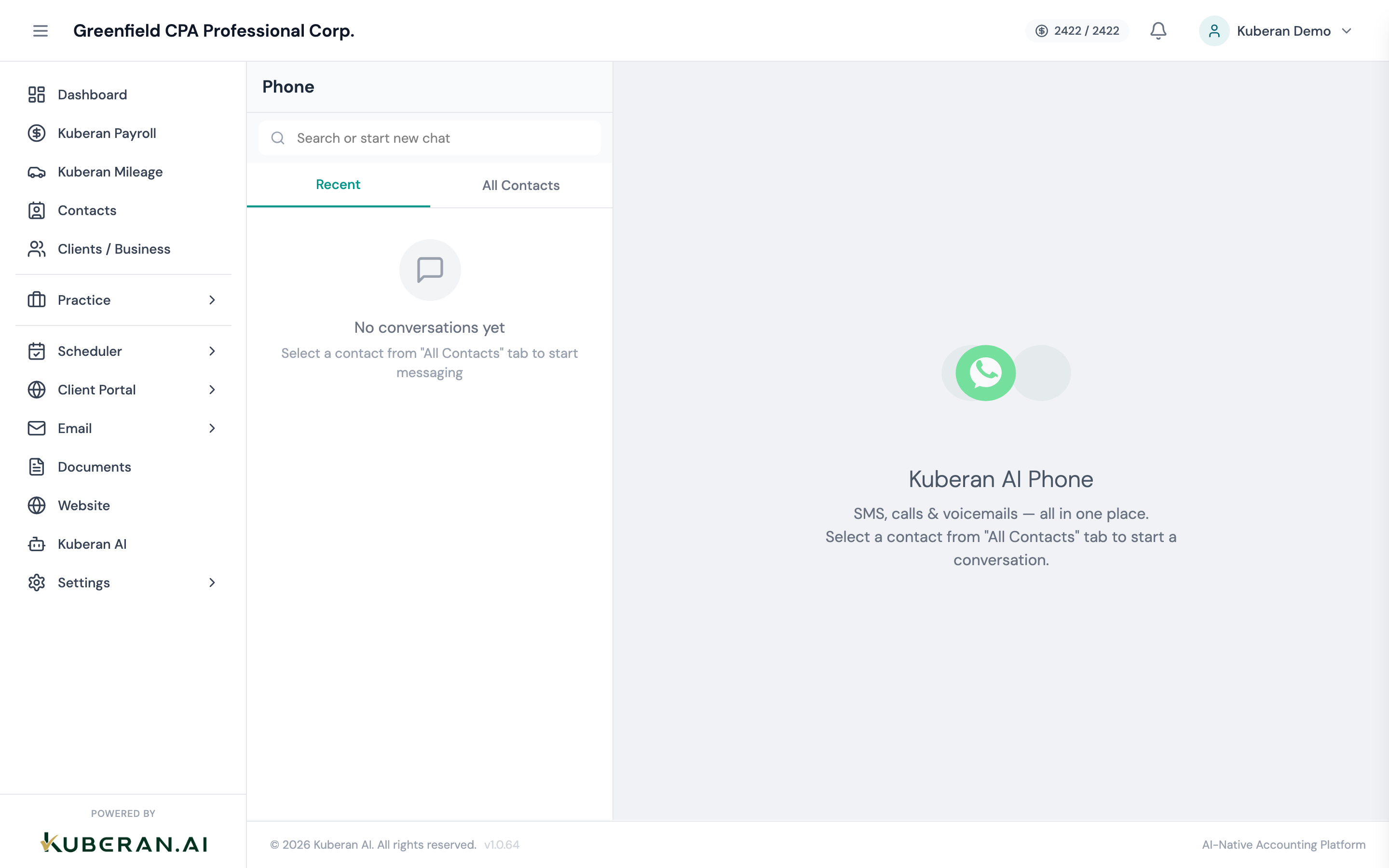
- (1) Conversation list — contact name, last message snippet, unread badge
- (2) Unread indicator — blue dot for unread messages
- (3) Message thread on the right
- (4) Reply text field and Send button
- (5) Use Template button
- (6) Assign to team member control
Screen Layout
Left panel — Conversation list: All SMS threads sorted by most recent message. Each row shows the contact name (or phone number if the contact is not in the workspace), the last message snippet, and the time of the last message. Unread threads have a blue dot.
Right panel — Thread view: The full message history for the selected conversation. Outgoing messages appear on the right; incoming messages on the left. The compose area is at the bottom.
UI Elements
A blue dot on the left edge of a conversation row indicates at least one unread message in that thread. The thread is marked as read when you open it. Unread counts also appear on the SMS module icon in the main navigation sidebar.
If the phone number matches a Contact in your workspace, the contact’s name appears. If no match is found, the raw phone number is shown. Click the contact name to open their Contact record in a side panel without leaving the SMS module.
A preview of the most recent message (incoming or outgoing) in the thread.
If the conversation has been assigned to a team member, their name or initials appear as a small badge on the conversation row. Unassigned conversations show “Unassigned.”
Actions
Send an SMS
- Click New Conversation in the top-left of the conversations list (or select an existing conversation to reply).
- In the compose field, enter the recipient’s name or phone number. Existing contacts appear in the search suggestions.
- Type your message in the text field at the bottom of the thread view.
- Click Send or press Enter. The message is sent from your workspace’s provisioned phone number.
Messages are limited to 160 characters per SMS segment. Longer messages are automatically split into multiple segments by your carrier. Kuberan AI shows the character count as you type.
Use a Template
- In the compose area of any conversation, click Use Template.
- A dropdown of saved SMS templates appears. Templates are created in the Bulk SMS settings.
- Select a template. The template text is inserted into the compose field, with any variables (e.g.,
{{first_name}},{{appointment_date}}) auto-filled from the contact’s record. - Review and edit the text if needed, then send.
View Conversation History
Click any conversation in the list to open the full thread. Scroll up to view older messages. The thread shows the date and time of each message. Messages sent by different team members are labelled with the sender’s name.
Assign to a Team Member
- Open a conversation.
- Click the Assign button (or the current assignee’s name if already assigned) in the thread header.
- Select a team member from the dropdown. They will receive an in-app notification that the conversation has been assigned to them.
Assignments are useful when one team member handles all client communications for a specific client or engagement. The team member filter in the conversation list lets anyone see only the conversations assigned to them.
Filtering Conversations
Use the filter options above the conversation list to narrow the view:
Show conversations assigned to a specific team member, or show only unassigned conversations. Default is All.
When enabled, only conversations with unread messages are shown. Useful for quickly catching up on new client messages.
Search by contact name or phone number to find a specific conversation.
Tips
- Opt-out compliance: Canadian anti-spam legislation (CASL) and CRTC rules require that recipients can opt out of receiving messages. Kuberan AI automatically handles STOP and UNSUBSCRIBE replies by blocking further outgoing messages to that number and flagging the conversation.
- Missed messages: If your practice misses an incoming SMS (e.g., received after hours), the conversation appears unread in the list the next time someone logs in. Consider setting up notification alerts in your profile settings.
- Templates save time. Common messages like appointment reminders, document request follow-ups, and “your return is ready for pickup” notifications are ideal for templates. Create them in the Bulk SMS section so they are available here in single conversations too.