
Bills
Overview
The Bills screen manages the accounts payable side of the client’s books. A bill represents an obligation to pay a vendor for goods or services already received. Finalizing a bill creates a debit to the chosen line accounts and a credit to Accounts Payable; recording a payment clears the payable and credits the bank account. When a line item is an inventory-tracked product, finalizing the bill instead raises that item’s quantity on hand and recomputes its weighted-average cost (on both cash- and accrual-basis clients); no Cost of Goods Sold posts until the item is later sold. Bills can be created manually, imported from the Documents screen when the AI processor extracts a vendor invoice, or generated automatically from a recurring template. The AP aging breakdown shown on this screen and in the dashboard draws directly from the open bills recorded here.
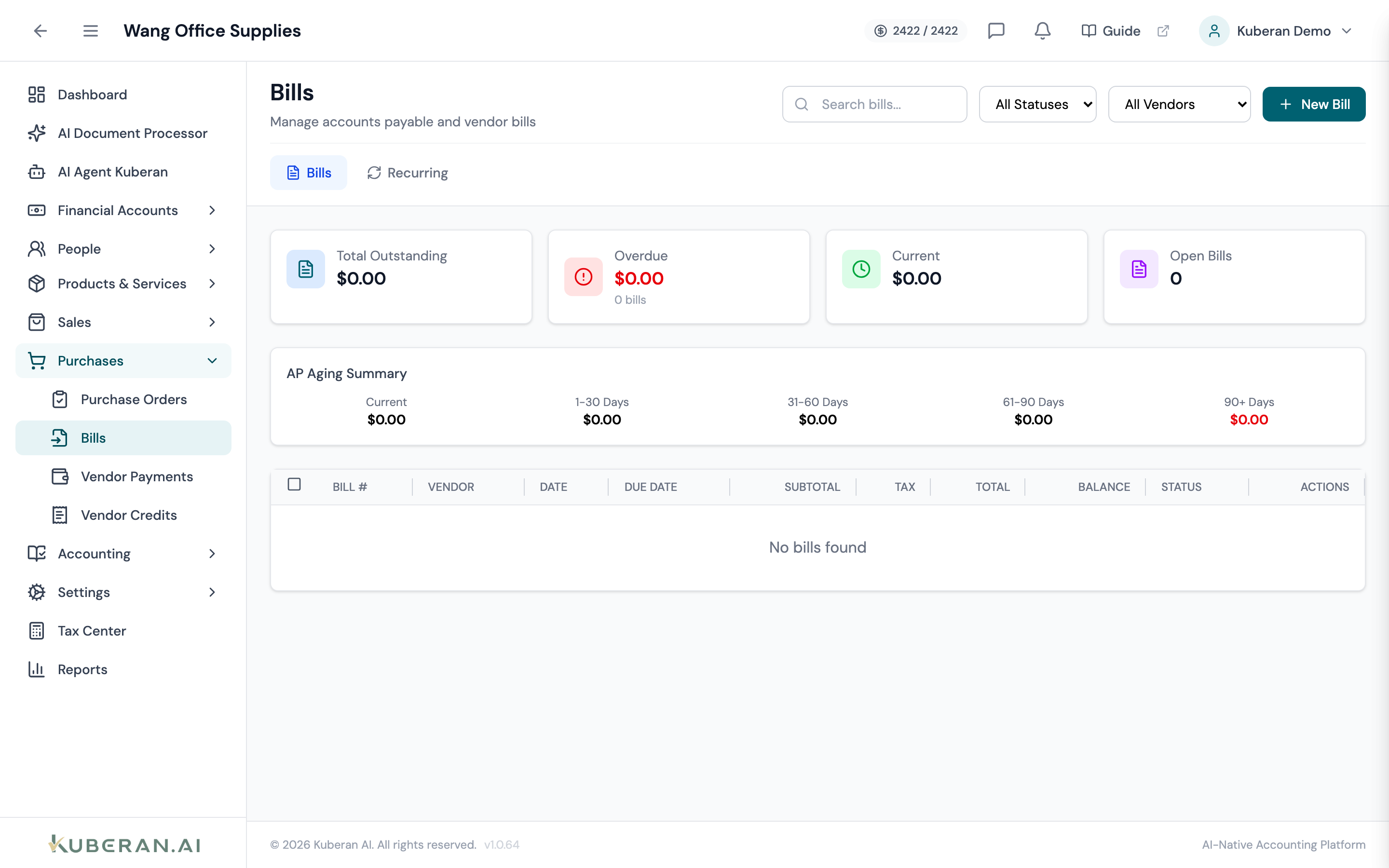
- (1) Bills / Recurring page tabs, plus a Status filter dropdown (All, Draft, Pending, Partial, Paid, Overdue, Void)
- (2) New Bill button — opens the bill editor
- (3) Overdue indicator — due date shown in red when past due
- (4) Balance column — remaining unpaid amount
- (5) Record Payment action on each row
Screen Layout
Page tabs (top): Bills and Recurring.
Toolbar: search field, Status filter dropdown, Vendor filter dropdown, a Clear button when filters are active, and a New Bill button. Selecting rows reveals a Void Selected bulk action.
Summary cards: Total Outstanding, Overdue (with count), Current, and Open Bills — plus an AP Aging Summary card with Current / 1-30 / 31-60 / 61-90 / 90+ day buckets.
Bills table (centre): Each row is one bill. Columns: Bill #, Vendor, Date, Due Date, Subtotal, Tax, Total, Balance, Status, and Actions.
Bill Statuses
| Status | Colour | Meaning |
|---|---|---|
| Draft | Grey | Entered but not yet finalized; journal entry not yet posted |
| Pending | Blue | Finalized and posted; payment pending |
| Partial | Amber | One or more payments recorded but a balance remains |
| Paid | Green | Bill fully settled; balance is zero |
| Overdue | Red | Past due date with an outstanding balance |
| Void | Slate | Cancelled; journal entries reversed |
| Written Off | Grey | Remaining balance forgiven as bad/forgiven debt |
UI Elements
Toolbar
Switch between the Bills list and the Recurring templates that generate bills on a schedule.
Filter bills by status: All Statuses, Draft, Pending, Partial, Paid, Overdue, or Void.
Filter the list to show bills from a specific vendor.
Opens the bill editor.
Table Columns
The bill’s number. The cell also shows the vendor’s invoice reference (Ref:) and a paperclip icon when the bill was created from a scanned source document.
The vendor this bill was received from.
The date the bill was issued by the vendor.
The payment due date, computed from the bill date plus the vendor’s payment terms. Shown in red when past due.
The pre-tax subtotal, the GST/HST, and the total including tax.
The remaining unpaid amount. Zero for fully paid bills.
Per-row actions, shown conditionally: View, Edit (drafts and unpaid bills), Duplicate, Finalize (drafts only), Record Payment, Write Off as Forgiven Debt, Reverse Write-Off, and Delete (which voids an unpaid bill). Selecting multiple rows exposes Void Selected.
Actions
Create a Bill
- Click New Bill. The bill editor opens.
- Select the Vendor from the searchable lookup. If the vendor does not exist, use Add New Vendor inline.
- Enter the Vendor Invoice # (the vendor’s own invoice number — useful for duplicate detection).
- Set the Bill Date and choose Payment Terms (Due on Receipt, Net 15/30/45/60, or Custom with a Days field). The due date is calculated for you.
- Optionally set a Default GL Account for All Lines to pre-fill every line’s account.
- Add line items: enter a Description, choose the Category (the account this line posts to — see below), and enter Qty and Cost. Tick Taxable on lines carrying GST/HST so the Input Tax Credit (ITC) is calculated.
- Click Save as Draft to review later, or Create Bill to finalize and post the journal entry immediately (a confirmation appears first). Inventory only moves on finalize — a draft bill does not change stock or cost. Finalize carefully: a bill with an inventory-tracked item cannot be freely edited and must be voided and re-entered to change.
The Line-Item Account Picker
The line Category picker is not limited to expense accounts. It offers expense, Cost of Goods Sold (COGS), and capitalizable asset accounts (inventory, prepaid expenses, and fixed assets). Pick:
- an expense account for ordinary operating costs;
- a COGS account where appropriate;
- an asset account (inventory, prepaid, or a fixed-asset account) when the purchase should be capitalised rather than expensed.
The account you choose is what gets debited when the bill is finalized.
Draft vs Finalize
- Save as Draft stores the bill with status Draft and posts no journal entry.
- Create Bill (new bill) or Finalize Bill (editing a draft) transitions the bill to Pending and posts the journal entry. The row-menu Finalize action does the same for an existing draft.
- Editing an already-finalized bill and clicking Save Bill re-saves it; its journal entry is voided and regenerated.
Finalizing posts: Dr each line’s chosen account (expense / COGS / asset) for the pre-tax amount plus any non-claimable tax, Dr the HST recoverable (ITC) account for the claimable input tax credit, and Cr Accounts Payable for the bill total. On cash-basis clients the journal entry is deferred until the bill is paid, but an inventory-tracked line still updates quantity and average cost on finalize.
Create a Bill from a Document Upload
When a vendor invoice is uploaded to the Documents screen and processed by the AI, a bill can be created directly from the extracted data.
- In the Documents screen, open the processed document’s transactions preview.
- Confirm the direction is set to Bill (Incoming) — the helper text reads “This document will be created as an incoming bill (expense).”
- Review the extracted fields in the bill preview: vendor, date, line items, categories, amounts, and tax.
- Click Confirm & Create Entries (or Confirm Page N for a single page). The bill is created and linked back to the source document.
Bills created this way are scan-locked in the editor — a banner notes only line-item categories can be edited unless you use the Override toggle.
Record a Payment
- Click ⋯ → Record Payment on a Pending, Overdue, or Partial bill row.
- Enter the Payment Date, Amount, and Payment Method.
- Select the account the money is paid from (a bank or cash account).
- Optionally enter a Cheque Number or reference.
- Save. The Accounts Payable balance is reduced by the payment. If the balance reaches zero, the status changes to Paid; if a balance remains, it becomes Partial.
See Vendor Payments for paying several bills at once and tracking unapplied amounts.
Tag Line Items to a Property
When the Properties module is enabled, each bill line item can be tagged with a Property (and optional Unit / lease), so property-level expenses flow into the Property P&L.
- In the bill editor, use the Property picker on a line item. The Unit picker filters to units under that property.
- Choose the line’s Classification — Expense or Capital — which is required once a property is tagged.
- Save. The property / unit stamp sticks on both sides of the AP posting so voids and payments cancel correctly against the report.
For capitalisable work, pick a Fixed Asset account as the line Category and set the Classification to Capital; capitalised costs become part of the property’s book value once the Fixed Asset record captures them. For Construction-status properties, every bill tagged to that property accumulates in the WIP account until the property is converted to Operating (see Construction to operating guide).
Void a Bill
- Click ⋯ → Delete on a Pending or Partial bill with no payments recorded. (There is no hard delete — this voids the bill.)
- Confirm in the dialog. No void reason is required.
- Reversing journal entries are created automatically, and any linked vendor-credit applications are reversed. A bill with recorded payments cannot be voided until its payments are reversed first. For inventory-tracked lines the quantity bought is removed from stock; the weighted-average cost is not unwound (averages are not reversible — post an inventory adjustment if the cost basis needs correcting).
Write Off a Bill
For a bill you will not fully pay, use ⋯ → Write Off as Forgiven Debt to forgive the remaining balance (status becomes Written Off, or Paid (partial forgiven) when part was already paid). Reverse Write-Off undoes it.
Recurring Bills
The Recurring tab manages templates that generate bills automatically on a schedule (daily, weekly, bi-weekly, monthly, quarterly, or annually). A template stores the vendor, line items, and payment terms; each run can either create a draft bill for review or, when auto-post is enabled, a finalized bill (and optionally auto-pay it up to a safety cap). Templates can be paused, resumed, skipped, or cancelled.
Related
- Vendors — Manage vendor records and tax-tracking settings
- Vendor Payments — Pay bills and track applied/unapplied amounts
- Purchase Orders — Convert an order into a bill
- Inventory Accounting — How buying a tracked item updates quantity and cost
- Documents — Upload vendor invoices for AI-assisted bill creation
- Chart of Accounts — Expense, COGS, asset, and liability accounts used on bills
- Tax Centre — GST/HST paid on bills generates Input Tax Credits