
Books — Client List
Overview
The Kuberan Books client list is the entry point to the Client Accounting module. Every client business or individual in your workspace appears here as a row. From this screen you can open a client’s books, add a new client, search and filter the list, and see at a glance which services (modules) each client has enabled and whether any client is due for review. The list is shared across your workspace — all team members with the Books permission can see and open any client file.
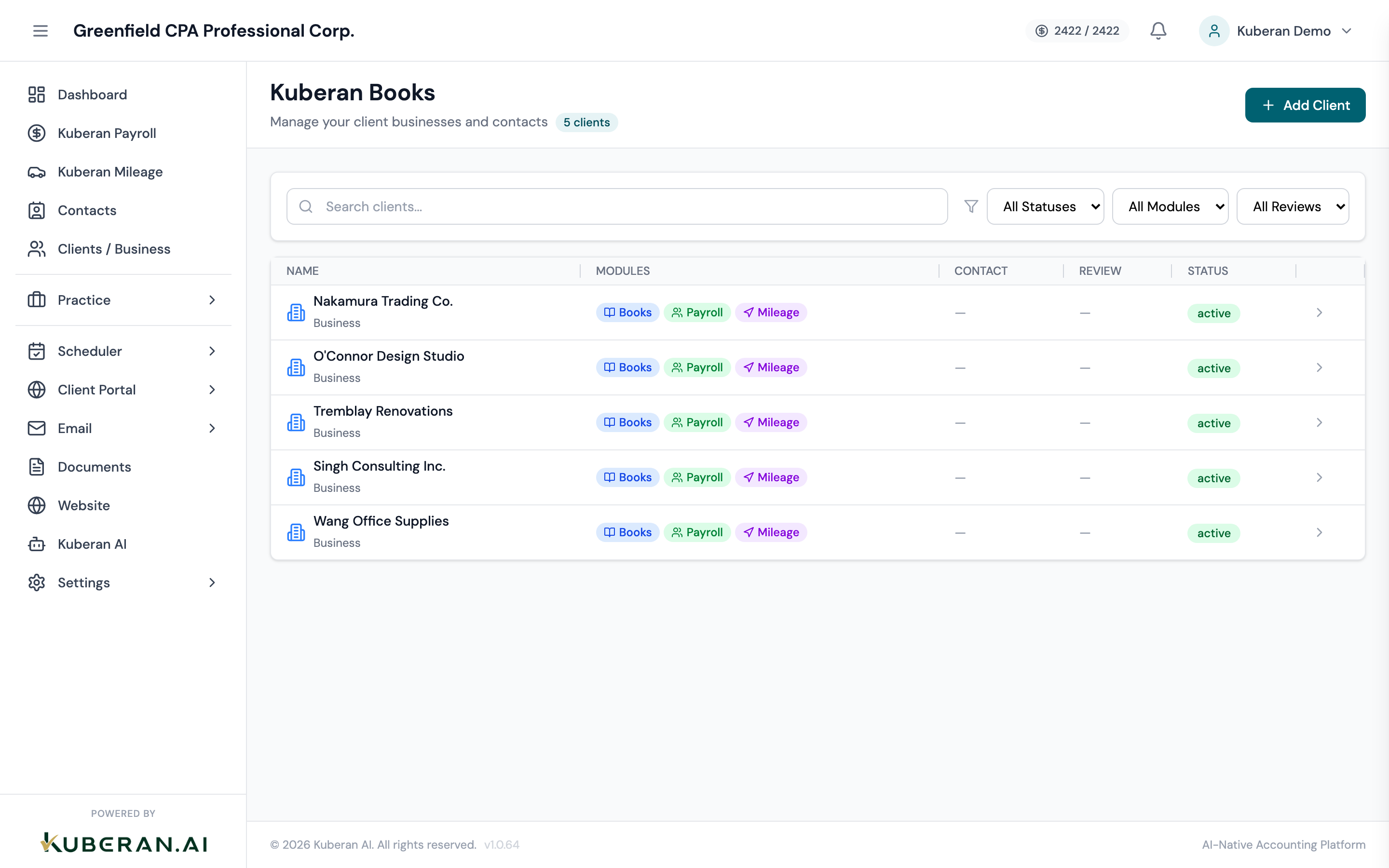
- (1) Search field — find clients by name or contact
- (2) Status filter — Active, Inactive, Archived, or All
- (3) Add Client button — opens the New Client wizard
- (4) Modules column — enabled services (Books, Payroll, Mileage)
- (5) Review column — clients that are Overdue or Due Soon
Screen Layout
Header (top): The page title (Kuberan Books) with a client count, and the Add Client button.
Filter bar: A search field plus three dropdowns — Status, Module, and Review.
Client table (centre): Each client is a row. Columns show the client name (with a business/personal icon and the client type), enabled Modules, the primary Contact, a Review status (Overdue / Due Soon), and the client Status. Clicking anywhere on a row — or the trailing chevron — opens that client’s Books Dashboard.
UI Elements
Filter Bar
Searches across the client name and contact details. Results update as you type.
Filter by client status: All Statuses (default), Active, Inactive, or Archived.
Show only clients with a given service enabled: All Modules, Books, Payroll, or Mileage.
Filter by review state: All Reviews, Overdue, Due Soon, or Up to Date.
Opens the New Client wizard.
Client Columns
The client’s display or business name, with an icon indicating whether it’s a Business or Personal client and the client type shown beneath.
Badges for the services enabled on the client (Books, Payroll, Mileage). Clicking a badge jumps straight into that module for the client.
The primary contact’s name, email, or phone.
Shows Overdue (red) or Due Soon (amber) when the client’s books are due for review; otherwise blank.
The client’s status — Active, Inactive, or Archived.
Actions
Open a Client’s Books
- Locate the client using the search field or filters.
- Click anywhere on the client row (or the trailing chevron).
- The client’s Books Dashboard opens at
/app/books/:clientId.
Add a New Client
Adding a client is a two-step wizard.
- Click Add Client. The New Client panel slides in.
- Step 1 — details. Choose the Client Type (Business or Personal), then enter the name and, for businesses, the business type and industry. Set the Status, the Fiscal Year Start month (the panel shows the resulting year-end), link or create a Contact, and fill in the address, business numbers (GST/HST registration), and any notes.
- Click Next.
- Step 2 — services. CRM is always included. Toggle on the modules this client needs — Books, Payroll, Mileage. When Books is on, you can also enable the Properties sub-feature (and, under it, Auto-depreciation).
- Click Create Client. The client is added to the list and its file opens.
Filter the List
- Use the Status, Module, and Review dropdowns in the filter bar, alone or in combination.
- Combine them with the search field to narrow to exactly the clients you want.
- The table refreshes immediately as filters change.
Optional sub-modules
A Books file can opt into specialised sub-modules per-client. Enabling a module unlocks its sidebar entries and automation for that client:
- Properties — Rental real estate management: properties, units, tenants, leases, mortgages, rent schedules, automated rent invoicing, per-property P&L. Properties is a Books sub-feature: enable it from the Add Client wizard (under Books) or from the client’s settings. See the Properties overview and the Enable Properties guide.
Modules that are disabled don’t appear in the sidebar and don’t run their crons against the client — there’s no cost to leaving them off for clients who don’t need them.
Related
- Books Dashboard — P&L summary, bank balances, and outstanding invoices for a single client
- Chart of Accounts — View and manage the account hierarchy for a client file
- Periods — Open and close accounting periods
- Properties — Optional property-management sub-module
- Tax Centre — GST/HST filing and CRA remittance tracking