
Estimates
Overview
Estimates (also known as quotes or proposals) allow the client’s business to communicate pricing to prospective customers before work begins. An estimate is not a binding financial transaction and does not create journal entries — it becomes financially significant only when converted to an invoice. Estimates track acceptance and expiry status, and a single estimate can be converted to an invoice once the customer approves the quoted work. The estimate editor shares the same line item structure as the invoice editor, making conversion seamless.
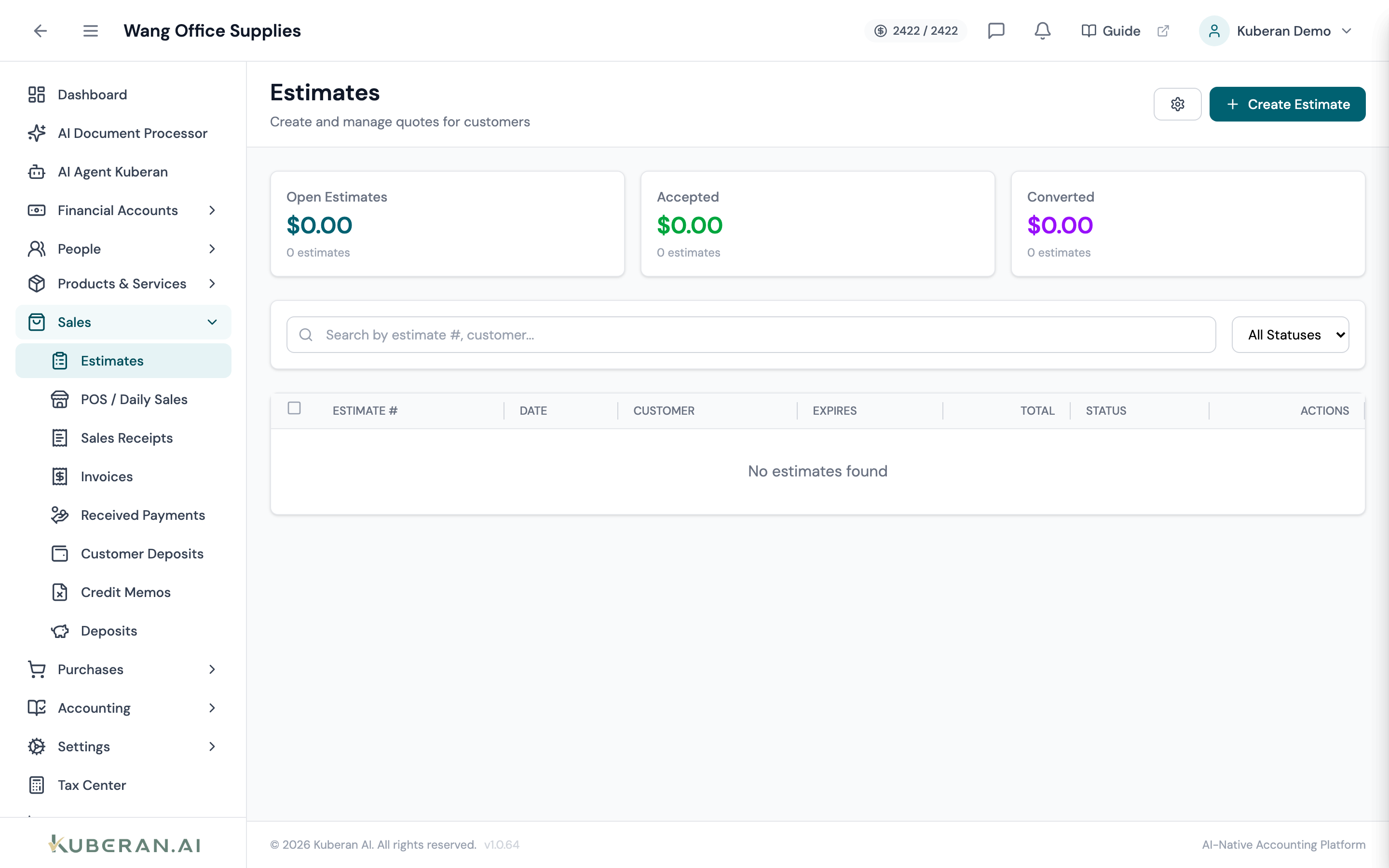
- (1) Summary cards — Open Estimates, Accepted, Converted
- (2) Create Estimate button — opens the estimate editor
- (3) Expires column — date after which the quote is no longer valid
- (4) Status badge — lifecycle stage of the estimate
- (5) Actions menu — send, accept/decline, convert to invoice, and more
Screen Layout
Summary cards (top): Open Estimates, Accepted, and Converted counts.
Toolbar: A search field, a Status filter dropdown, and the Create Estimate button.
Estimates table (centre): Columns: Estimate #, Date, Customer, Expires, Total, Status, and Actions.
Estimate Statuses
| Status | Colour | Meaning |
|---|---|---|
| Draft | Grey | Created but not yet sent to the customer |
| Sent | Blue | Emailed to the customer; awaiting response |
| Accepted | Green | Customer has agreed to the quoted price |
| Declined | Red | Customer has declined the estimate |
| Expired | Amber | Expiry date has passed without a customer response |
| Converted | Purple | Turned into an invoice; the linked invoice is recorded on the estimate |
| Void | Grey | Cancelled; kept for the audit trail |
UI Elements
Toolbar
Filter estimates by lifecycle status (All Statuses, Draft, Sent, Accepted, Declined, Expired, Converted, Void). The Expired status is applied automatically when the current date passes the estimate’s expiry date without acceptance.
Search by estimate number or customer name.
Opens the estimate creation form.
Table Columns
Auto-incremented estimate number (e.g., EST-0018). Clicking it opens the estimate detail view.
The date the estimate was created.
The customer this estimate was prepared for.
The date after which the quoted prices are no longer guaranteed. Default is 30 days from the estimate date, configurable in Settings.
The total estimated amount including GST/HST.
Per-row actions vary by status: View Details (always), Edit and Send to Customer (Draft), Mark as Accepted / Mark as Declined / Copy Acceptance Link (Sent), Convert to Invoice (Sent or Accepted), Print / PDF, Duplicate, and Void Estimate (any status except converted or already void).
Actions
Create an Estimate
- Click Create Estimate. The estimate editor opens, which mirrors the invoice editor.
- Select the Customer.
- Set the Estimate Date and Expiration Date.
- Add line items: select Items or enter custom descriptions, with quantity, unit price, and tax code. GST/HST is calculated automatically.
- Add any Customer Note, Internal Note, or Terms.
- Click Create Estimate. The estimate is saved as a Draft — sending is a separate step.
Send an Estimate
- Click ⋯ → Send to Customer on a Draft estimate.
- Review the recipient address, subject, and email body in the Send Estimate dialogue.
- Click Send. The status changes to Sent. The customer receives a link to view and respond to the quote online, where they can Accept or Decline. You can also grab that link yourself with ⋯ → Copy Acceptance Link.
Mark as Accepted or Declined
If the customer communicates acceptance or declination outside the portal (for example, by phone or email), you can update the status manually.
- Click ⋯ → Mark as Accepted or ⋯ → Mark as Declined on the estimate row.
- The status badge updates immediately. Accepted estimates can then be converted to an invoice.
Convert an Estimate to an Invoice
- Click ⋯ → Convert to Invoice on a Sent or Accepted estimate and confirm.
- A new invoice is created with all line items, customer, and amounts copied from the estimate, and the invoice’s due date is set from the estimate’s payment terms.
- The estimate’s status becomes Converted and the linked invoice is recorded on it. By default the invoice is created as a draft; posting it to the ledger happens when it is finalized.
If the client’s estimate settings require approval before conversion, only Accepted estimates can be converted — have the customer accept the estimate first.
Duplicate an Estimate
Use Duplicate to create a new estimate based on an existing one — useful for re-quoting similar work for a different customer or a new project period.
- Click ⋯ → Duplicate on the estimate row.
- A new Draft estimate is created with the same line items. The customer, dates, and estimate number are reset.
- Edit as needed and save.
Void an Estimate
Estimates are voided rather than deleted, so the record and its number are preserved for the audit trail. Because estimates never post journal entries, voiding has no accounting effect. A converted estimate cannot be voided.
- Click ⋯ → Void Estimate on the estimate row.
- Confirm in the dialogue. The status changes to Void. Voiding does not notify the customer.