
Accounting Periods
Overview
Period Management divides a client’s financial activity into fiscal periods — monthly, quarterly, and annual. Periods are generated per fiscal year, and each moves through three states. While a period is Open, transactions can be freely added, edited, and deleted within it. Closing a period calculates its final balances and prevents new transactions from being posted to it; a closed period can still be Reopened if corrections are needed. Locking a period is permanent — a locked period can never be reopened or modified. At year-end, a dedicated Year-End Close posts a closing journal entry that rolls income and expense into Retained Earnings. Close, reopen, lock, and year-end-close actions are all recorded in the audit log.
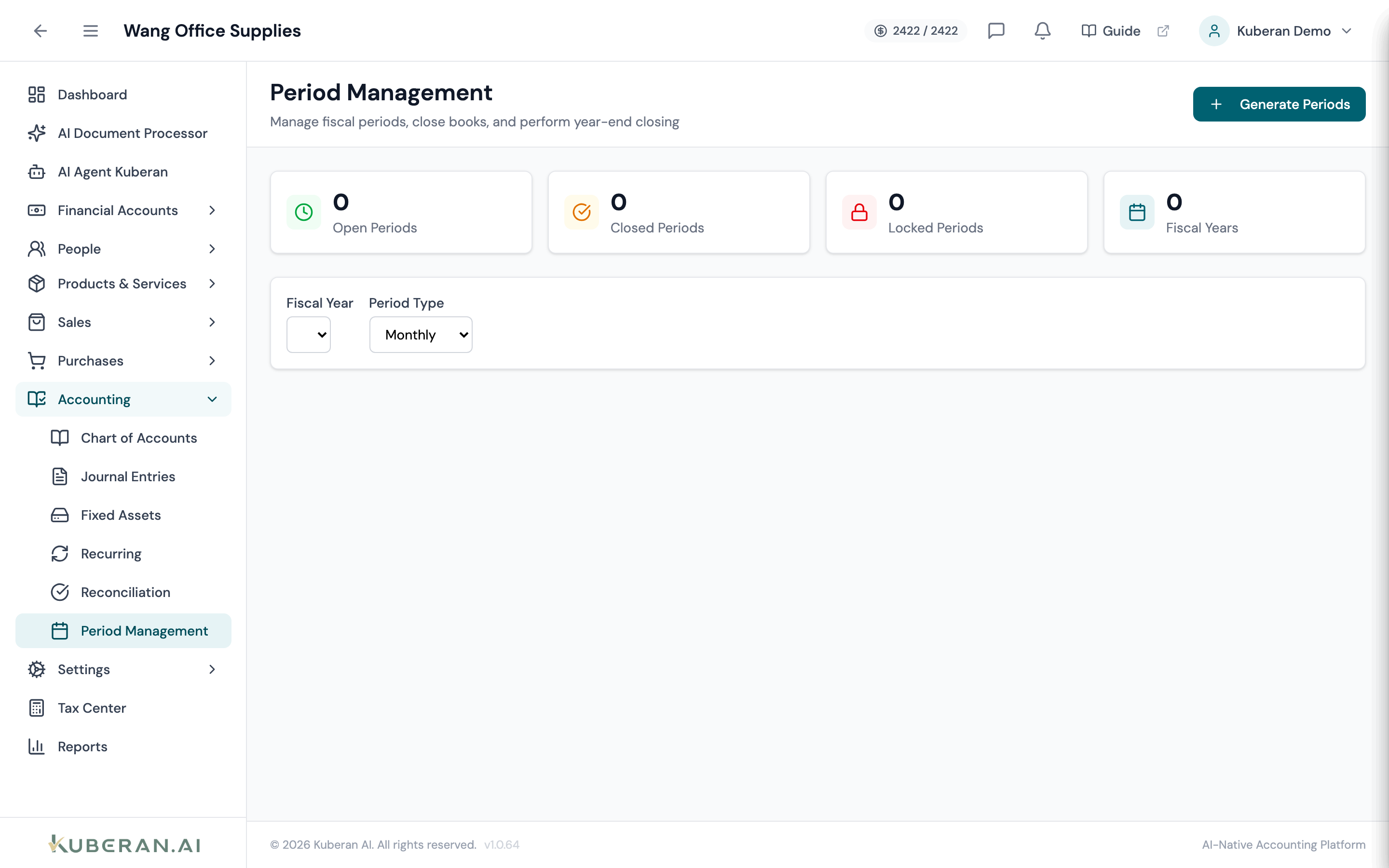
- (1) Summary cards — counts of Open, Closed, and Locked periods, plus fiscal years
- (2) Fiscal Year and Period Type filters
- (3) Period card — name, date range, and closing balances when available
- (4) Status — Open (green), Closed (amber), or Locked (red)
- (5) Actions — Details, Close, Reopen, Lock, Year-End Close
Screen Layout
Header (top): A Generate Periods button.
Summary cards: Counts of Open Periods, Closed Periods, Locked Periods, and the number of Fiscal Years on file.
Filters: A Fiscal Year selector and a Period Type selector (All Types / Monthly / Quarterly / Annual; defaults to Monthly).
Period cards (centre): Periods are shown as cards in a grid — not a table. Each card shows the period name, its date range, and (once closed) its closing balances, along with the actions available for its current status.
UI Elements
Header and Filters
Opens a panel to generate the fiscal periods for a given year. Generating a year creates 12 monthly, 4 quarterly, and 1 annual period.
Switch between fiscal years that have periods generated. Defaults to the most recent year.
Filter the cards by All Types, Monthly, Quarterly, or Annual.
Period Card
Open (green) — transactions can be added and edited. Closed (amber) — final balances are calculated and new transactions are blocked; can be reopened. Locked (red) — permanent; cannot be reopened or modified.
Shown on the card and in Details once a period has been closed: Total Revenue, Total Expenses, and Net Income (plus Retained Earnings in the Details panel).
Opens a side panel with the period’s type, status, start/end dates, closed-at and locked-at timestamps, closing balances, and any closing notes.
Available on Open periods. Calculates final balances and closes the period.
Available on Closed periods. Requires a reason. Reopening allows new transactions to be posted to the period again.
Available on Closed periods. Requires a reason. Permanent — a locked period can never be reopened or modified.
Shown on a fiscal year-end period that is not locked and has no closing entry yet. Posts a closing journal entry.
What Closing a Period Does
When you close a period:
- Its closing balances (revenue, expenses, net income) are calculated and stored.
- New transactions can no longer be posted to it, and existing transactions dated within it are protected. Attempts to post, edit, void, or reverse anything dated in a closed or locked period are blocked with an error.
- The status changes to Closed and the close is recorded in the audit log.
Locking goes further: it makes the period permanent. Reopening is the escape hatch for a closed period only; a locked period cannot be reopened.
Considerations Before Closing
Before closing a period, confirm:
- All bank transactions for the period have been categorised (no Uncategorised transactions remain).
- Bank reconciliation for all accounts has been completed for this period.
- All invoices issued and bills received during the period have been entered.
- Any required adjusting journal entries (depreciation, accruals) have been posted.
- The Profit & Loss and Balance Sheet reports have been reviewed and approved with the client.
Actions
Generate Periods
- Click Generate Periods.
- Enter the Fiscal Year.
- Click Generate Periods. Twelve monthly, four quarterly, and one annual period are created for that year.
Close a Period
- Review the pre-close checklist above.
- On the target period’s card, click Close.
- The panel warns that closing calculates final balances and blocks new transactions. Add optional notes.
- Click Close Period. The card’s status changes to Closed and the closing balances appear.
Reopen a Period
Reopening should be used only when a material error is discovered in a closed period and must be corrected in that period rather than through an adjusting entry.
- On the closed period’s card, click Reopen.
- Enter a Reason (required) — it is stored with the audit-log event.
- Click Reopen Period. The status returns to Open. Make the corrections, then close the period again.
Lock a Period
- On the closed period’s card, click Lock.
- The panel warns that locking is permanent and cannot be undone. Enter a Reason (required).
- Click Lock Period. The period becomes read-only forever.
Year-End Close
- On the fiscal year-end period’s card, click Year-End Close.
- Optionally pick the Retained Earnings account (auto-detected by default) and add notes.
- Click Perform Year-End Close. A closing journal entry is posted that closes all income and expense accounts to Retained Earnings and transfers net income into it.
Related
- Reconciliation — Complete reconciliation before closing a period
- Journal Entries — Post adjusting entries before period close; locked periods block edits and voids
- Audit Log — Close, reopen, lock, and year-end-close events are recorded here
- Reports — Run Trial Balance and P&L before closing to confirm accuracy