
Billing Rates
Overview
Billing Rates are the reusable rates your firm charges for professional work. Rather than typing a dollar amount on every time entry or playbook, you define a rate once and reference it wherever it is needed. Each rate has a billing type — Hourly, Per Filing, Flat Fee, or Non-billable — and any rate can be marked as the workspace default so it is pre-selected automatically.
Rates are consumed in two places: the Billing tab of a Playbook , and Time Entries .
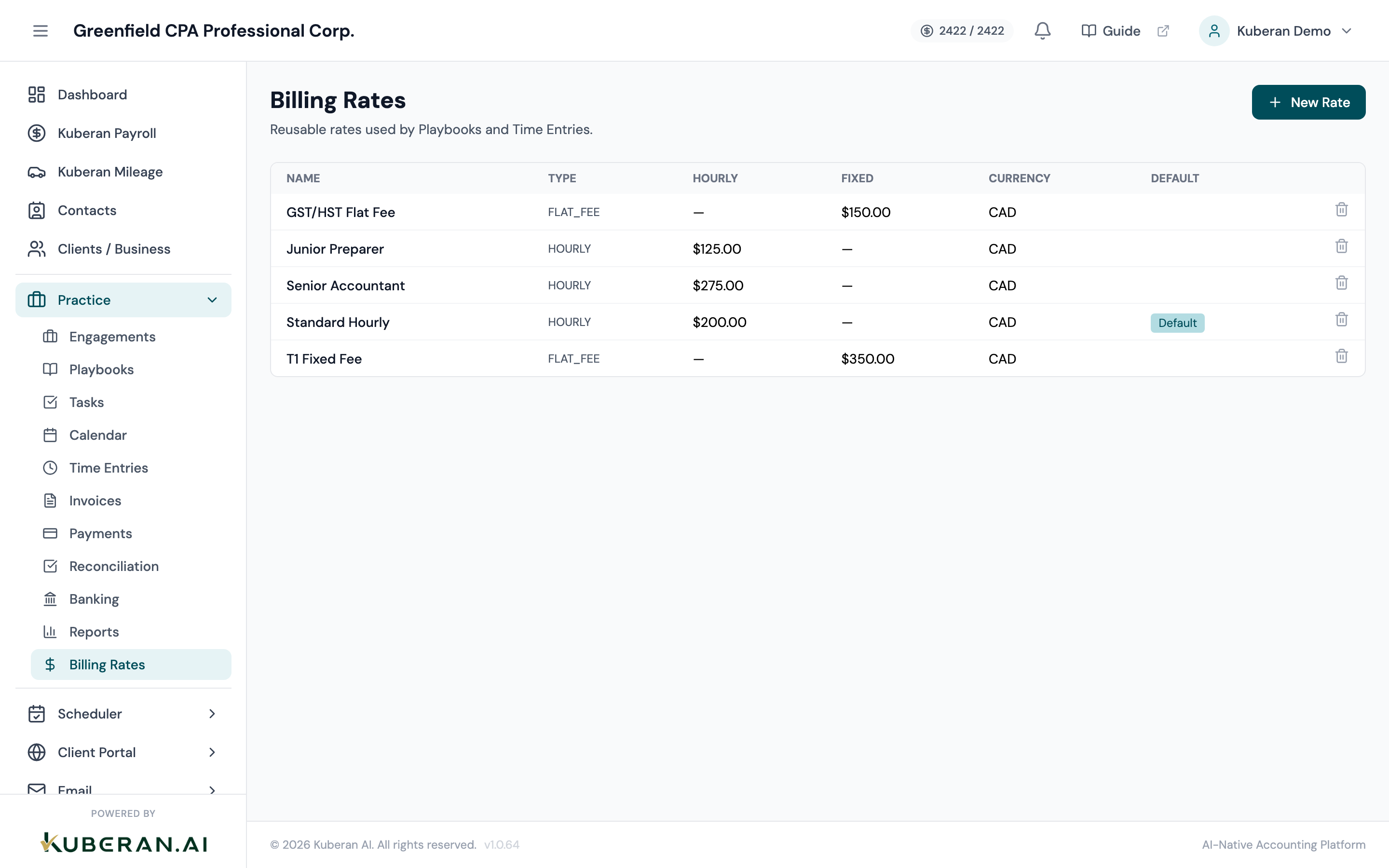
- (1) New Rate button — opens the billing-rate modal
- (2) Name column — click a row to edit the rate
- (3) Type column — Hourly, Per Filing, Flat Fee, or Non-billable
- (4) Hourly / Fixed / Currency columns
- (5) Default column — a 'Default' pill marks the workspace default
- (6) Trash icon — deletes the rate (blocked if it is in use)
Screen Layout
The Billing Rates screen is a table, not a card grid. Each row is one rate with the columns:
| Column | Contents |
|---|---|
| Name | The rate’s label (click the row to edit) |
| Type | Billing type — Hourly, Per Filing, Flat Fee, or Non-billable |
| Hourly | The hourly amount (for Hourly rates) |
| Fixed | The fixed amount (for Flat Fee / Per Filing rates) |
| Currency | Currency code (default CAD) |
| Default | A Default pill on the row that is the workspace default |
| — | A trash icon to delete the rate |
There is no usage count anywhere on this screen. The workspace default is shown as a plain Default text pill (not a star).
UI Elements
Opens the billing-rate modal to create a rate. Positioned at the top right of the screen.
Click a row (its Name) to open the same modal in edit mode.
A small “Default” pill shown in the Default column of the workspace default rate. Only one rate is the default at a time.
Deletes the rate. The delete is blocked by the server (returns a conflict) if the rate is referenced by any playbook or time entry, and the reason is shown as a toast.
Modal fields
Required. A short, recognisable label for the rate (e.g., “Standard Hourly”, “T1 Filing Fee”).
Optional. A longer note explaining when the rate applies.
Required dropdown. Options:
- Hourly — billed by the hour; shows an Hourly Rate field
- Per Filing — a fixed amount per filing; shows a Fixed Rate field
- Flat Fee — a fixed amount for the engagement; shows a Fixed Rate field
- Non-billable — internal work with no charge
There are no role-based tiers (Partner/Senior/Junior) and no role auto-suggest.
Shown only when Billing Type is Hourly. The amount charged per hour. Numeric, two decimal places.
Shown only when Billing Type is Flat Fee or Per Filing. The fixed amount. Numeric, two decimal places.
The currency code, defaulting to CAD. Entered in uppercase.
When ticked, this rate becomes the workspace default and is pre-selected where a default is used. Only one rate can be the default at a time.
Actions
Create a Billing Rate
- Click New Rate in the top-right corner. The billing-rate modal opens.
- Enter a Name and, optionally, a Description.
- Choose a Billing Type. The modal then shows an Hourly Rate field (Hourly) or a Fixed Rate field (Flat Fee / Per Filing). Non-billable needs neither.
- Enter the rate amount and adjust the Currency if it is not CAD.
- Tick Set as workspace default if this should be the pre-selected rate.
- Click Create Rate. The new row appears in the table.
Edit a Billing Rate
- Click the rate’s row to open the modal in edit mode.
- Change the name, description, billing type, amount, currency, or default flag.
- Click Save Changes. Existing time entries keep the amount that was in effect when they were created — editing a rate does not retroactively recalculate past entries.
Set a Rate as the Default
- Open the rate you want as default (click its row).
- Tick Set as workspace default and click Save Changes.
- The Default pill moves to that row. Only one rate is the default at a time.
Delete a Billing Rate
- Click the trash icon on the rate’s row.
- Confirm the deletion in the dialogue.
- If the rate is referenced by any playbook or time entry, the server blocks the delete and a toast explains why. Remove those references first — or keep the rate — and the deletion will succeed once nothing points to it.
Related
- Playbooks — A playbook’s Billing tab links to a billing rate
- Time Entries — Select a billing rate when logging time
- Invoices — Invoice line items reflect the rate applied to each time entry