
Portal Admin — Chat
Overview
The Portal Chat screen is the practice-side view of the messaging feature in the client portal. Clients initiate conversations from their portal, and your team responds here. Each conversation is scoped to a specific client and portal user. Conversations can be assigned to individual team members for accountability, marked as resolved when the matter is closed, and reviewed in full historical detail at any time. The Portal Chat is separate from the SMS module — it operates within the Kuberan AI portal and does not use SMS.
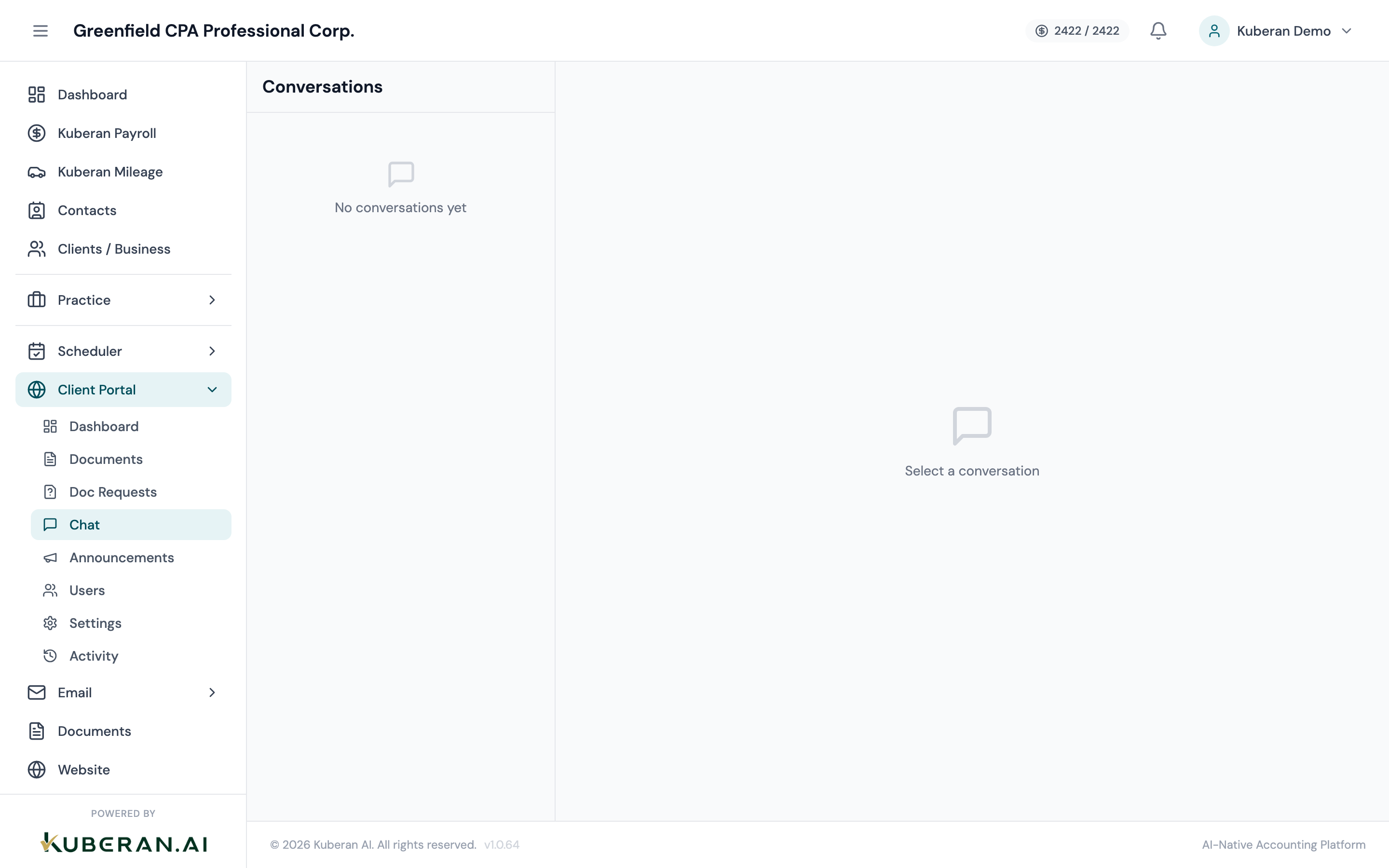
- (1) Conversation list — client name, last message snippet, unread indicator
- (2) Filter — Open, Resolved, All
- (3) Assigned to badge on conversation row
- (4) Thread view with full message history
- (5) Assign and Mark Resolved buttons in the thread header
Screen Layout
Left panel — Conversation list: Shows all portal chat threads. Sorted by most recent message. Unread threads are bold with a blue dot. The filter at the top of the list shows Open (unresolved) conversations by default.
Right panel — Thread view: The full message history for the selected conversation. Outgoing messages (from your team) are on the right; incoming client messages are on the left. Each message shows the sender’s name and timestamp.
Conversation States
| State | Meaning |
|---|---|
| Open | Conversation is active and may require a response. Default state for all new conversations. |
| Resolved | The matter has been closed by a team member. The client can still send new messages, which will reopen the conversation. |
UI Elements
A blue dot on the conversation row indicates the client has sent a message that has not yet been read by any team member. The badge clears when the conversation is opened.
The team member currently responsible for this conversation. Shown as a name or avatar on the conversation row. Unassigned conversations show “Unassigned.”
The name of the client (from the Clients module) associated with the portal user who initiated the conversation.
Actions
Reply to a Message
- Click on the conversation in the left panel to open the thread.
- Type your reply in the compose field at the bottom of the thread.
- Press Enter or click Send. Your message is delivered to the client’s portal immediately.
The client receives an in-portal notification that a reply has arrived. If email notifications are enabled in portal settings, they also receive an email alert.
Assign a Conversation to a Team Member
- Open the conversation.
- Click Assign in the thread header (or click the current assignee’s name if already assigned).
- Select a team member from the dropdown.
- Click Assign. The team member receives an in-app notification.
Assigned team members can filter the conversation list to show only their own conversations using the Assigned to Me filter.
Mark as Resolved
- Open the conversation.
- Click Mark Resolved in the thread header.
- The conversation moves to the Resolved section in the list.
Marking a conversation as resolved is reversible. If the client sends a new message after resolution, the conversation is automatically reopened and moves back to the Open section.
View Chat History
All messages in a conversation are permanently stored and accessible by any team member with the Portal Admin permission. Click any conversation in the list — including resolved ones (switch the filter to Resolved or All) — to view the full thread. There is no message expiry or deletion.
Filters
Toggle between Open (active conversations needing attention), Resolved (closed conversations), and All (everything). Default is Open.
Shows only conversations assigned to the current user. Useful for team members who want to focus on their own workload.
Search by client name to find a specific client’s conversation.
Tips
- Resolve promptly. Resolved conversations stay out of the Open queue, which keeps the active list focused. Develop a habit of resolving conversations as soon as the matter is closed — even if only to acknowledge that no further action is needed.
- Assign during busy seasons. During tax season, assign incoming conversations to specific team members based on the client they handle. This prevents messages from sitting unattended in the unassigned queue.
- Chat is not for urgent matters. Portal chat messages are asynchronous. Make sure your practice’s response time expectations are clearly communicated to clients (e.g., “We respond to portal messages within one business day”). For urgent issues, clients should call the office.