
Mileage — Trips
Overview
The Trips screen is the core of the Mileage module. It shows every recorded trip for the selected client within the chosen date range. Each trip captures the date, start and end location, distance in kilometres, purpose (Business or Personal), vehicle used, and the reimbursable dollar amount based on the CRA rate. You can add trips manually, edit or delete existing trips, bulk-classify trips as business or personal, and import trips that were captured by the mobile app.
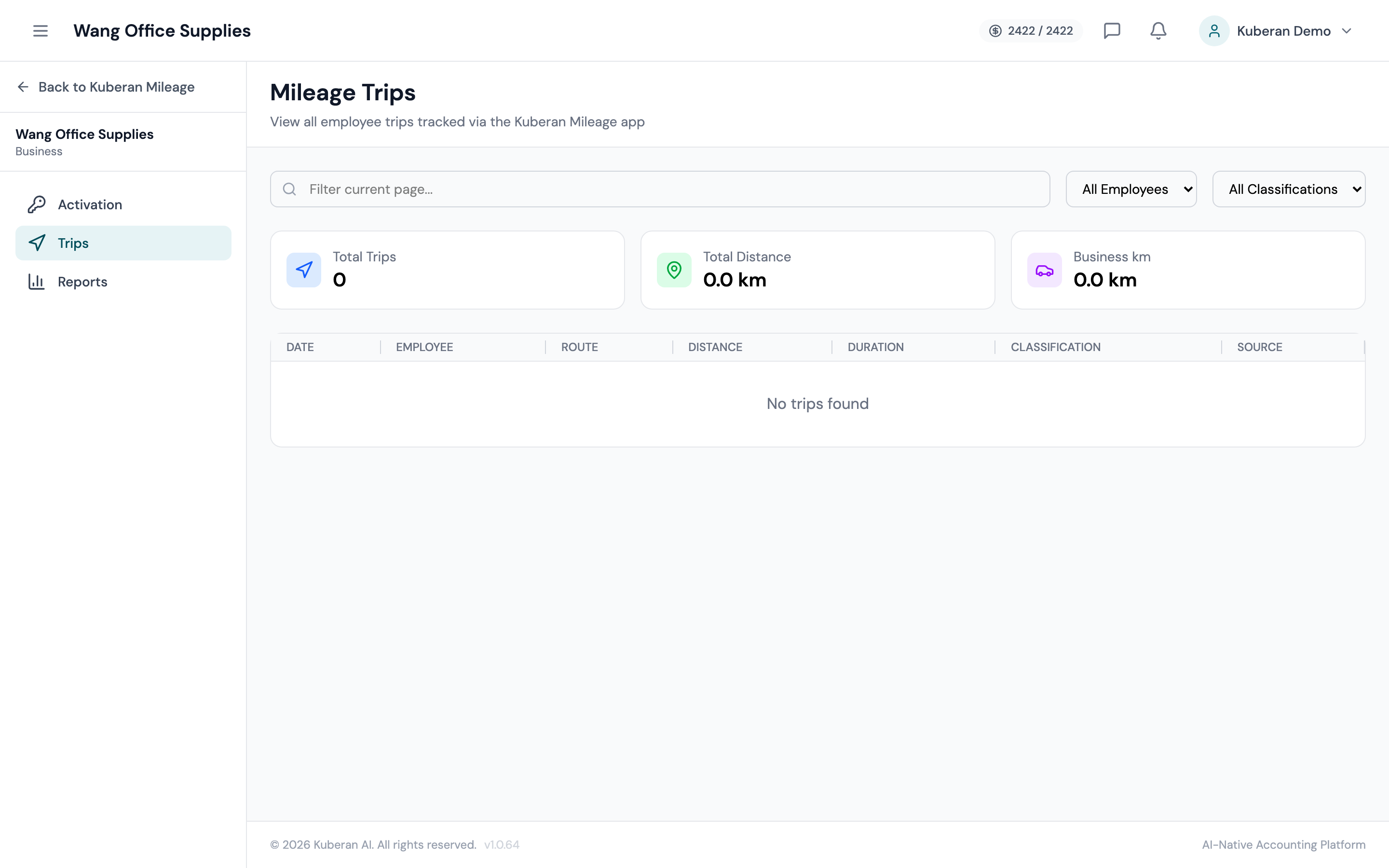
- (1) Add Trip button
- (2) Date range filter and vehicle filter
- (3) Purpose badge — Business, Personal, or Unclassified
- (4) Distance (km) and reimbursable amount
- (5) Bulk select checkboxes for mass classification
Screen Layout
Toolbar (top): Add Trip button, date range filter, vehicle filter, and a purpose filter (Business / Personal / Unclassified / All).
Trips table: One row per trip with columns for Date, Start Location, End Location, Distance (km), Purpose, Vehicle, Amount, and Actions.
Summary bar: Shows totals for the current filter — total trips, total km, total business km, and total reimbursable amount.
Table Columns
The date the trip occurred. Trips are sorted newest-first by default. Click the column header to reverse the sort.
The address or place name where the trip began. For GPS-tracked trips, this is the actual departure address resolved from coordinates. For manually entered trips, this is the text you entered.
The address or place name where the trip ended.
The trip distance in kilometres. For GPS trips, this is the actual distance driven. For manual trips, you enter this value directly. The CRA requires distances to be recorded in kilometres.
Business (blue) — trip is deductible as a business expense. Personal (grey) — trip is not deductible. Unclassified (amber) — purpose has not yet been set. Unclassified trips are excluded from CRA logbook exports and reports until classified.
The vehicle used for the trip, selected from the client’s registered vehicles.
The reimbursable dollar amount, calculated as Distance × CRA rate. For example, at the 2024 rate of $0.70/km, a 50 km business trip = $35.00. Personal trips show $0.00.
Actions
Add a Trip Manually
- Click Add Trip in the toolbar.
- Enter the trip date (defaults to today).
- Enter the start location and end location. Kuberan AI will suggest addresses from Google Places as you type.
- Enter the distance in kilometres, or click Calculate Distance to have Kuberan AI estimate the driving distance between the two addresses using mapping data.
- Select the vehicle.
- Set the purpose: Business or Personal. If Business, optionally enter a short description of the business reason (e.g., “Client meeting — ABC Corp”).
- Click Save Trip.
Edit a Trip
Click the Actions menu (⋯) on any row and select Edit, or click anywhere on the row to open the edit drawer. All fields are editable. Save to apply changes.
Delete a Trip
Open the Actions menu and select Delete. Deletion is immediate and cannot be undone. If you need to remove a GPS-captured trip, deleting it here removes it from the logbook but the GPS record in the mobile app is not affected — the trip will not re-import.
Bulk Classify as Business or Personal
- Use the checkboxes on the left of each row to select multiple trips. Click the header checkbox to select all trips visible in the current filter.
- Click Classify Selected in the toolbar.
- Choose Business or Personal.
- Confirm. All selected trips are updated simultaneously.
Bulk classification is especially useful after importing a batch of GPS trips from the mobile app, where many trips may initially be unclassified.
Import Trips from the Mobile App
GPS trips captured via the Kuberan AI mobile app appear in the list automatically once the client’s mobile app is linked to their portal account. New trips sync within a few minutes of the trip completing. Imported trips are flagged with a GPS icon and have their start and end addresses auto-populated. They arrive as Unclassified — you or the client must classify them before they appear in reports and the logbook export.
Tips
- Business purpose description is not mandatory but is strongly recommended. The CRA can request the logbook and will look for evidence that each business trip had a legitimate business purpose. A brief note like “Client site visit — 123 Main St” is sufficient.
- Round trips should be entered as two separate trips (outbound and return) or as a single trip with the combined distance. Either approach is acceptable to the CRA as long as the logbook is consistent.
- Personal trips must be logged. The CRA requires that the logbook include all trips — both business and personal — so the business-use percentage can be calculated accurately. Do not omit personal trips.