
Payroll Settings
Overview
Payroll Settings is where you configure the foundational details for a client’s payroll before processing begins. These settings affect every pay run, remittance calculation, and year-end form generated for the client. Settings are scoped to the individual client — each client can have completely different pay schedules, bank accounts, and CRA registration details. You can return to Settings at any time to update information, though some changes (such as changing the pay period type mid-year) require careful consideration and are flagged with a warning.
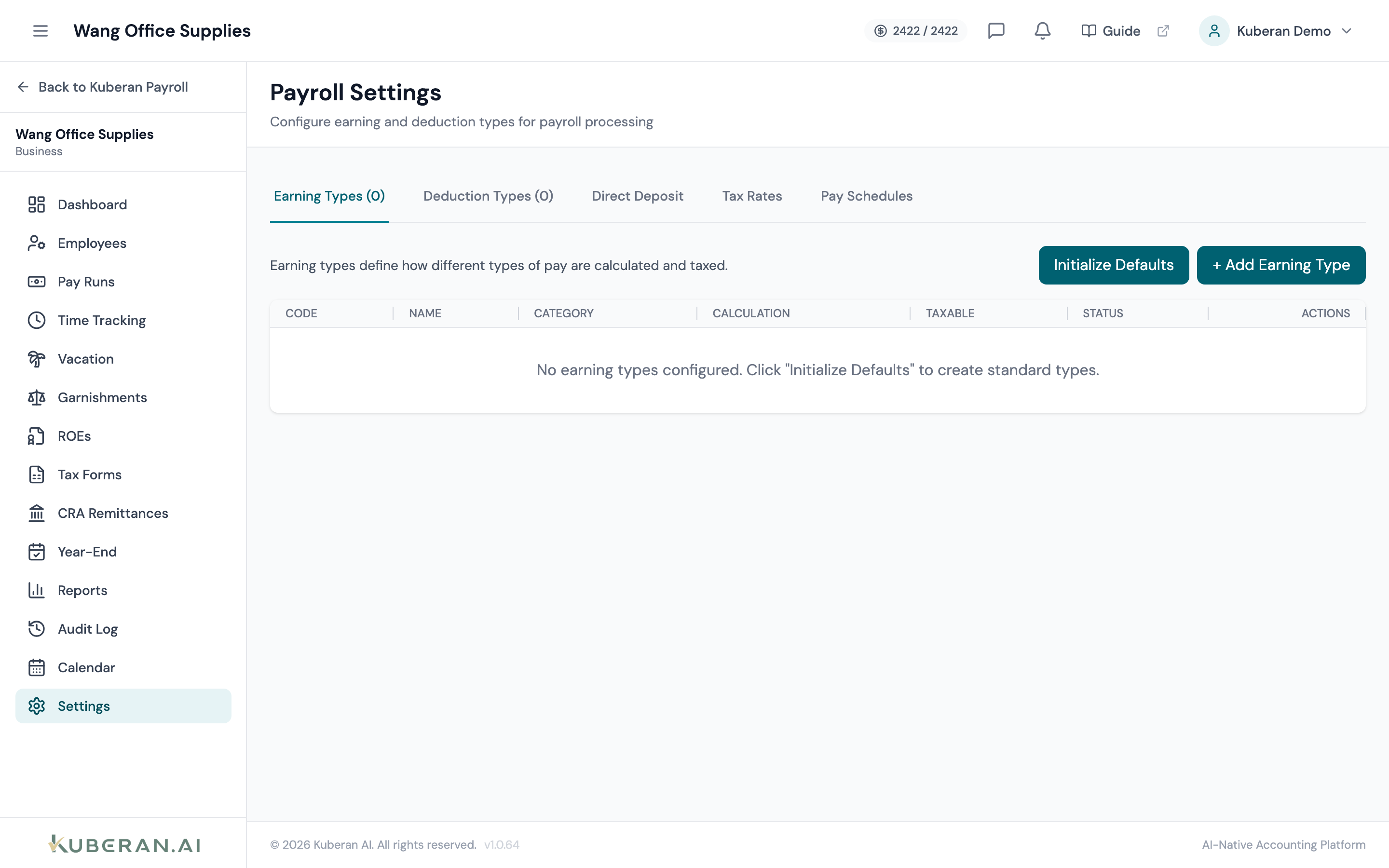
- (1) General tab — CRA BN, province, remittance frequency
- (2) Pay Schedules tab — add and manage pay frequency
- (3) Bank Account tab — direct deposit configuration
- (4) Deductions tab — custom deduction and addition types
General Settings
The client’s 15-character CRA Business Number in the format 123456789 RP 0001. The first 9 digits are the Business Number; “RP” denotes a payroll account; the last 4 digits are the account number. This value appears on T4 slips and CRA correspondence. Required before you can file T4s or record remittances.
The default province of employment for this client’s payroll. This affects the payroll tax tables used for income tax calculations. Employees in a different province can have their own province set on their individual record, which overrides the default.
Sets how often CRA remittances are calculated: Monthly (regular remitter), Quarterly (new employers and small remitters), Twice Monthly (threshold 1 accelerated), or Weekly (threshold 2 accelerated). The CRA assigns your remittance frequency based on your average monthly withholding from two years prior. Confirm the correct frequency with the client before setting this.
Used to calculate insurable hours for salaried employees on their ROE. Common values are 35 or 40. This can also be overridden per employee.
Pay Schedules
A pay schedule defines the frequency at which employees are paid and the dates of each pay period. You can configure multiple pay schedules if different employee groups are paid on different cycles (e.g., hourly staff paid weekly, salaried staff paid bi-weekly).
Opens the New Pay Schedule form. Fields: schedule name, pay frequency (Weekly, Bi-Weekly, Semi-Monthly, Monthly), first pay period start date, and first pay date.
Pay frequency options:
| Frequency | Periods Per Year | Notes |
|---|---|---|
| Weekly | 52 | Pay date is the same day each week |
| Bi-Weekly | 26 | Pay date every two weeks; results in two months per year with 3 pay periods |
| Semi-Monthly | 24 | Pay dates on fixed days, e.g., the 15th and last day of each month |
| Monthly | 12 | One pay date per month |
Each schedule generates its own pay period calendar automatically. After creating a schedule, assign employees to it in their individual employee record.
Bank Account
The bank account from which payroll direct deposit payments are drawn. Enter the institution number (3 digits), transit number (5 digits), and account number. This account must be pre-authorized with your bank for payroll direct deposit before the first pay run is processed.
When enabled, Kuberan AI generates an EFT (Electronic Funds Transfer) file and submits it to your bank when a pay run is approved. When disabled, pay runs are marked as processed manually and no EFT file is generated.
Deduction Types
The Deductions tab lets you define the custom deduction and addition types available for use on employee records and pay runs. Kuberan AI provides built-in types for CPP, EI, and income tax — these cannot be deleted. You can add any number of custom types for benefits, RRSP, union dues, garnishments, or any other payroll item.
Opens the New Deduction Type form. Fields: name, type (Deduction or Addition), calculation method (Fixed Amount or Percentage of Gross), default value (optional), and whether it is a pre-tax or after-tax deduction.
Inactive deduction types are hidden from the employee record and pay run screens. Use this to retire a deduction type without deleting historical data.
Tips
- Wrong CRA BN means T4s will be rejected during electronic filing. Double-check the BN against the CRA My Business Account before generating T4s.
- Changing the pay schedule mid-year does not retroactively alter processed pay runs. Only future pay runs are affected. If you change frequency, confirm that the new pay dates still align with your remittance due dates.
- Pre-tax deductions (e.g., group RRSP contributions) reduce the employee’s pensionable and insurable earnings only if they qualify under CRA rules. Review the tax treatment with the client before configuring.