
Items (Products & Services)
Overview
Items — labelled Products & Services in the app — are the reusable lines that populate invoices, estimates, sales receipts, and bills. Each item records what you sell and/or what you purchase: a name, optional SKU, description, item type, a sales side (sales description, price, income account) and a purchase side (purchase description, cost, expense account), plus a tax code. Items are organised with a four-level hierarchical category system — for example Professional Services > Tax > Corporate > T2 Preparation — which enables granular reporting by product line. Items can also be inventory-tracked; when an item tracks inventory, Kuberan maintains its quantity and weighted-average cost and posts Cost of Goods Sold automatically (see Inventory Accounting). Well-maintained item records make invoice and bill entry faster and reporting more meaningful.
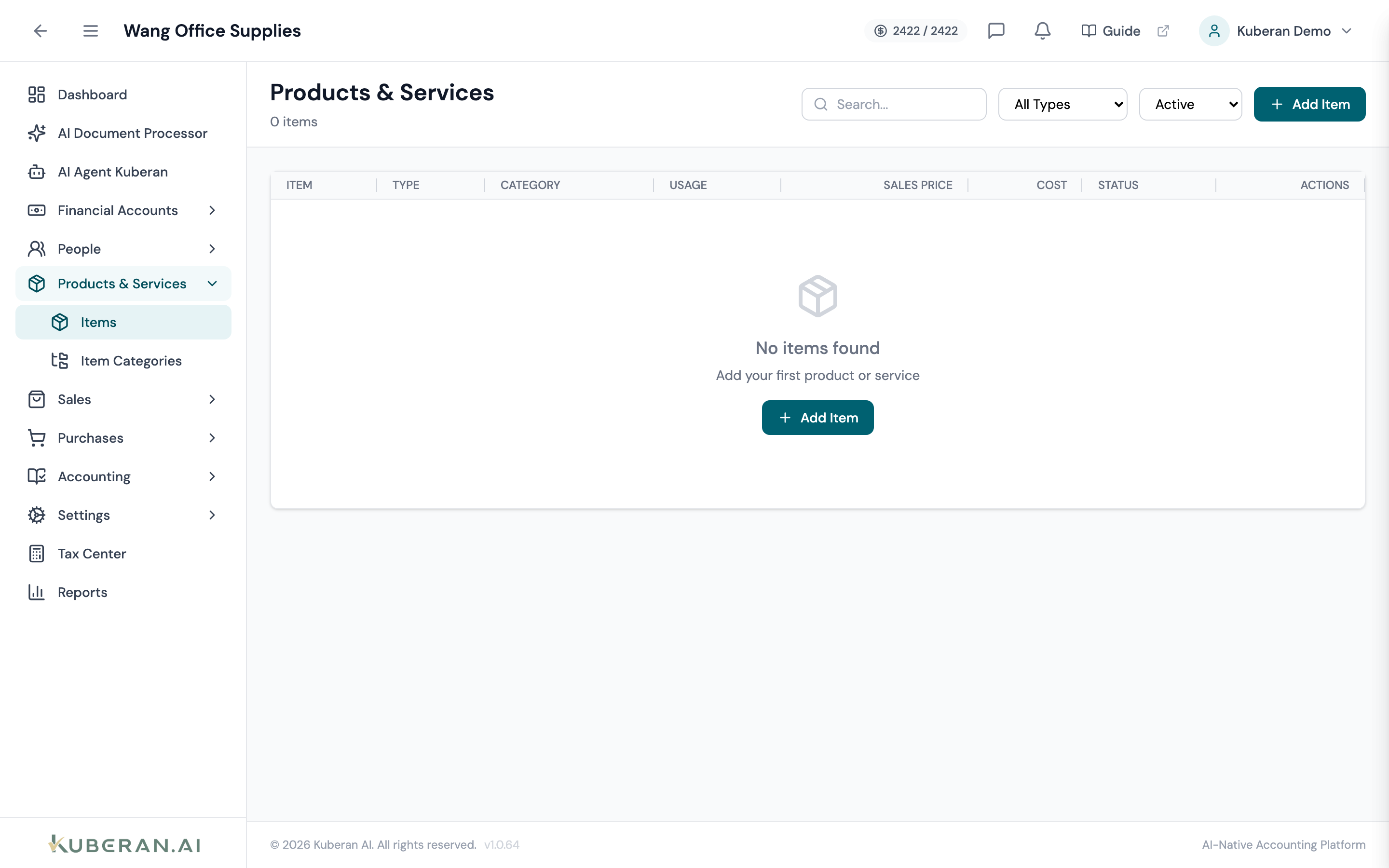
- (1) Search field — find items by name, SKU, or description
- (2) Type and Status filters — narrow the list
- (3) Add Item button — opens the New Item panel
- (4) Usage badges — Sale and/or Purchase
- (5) Category column — the item's category path
Screen Layout
Header (top): The page title (Products & Services) with an item count, a Search field, a Type filter, a Status filter, a Clear button (when a filter is active), and the Add Item button.
Item table (centre): A single full-width table. Columns: Item (name + SKU), Type, Category, Usage, Sales Price, Cost, Status, and Actions. Categories are created and organised on the separate Item Categories page.
UI Elements
Toolbar
Search by item name, SKU, or description. Matches across all categories.
Filter by item type: All Types, Service, Product, Other Charge, Discount.
Filter by status: All Status, Active, or Inactive. Defaults to Active.
Opens the New Item panel.
Table Columns
The item name, with its SKU / item code shown beneath when set.
The item type: Service, Product, Other Charge, or Discount.
The item’s category path (e.g., Professional Services > Tax > Corporate). Blank if the item is uncategorised.
Small badges showing whether the item is for Sale, for Purchase, or both — mirroring the “I sell / I purchase this item” settings on the item.
The default selling price per unit in CAD (shown when the item is sold). Pre-fills invoice line items and can be overridden per transaction.
The default purchase cost per unit (shown when the item is purchased). Pre-fills bill line items.
Active or Inactive. Inactive items stay on historical transactions but no longer appear in new invoice/bill selections.
Two per-row icons: Edit (pencil) and Deactivate (trash — shown only for active items).
Category System
Items are organised using a four-level hierarchical category system, managed on the Item Categories page. Categories exist only to group and filter items for reporting and selection — they do not directly affect accounting entries.
Example hierarchy:
Professional Services └── Accounting └── Bookkeeping └── Monthly Bookkeeping └── Tax └── Personal └── T1 Preparation └── Corporate └── T2 PreparationProducts └── Software └── Office SuppliesCategories can be nested up to four levels deep; items can be assigned at any level, so you do not need to use all four. On the Item Categories page each node shows its level and the number of items assigned to it. To manage categories:
- Open the Item Categories page for the client.
- Click Add Category for a top-level category, or the + icon on an existing node to add a sub-category under it (available up to level 4).
- Enter a name and optional description, then save. Sub-category panels show the parent path and the level being created.
- Use the Edit (pencil) icon to rename a category, change its description, or set its status to Active/Inactive.
- Use the Delete (trash) icon to remove a category. A category that has items assigned to it cannot be deleted — reassign or remove those items first.
Inventory tracking
An item can be flagged to track inventory. When it is, Kuberan keeps a perpetual inventory for it — quantity on hand and a weighted-average cost — and posts the Cost of Goods Sold entries automatically as the item is bought and sold. An inventory-tracked item carries an inventory asset account (required), an optional COGS account override, a quantity on hand, and a reorder point. The full accounting rules (weighted-average costing, what posts on sales vs. purchases, cash vs. accrual, and void behaviour) are documented on the Inventory Accounting page.
Actions
Create an Item
- Click Add Item. The New Item panel opens.
- Enter the Name (required) and an optional SKU / Item Code.
- Select the Type: Service, Product, Other Charge, or Discount.
- Enter an optional Description, and choose a Category with the tree picker.
- Under I sell this item/service, set a Sales Description (shown on invoices), the Sales Price, and the Income Account credited when the item is sold.
- Under I purchase this item/service, set a Purchase Description (shown on bills), the Purchase Cost, and the Expense Account debited when the item is bought.
- An item must be sold, purchased, or both — leave the relevant checkbox ticked accordingly.
- Under Tax Settings, tick This item is taxable and pick the Tax Code (HST, GST, PST, GST/PST, Exempt, or Zero Rated). Untick to make the item non-taxable.
- Click Create Item.
Edit an Item
- Click the Edit (pencil) icon on the item row. The Edit Item panel opens with the current values.
- Update any field, then click Update Item.
Deactivate an Item
Items are deactivated rather than hard-deleted, so they remain intact on historical invoices and bills.
- Click the Deactivate (trash) icon on an active item row.
- Confirm in the dialogue. The item is set to Inactive and no longer appears in item selections for new invoices and bills, but stays on past transactions.
- To bring it back, filter by Inactive, open the item with Edit, and set it active again.
Related
- Inventory Accounting — Costing, COGS postings, and void behaviour for tracked items
- Invoices — Add items to invoice line items
- Bills — Add items to bill line items for expense tracking
- Estimates — Use items when quoting services to customers
- Chart of Accounts — Manage the income and expense accounts assigned to items