
Customer deposits
Overview
A customer deposit records money a customer pays in advance — a retainer, a pre-payment, or a booking deposit — before there is an invoice to apply it to. Because the work has not yet been delivered, the money is not revenue: it is recorded as a liability (money you owe back as goods or services). Later, when you invoice the customer, you apply the deposit against that invoice; if the arrangement falls through, you refund it.
Recording a deposit debits the deposit account (a bank account, or Undeposited Funds) and credits a customer-deposit liability account. Applying the deposit to an invoice reduces the liability and settles the invoice balance. Refunding reverses the deposit. The list tracks each deposit’s applied amount and remaining balance.
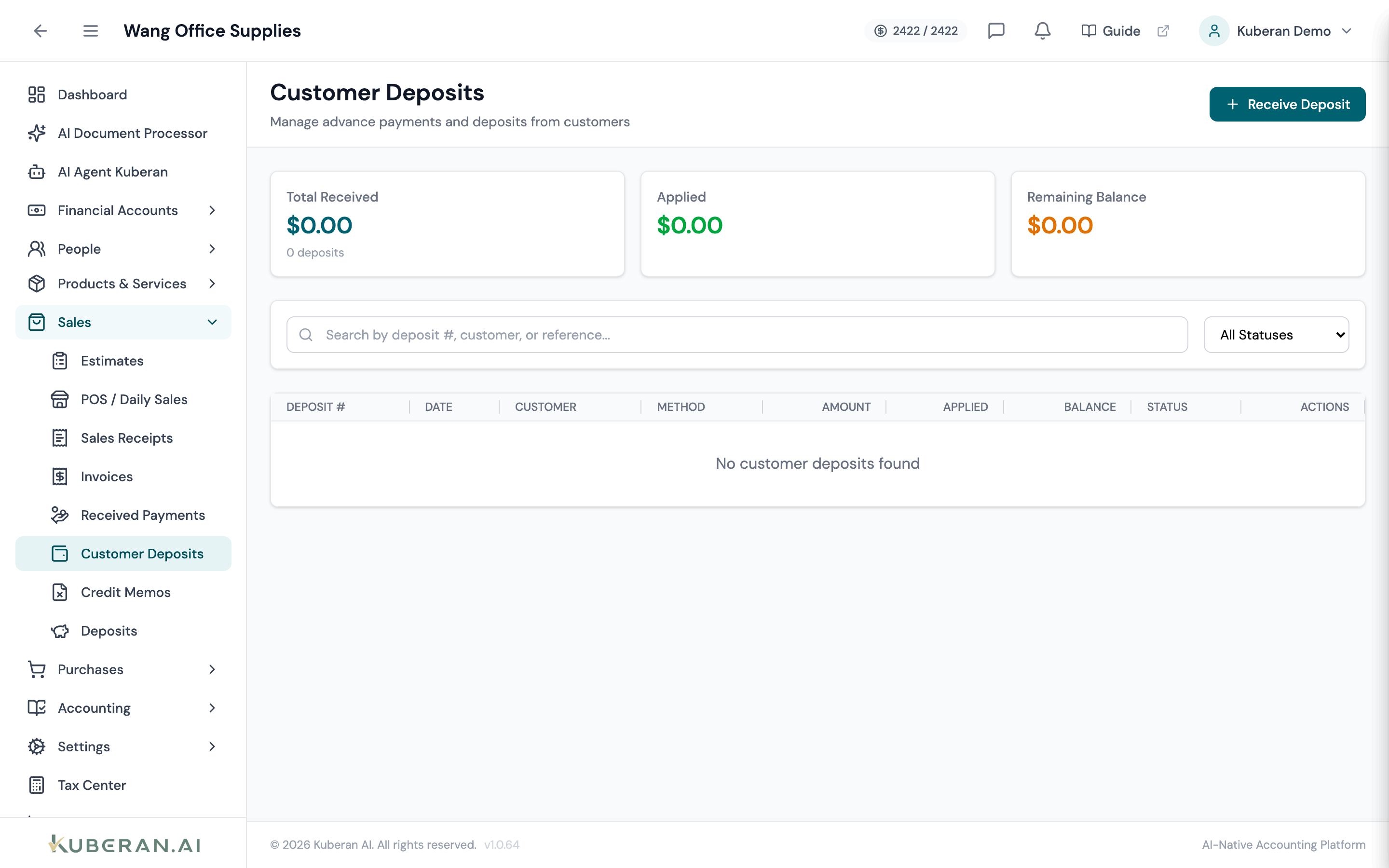
- (1) Summary cards — Total Received, Applied, Remaining Balance
- (2) Receive Deposit button — opens the deposit form
- (3) Status badge — Received, Partially/Fully Applied, Refunded, Void
- (4) Applied & Balance columns — how much remains held
- (5) Actions menu — view, apply, refund, void
Screen Layout
Summary cards (top): Total Received (amount + count), Applied (total applied to invoices), and Remaining Balance (total still held).
Toolbar: Receive Deposit button, a search field, and a Status filter.
Deposit table (centre): Columns: Deposit #, Date, Customer, Method, Amount, Applied, Balance, Status, and Actions.
Statuses
| Status | Colour | Meaning |
|---|---|---|
| Received | Blue | Deposit received and held as a liability |
| Partially Applied | Amber | Some has been applied to invoices |
| Fully Applied | Green | The entire deposit has been applied |
| Refunded | Purple | The deposit was refunded to the customer |
| Void | Red | Reversed; the entry is backed out |
UI Elements
Toolbar
Opens the form to record an advance payment from a customer.
Table Columns
How much of the deposit has been applied to invoices so far.
The remaining held balance still available to apply or refund.
Per-row: View Details, Apply to Invoice (when a balance remains), Issue Refund (when a balance remains), and Void Deposit (only while nothing is applied).
Actions
Receive a Deposit
- Click Receive Deposit.
- Select the Customer (required), enter the Date and Amount.
- Choose the Payment Method (Cash, Cheque, EFT, Wire, Credit Card, Debit, e-Transfer, Bank Transfer, PayPal, Other). If Cheque, a Cheque # field appears.
- Optionally add a Reference #.
- Tick Deposit directly to bank account and pick the Bank Account, or leave it unticked to route the funds to Undeposited Funds.
- Add a Memo if needed and click Create Deposit.
Apply to an Invoice
- Click ⋯ → Apply to Invoice on the deposit row.
- Select the Invoice and enter the Amount to Apply (up to the remaining balance).
- Confirm. The liability is reduced and the invoice balance is settled by that amount. The status moves to Partially Applied or Fully Applied.
Issue a Refund
- Click ⋯ → Issue Refund.
- Enter the Refund Amount (up to the remaining balance) and an optional Reason.
- Confirm. The deposit entry is reversed for the refunded amount and the status becomes Refunded.
Void a Deposit
A deposit can be voided only while no amount has been applied. If you have already applied part of it, refund or unapply first.
Customer Deposit vs Received Payment
A customer deposit is taken before an invoice exists and sits as a liability. A received payment settles an invoice that already exists and clears a receivable. Use deposits for retainers and pre-payments; use received payments to pay down invoices.
Related
- Invoices — Where deposits are eventually applied
- Received Payments — Settling existing invoices
- Customers — Customer records and balances
- Deposits — Batch Undeposited Funds into a bank deposit
- Chart of Accounts — The customer-deposit liability account