
Mileage — Client List
Overview
The Mileage client list shows every client for whom mileage tracking has been activated in your workspace. The Mileage module allows you to maintain a CRA-compliant automobile logbook on behalf of your clients. Trips are logged either manually by you or automatically via the Kuberan AI mobile app installed on the client’s phone. From the client list you can open a client’s mileage records, see at-a-glance trip statistics, and activate the module for clients who are not yet set up.
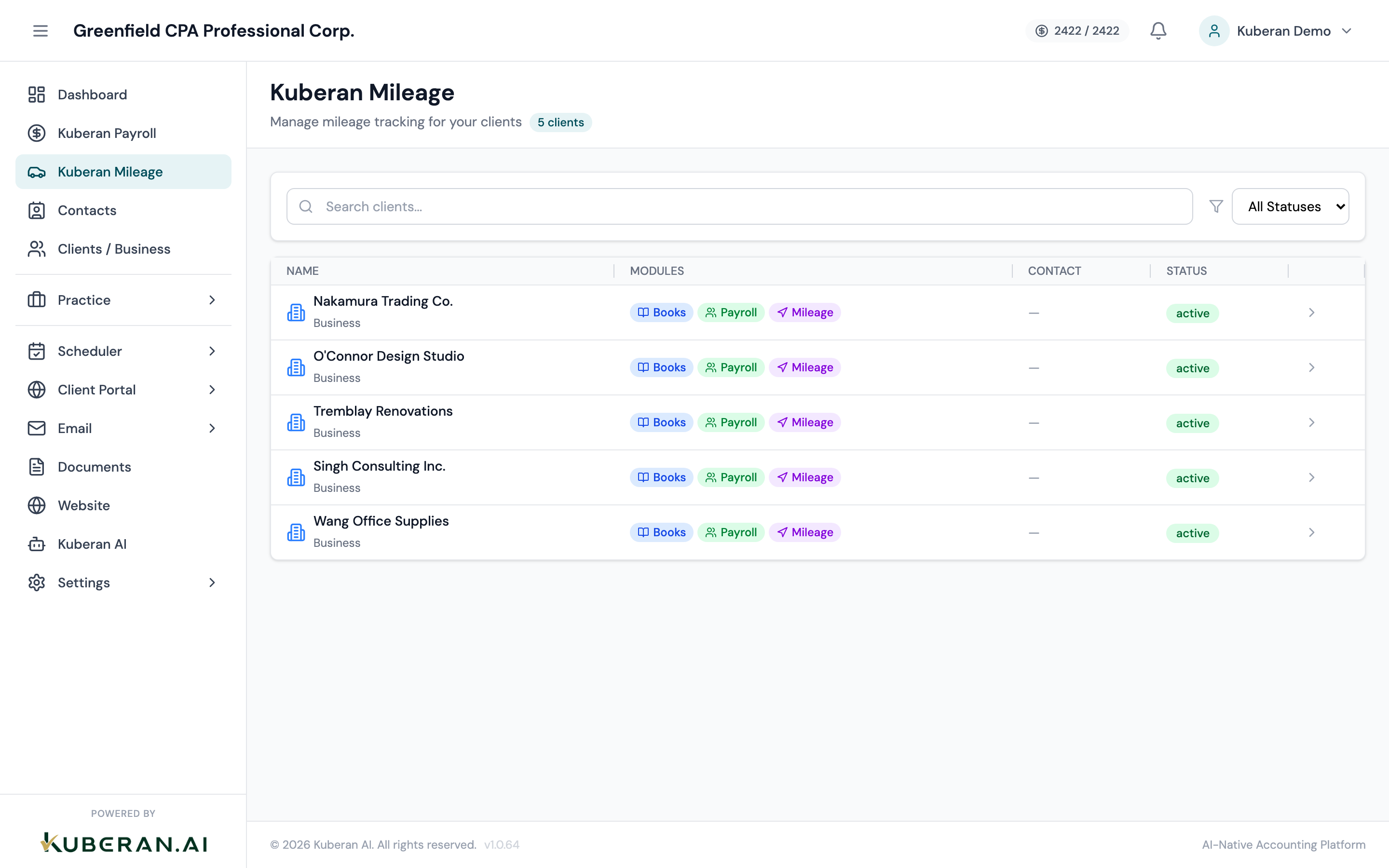
- (1) Search field — find clients by name
- (2) Active client row — business km YTD and vehicle count
- (3) Open Mileage button — opens the client's trip list
- (4) Inactive client row — with Activate Mileage button
- (5) Status filter — Active or All
Screen Layout
Toolbar (top): Search field and Status filter (Active / All).
Client list: One row per client. Active clients show the client name, number of vehicles registered, total business kilometres logged year-to-date, and a link to open their mileage records. Inactive clients show the client name and an Activate Mileage button.
UI Elements
Filters the list by client name as you type. Case-insensitive partial matching.
Active (default) shows only clients with mileage tracking enabled. All shows every client in the workspace. Use All when looking for a client to activate.
The total kilometres classified as Business purpose for this client across all vehicles and all trips in the current calendar year. Resets on January 1.
The count of vehicles registered under this client’s mileage profile. A client can have multiple vehicles (e.g., personal vehicle and company vehicle).
Navigates to the Trips list for the selected client. The client context is maintained as you move between Trips and Reports within the Mileage module.
Shown for clients without mileage enabled. Opens the Mileage Setup form.
Actions
Open a Client’s Mileage Records
Click anywhere on an active client’s row, or click the Open Mileage button. You are taken to that client’s Trips list showing all recorded trips for the current year.
Activate Mileage for a Client
- Set the Status filter to All to see clients without mileage enabled.
- Click Activate Mileage on the target client row.
- In the Mileage Setup form, confirm the client’s name and select their default CRA mileage rate (the current federal automobile allowance rate is pre-filled but can be adjusted).
- Add at least one vehicle: enter the make, model, year, and licence plate. You can add more vehicles later.
- Optionally enter the opening odometer reading for the start of the tracking period. This is used for the total kilometres calculation on the CRA logbook.
- Click Activate. The client row changes to Active status and the Trips list is now accessible.
Add a Vehicle to an Existing Client
From within a client’s mileage records, open the Vehicles section (accessible from the settings icon at the top of the Trips list) and click Add Vehicle. Enter the vehicle details. The new vehicle immediately becomes available when adding trips manually or logging from the mobile app.
Mobile App Integration
The Kuberan AI mobile app (available for iOS and Android) can automatically log trips for the client in real time using the phone’s GPS. Once the client installs the app and links it to their Kuberan AI client portal account, trips appear in the Trips list with a GPS source indicator. The CRA requires a contemporaneous logbook — GPS-captured trips satisfy this requirement far more reliably than trips entered from memory.
Tips
- CRA rate is set per client and can be updated each January when the CRA announces the new automobile allowance rate. Updating the rate does not retroactively change trips already logged.
- Fiscal year vs. calendar year: The CRA logbook requirement runs on a calendar year (January to December), regardless of the client’s fiscal year-end. The mileage module always tracks on a calendar year basis.
- Multiple vehicles: Each vehicle maintains its own trip history and business-use percentage. The mileage report can show a breakdown per vehicle or a combined total.