
AI Agent
Overview
AI Agent Kuberan is the bookkeeping-assistant screen inside each client’s accounting file. It is where you tune how the AI categorises the client’s transactions, chat with an advisory assistant (“Max”) about the books, and review how the AI is learning for this client. Its context is scoped entirely to the current client file — it cannot access data from other clients in your workspace.
The chat assistant on this screen is advisory: it answers questions and captures guidance rules, but it does not create or post transactions. Creating records by conversation is done by the separate AI Copilot panel (see AI Copilot below).
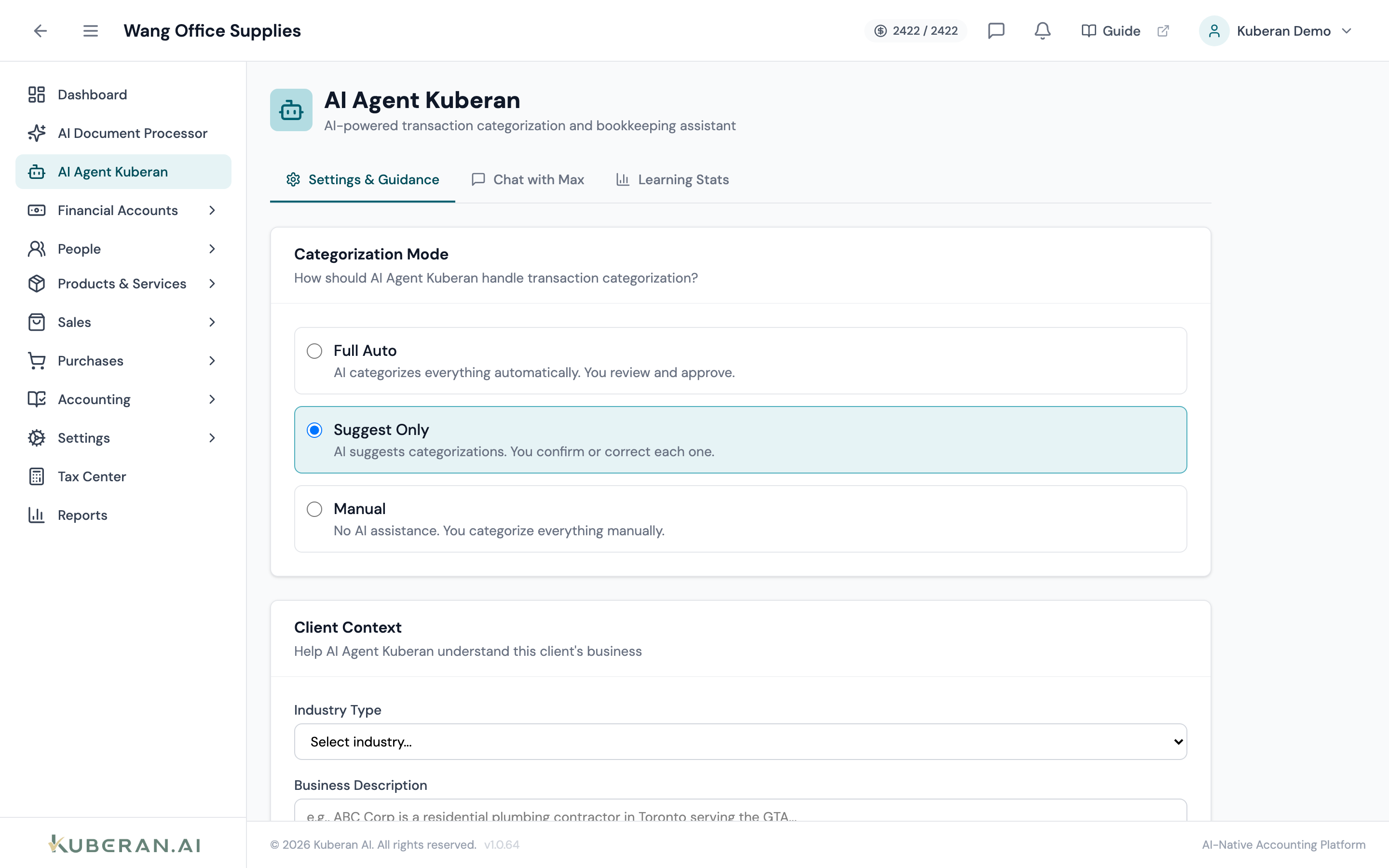
- (1) Settings & Guidance tab — categorization mode, client context, and guidance rules
- (2) Chat with Max tab — advisory chat about the client's books
- (3) Learning Stats tab — pattern counts and auto-categorization accuracy
- (4) Categorization Mode — Full Auto, Suggest Only, or Manual
- (5) Chat input — ask a question or record guidance in natural language
Screen Layout
The screen is a single page with three tabs:
Settings & Guidance: Controls how the AI categorises transactions for this client:
- Categorization Mode — Full Auto, Suggest Only, or Manual.
- Client Context — Industry Type and a Business Description that the AI uses when categorising and answering.
- Learning Preferences — “Learn from corrections” and “Share learning across clients”.
- Guidance Rules — free-text rules you add, grouped as Vendor Mapping, Account Assignment, Tax Handling, or General. Rules that come up in a chat conversation are also saved here automatically.
Chat with Max: An advisory chat assistant scoped to this client’s books (see below).
Learning Stats: Statistics on what the AI has learned — Client Patterns, Workspace Patterns, Auto-Apply Patterns, and the Auto-Categorization Rate, plus counts of categorizations, confirmations, and corrections.
Chat with Max
The Chat with Max tab is a conversational assistant that answers questions about the current client’s books and records guidance. It is answer-only — it reads the client’s context (accounts, vendors, industry, guidance rules) and responds; it does not create, edit, or post any transactions.
What You Can Ask
- “What patterns have you learned for this client?”
- “How should I categorise payments to [vendor name]?”
- “What’s the right account for a software subscription?”
- “How do I handle GST/HST on meals and entertainment?”
Canadian English is fully supported — “cheque”, “GST/HST”, and “T4A” are all understood. When your message contains a durable instruction (for example, “always post Uber to Travel”), the assistant extracts it and saves it as a guidance rule automatically — the helper text notes that “Guidance rules from conversations are saved automatically.”
UI Elements
Free-text field at the bottom of the Chat with Max tab (placeholder “Type a message to AI Agent Kuberan…”). Press Enter or click Send to submit; Shift+Enter inserts a new line. A typing indicator shows while the assistant replies. Responses are not streamed — the full answer appears at once.
The conversation is saved per client, so recent messages carry over between visits and give the assistant context. Messages are labelled by role (you and the agent).
Categorization Modes
The Categorization Mode in Settings & Guidance controls how far the AI goes on its own when categorising the client’s transactions:
The AI applies its highest-confidence categorizations automatically (high-confidence patterns are auto-applied). Best once the AI has learned the client’s patterns.
The AI proposes categories but leaves them for you to accept or change.
The AI does not categorise automatically; you assign every category yourself.
AI Copilot (creating records by chat)
Creating records by conversation is handled by the AI Copilot — a separate slide-in panel opened from a floating button in the bottom-right corner of Books (it is not part of the AI Agent Kuberan screen). Unlike Chat with Max, the Copilot can take actions, always after you confirm.
What it can do today:
- Look things up — search the client’s customers and items.
- Create a customer.
- Create an invoice — always saved as a draft; it is never finalized automatically.
Before creating anything it asks you to confirm (for example, “Shall I create this?”), and the panel shows Yes, create it / No, cancel buttons. Created records appear as cards you can click through to, and the Copilot can navigate you to the new record. It works within the current client only; it does not create bank transactions or journal entries.
The Copilot panel supports voice input via a microphone button in addition to typed messages.
The Copilot keeps multiple chat sessions — start a new chat, browse previous sessions with a preview and message count, or delete a session.
Related
- Documents — Upload and process source documents with the AI processor
- Bank Transactions — Where AI categorization is applied
- Invoices — Draft invoices the AI Copilot creates land here
- Reports — Run full reports for data that goes beyond a single chat question