
Settings — Folder Templates
Overview
Folder Templates allow you to define a standard folder hierarchy that is automatically created in the Documents module whenever a new client file is set up. Instead of manually creating the same folder structure for every new client — Tax Returns, Financial Statements, Source Documents, Correspondence, and so on — you define the structure once as a template and Kuberan AI provisions it automatically. You can create multiple templates for different client types (e.g., one for personal T1 clients and another for corporate clients).
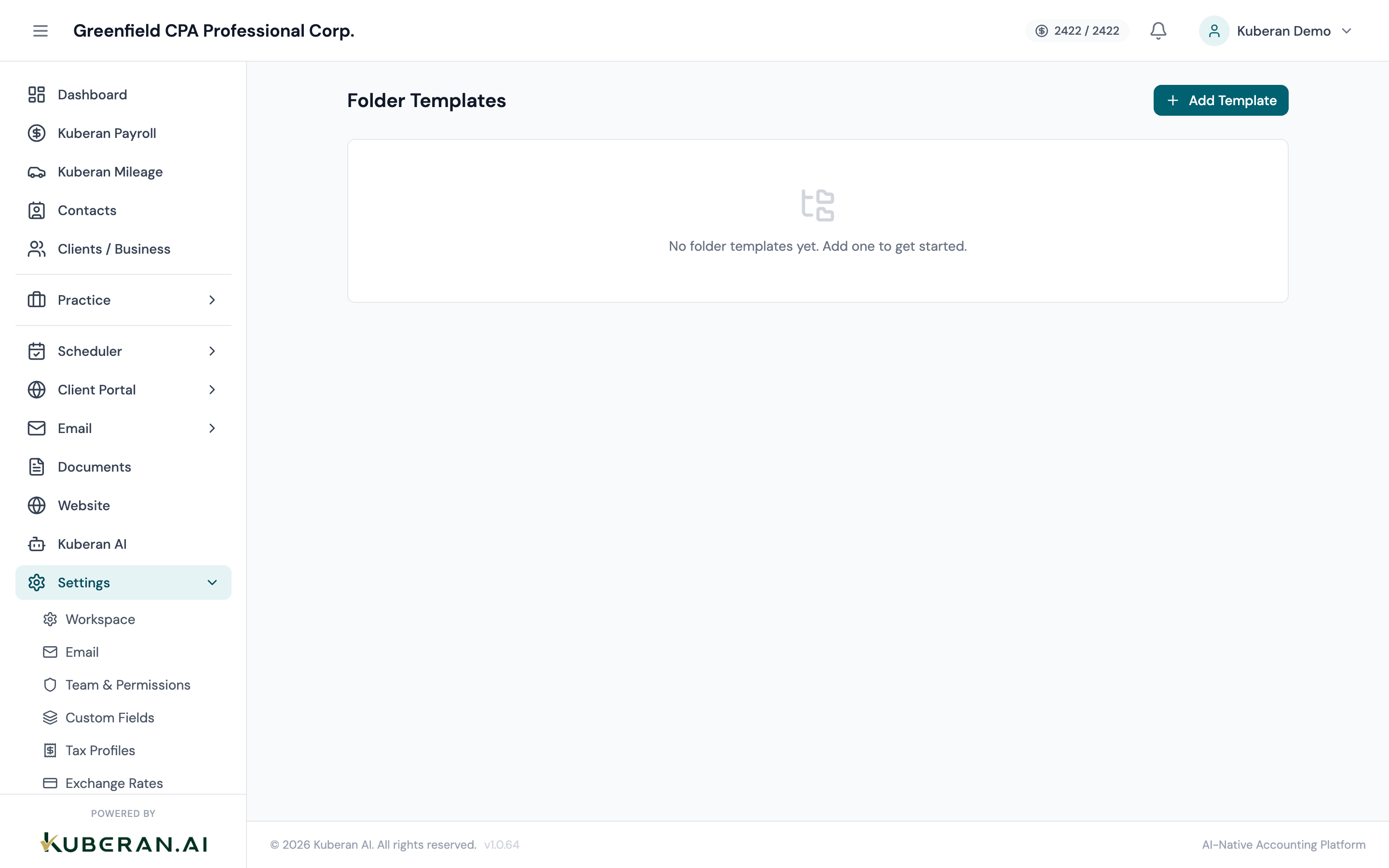
- (1) Template list — name and client type
- (2) Add Template button
- (3) Folder hierarchy editor — expandable tree with add/rename/delete
- (4) Add Folder button within the hierarchy
- (5) Default template indicator — applied to new clients automatically
Screen Layout
Left panel — Template list: All defined folder templates. Each row shows the template name and the client type it is intended for.
Right panel — Hierarchy editor: The folder structure for the selected template, displayed as an editable tree. Add, rename, move, and delete folders within the tree.
Actions
Create a Folder Template
- Click Add Template.
- Enter a template name (e.g., “T1 Personal Client,” “Corporate Client — Standard,” “Bookkeeping Client”).
- Optionally select a client type to associate the template with (this helps when assigning templates to new clients — the appropriate template is suggested based on the client type).
- The hierarchy editor opens with a single root folder named after the client (placeholder). Begin building the structure by clicking Add Folder to create subfolders.
- For each folder you add, enter the folder name and choose its parent in the hierarchy. Common top-level folders for a corporate client:
- Tax Returns
- Financial Statements
- Source Documents
- Payroll Documents
- CRA Correspondence
- Engagement Documents
- Add subfolders as needed (e.g., under Tax Returns: T2 Returns, T4 Slips, HST Returns).
- Click Save Template.
Add a Folder to the Hierarchy
With a template selected in the left panel, click Add Folder in the hierarchy editor. A new folder appears in the tree. Click the folder name to rename it. Drag it to reposition it within the hierarchy. Click the indentation arrow to make it a subfolder of another folder.
Rename a Folder
Double-click any folder name in the hierarchy editor to make it editable. Type the new name and press Enter. Click elsewhere to cancel.
Delete a Folder from the Hierarchy
Click the X icon next to any folder in the hierarchy editor to remove it. If the folder has subfolders, a confirmation prompt asks whether you want to delete the entire subtree or just the parent (in which case subfolders move up to the parent’s level).
Set a Default Template
- Open the Actions menu on a template in the left panel.
- Select Set as Default.
The default template is automatically applied to every new client created in the workspace, without requiring a manual selection during client creation. Only one template can be the default at a time. Additional templates can be applied manually during or after client creation.
Apply a Template to an Existing Client
- Navigate to the client’s Documents folder in the Documents module.
- Click the settings icon and select Apply Folder Template.
- Choose the template to apply.
- Click Apply. Kuberan AI creates any folders from the template that do not already exist. Existing folders are not modified or deleted.
UI Elements
The template marked as Default shows a green “Default” badge in the template list. This template is applied automatically to all new clients.
When a template is associated with a client type (e.g., “Corporation”), it is suggested first when that client type is selected during client creation.
Tips
- Year-based subfolders: Some practices include the tax year in their folder structure (e.g., “Tax Returns / 2024,” “Tax Returns / 2023”). This works well but means you need to add a new year folder to each client annually. An alternative is to name folders by document type only and use file naming conventions to indicate the year.
- Keep the template focused. A template with 20+ folders becomes harder to navigate than a flat structure. Aim for a meaningful hierarchy of two to three levels at most.
- Multiple templates. Create at least two templates — one for personal T1 clients and one for corporate clients. Corporate clients generally need payroll, HST, and financial statement folders that T1 clients do not.