
Practice reports
The Reports section of Practice Management is a tabbed dashboard covering how your firm’s work is flowing, what has been billed, and what is outstanding. These reports answer the questions that come up at partner meetings, billing reviews, and workload check-ins.
Navigating to Reports
In the left sidebar, click Practice, then click Reports. Open Practice > Reports
Each report is a tab across the top. A single From/To date range in the header scopes the four time-bounded reports; the others ignore it.
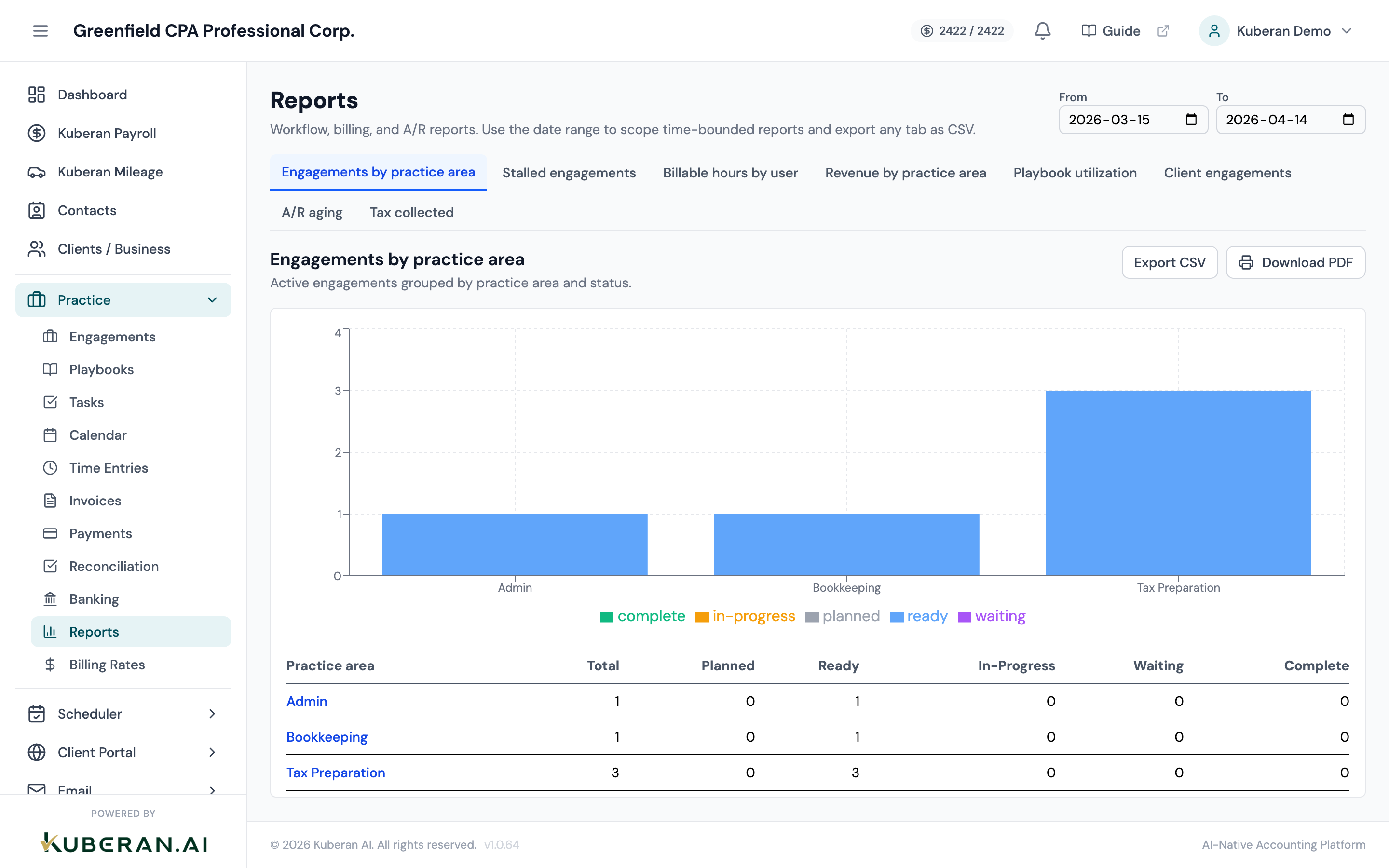
Available reports
There are eight reports.
Engagements by practice area
Active engagements grouped by practice area, with a per-status breakdown (Planned, Ready, In-progress, Waiting, Complete).
Use it for: seeing where the firm’s live work sits, and which practice areas are carrying the most in-progress engagements. Date range does not apply.
Stalled engagements
Engagements that have been sitting in their current stage longer than a threshold you set (default 7 days), sorted by how long they have been stuck.
Columns: Name, Client, Practice Area, Stage, Primary Status, Entered Stage At, Days In Stage.
Use it for: your weekly workflow review — spotting engagements that have gone quiet before a client or a deadline chases you. Adjust the Threshold (days) input to widen or tighten the net. Date range does not apply.
Billable hours by user
Total hours per team member for the selected period, split into billable and non-billable, with the billable dollar value.
Columns: User, Total Hours, Billable Hours, Non-billable Hours, Total Amount.
Use it for: monitoring utilisation — is the team spending enough time on billable work, and who is overloaded or underused? Date range applies.
Revenue by practice area
Invoice revenue attributed to each practice area through its linked engagements, for Practice-origin invoices in the period.
Columns: Practice Area, Invoice Count, Total.
Use it for: understanding which service lines actually generate revenue, and comparing that to where the firm spends its hours. Date range applies.
Playbook utilization
How often each playbook is used and how long engagements take to complete, for engagements created in the period (default range 90 days).
Columns: Playbook, Practice Area, Count, Completed Count, Avg Days To Complete.
Use it for: seeing which playbooks are pulling their weight and where cycle times are longest. Date range applies.
Client engagements
All engagements for a single client, grouped by status, with billed and paid amounts and roll-up totals.
Columns: Name, Playbook, Practice Area, Primary Status, Due Date, Amount Billed, Amount Paid.
Use it for: a one-client snapshot before a review call — everything in flight, plus what has been billed and collected. Choose the client from the client picker; the report loads once selected. Date range does not apply.
A/R aging
Outstanding Practice invoices bucketed by how overdue they are: 0–30, 31–60, 61–90, and 90+ days. This is the single most important report for managing cash flow.
Columns: Invoice Number, Customer, Issue Date, Due Date, Days Overdue, Amount Due, Bucket.
Use it for: prioritising collection calls and deciding whether to pause work for clients with long-overdue balances. Date range does not apply.
Tax collected
The tax charged over the period, grouped by tax code, for Practice-origin invoices.
Columns: Code, Jurisdiction, Taxable Base, Tax Amount.
Use it for: preparing sales-tax remittances and cross-checking what has been charged. Date range applies.
How to run a report
Select the report
Click the report’s tab. The table renders automatically.
Set the date range and per-report controls
For the four time-bounded reports (Billable hours by user, Revenue by practice area, Playbook utilization, Tax collected), set the From/To range in the header. On Stalled engagements, set the Threshold (days). On Client engagements, choose a client.
The table refreshes as you change these inputs — there is no separate “Run” button.
Export the report
Above the table:
- Export CSV — downloads the report’s rows for use in Excel or Google Sheets.
- Download PDF — opens a server-rendered, firm-branded PDF in a new tab, suitable for printing or a partner meeting agenda.
Both carry through the current date range and (where relevant) the stalled-days threshold.
Using reports in partner meetings
A standard monthly partner meeting typically reviews a few reports in sequence:
- Stalled engagements — what work has gone quiet and needs a nudge?
- A/R aging — what is outstanding and overdue, and who needs a collection call?
- Revenue by practice area — which service lines are generating revenue this period?
For workload and capacity reviews, add:
- Billable hours by user — is utilisation healthy? Who is above or below target?
- Playbook utilization — are our standard processes being followed, and where are cycle times slipping?
Exporting these to PDF and distributing them before the meeting keeps discussions focused and fact-based.