
Recurring Invoices
Overview
Recurring invoices automate billing for retainer and subscription-style work without a separate “recurring invoice template” to maintain. Recurrence is a property of a playbook: when a playbook is marked recurring, the scheduler drafts an invoice for every engagement on that playbook that has been completed and not yet billed. The Recurring Invoices screen is the operator console for that scheduler — it shows which playbooks are recurring, lets you fire the scheduler on demand, and reports what it drafted.
This is a change from the older standalone “recurring template” model. There is no separate template object: the invoice content comes from the engagement’s billing (the playbook’s fixed fee), and the cadence comes from the playbook’s Recurrence settings.
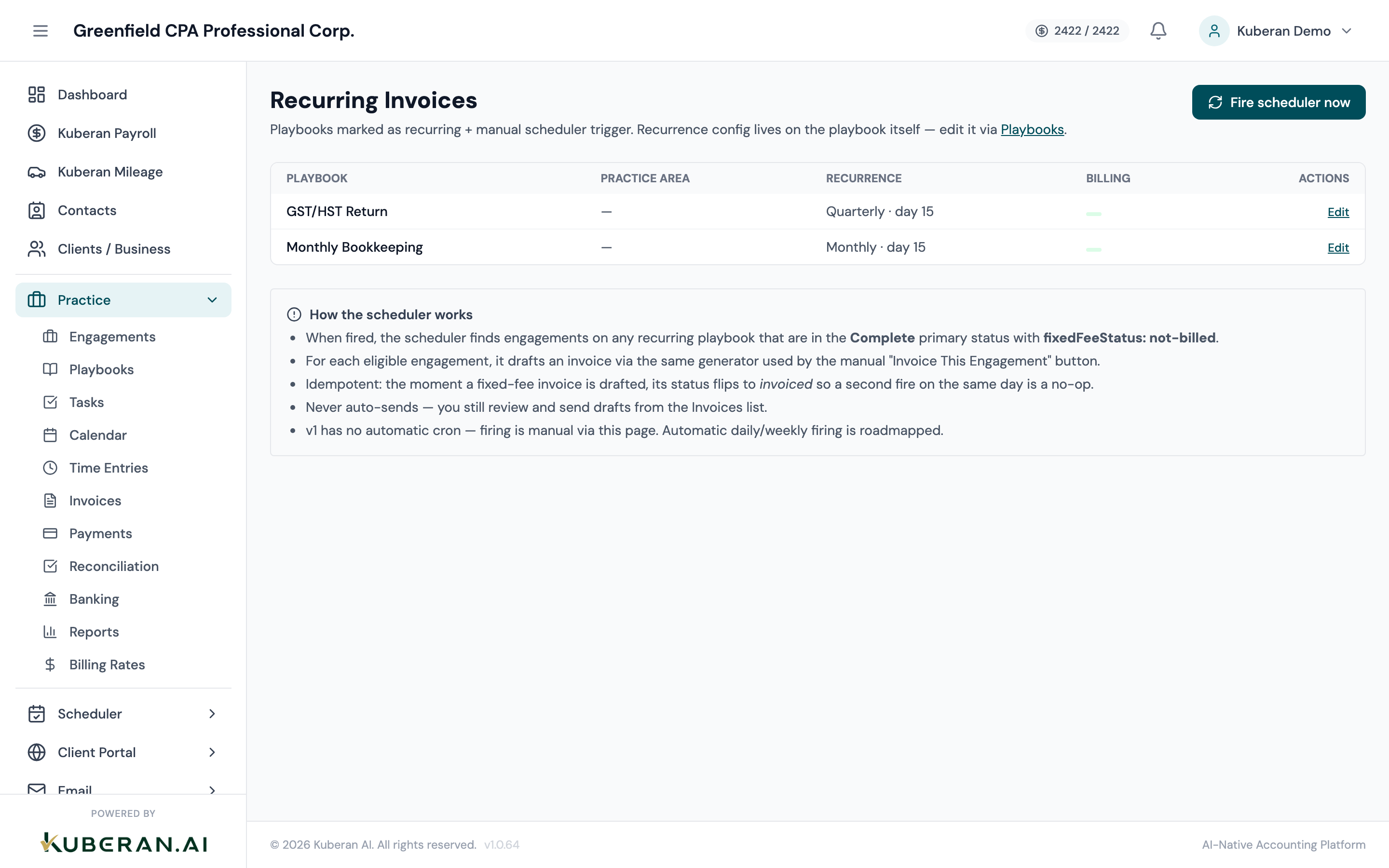
- (1) Fire scheduler now — manually run the recurring-invoice scheduler
- (2) Scheduler result banner — drafted / skipped / errors from the last run
- (3) Recurring playbooks table — Playbook, Practice Area, Recurrence, Billing
- (4) Recurrence column — frequency, day of month, month of year
- (5) Edit link — opens Playbooks to change recurrence configuration
Screen Layout
Header: The page title and a one-line explanation, with the Fire scheduler now button on the right.
Scheduler result banner: Appears after you fire the scheduler. Shows how many invoices were drafted, how many engagements were skipped, and how many errors occurred.
Recurring playbooks table: One row per active playbook that has recurrence enabled. Columns: Playbook, Practice Area, Recurrence, Billing, and an Edit link to the Playbooks screen. If no playbooks are recurring, an empty state explains how to enable recurrence.
How recurring invoices work: An always-visible explanatory panel summarising the drafting rules.
How recurrence is configured
Recurrence configuration does not live on this screen — it lives on the playbook. Open a playbook from the Playbooks screen and use its Recurrence tab to set:
- Is Recurring — turns recurrence on for the playbook
- Frequency — Weekly, Bi-weekly, Monthly, Quarterly, Semi-annually, or Annually
- Day of Month — the day the cadence anchors to (for monthly and less-frequent schedules)
- Month of Year — for annual schedules, the month the invoice is drafted in
This screen is read-only for that configuration and action-only for firing the scheduler.
UI Elements
Manually runs the recurring-invoice scheduler for the workspace. The scheduler finds engagements on recurring playbooks that are marked complete with an unbilled fixed fee and drafts an invoice for each. Firing again on the same day is safe — already-drafted engagements are skipped, so you cannot double-bill by re-running it.
After a run, a banner reports drafted (invoices created), skipped (engagements that did not qualify or were already billed), and errors. The banner turns to a warning style if any errors occurred.
A human-readable summary of the playbook’s cadence, e.g. “Monthly · day 1” or “Annually · day 15 · in Apr”. Shows ”—” if recurrence is not fully configured.
The playbook’s billing arrangement — for example a flat-fee amount, another billing type, or Non-billable. Only completed, billable, unbilled engagements produce a drafted invoice.
Opens the Playbooks screen so you can change the playbook’s recurrence or billing configuration.
Actions
Make a playbook recurring
- Go to Playbooks and open the playbook you want to bill on a schedule.
- Open the Recurrence tab and turn on Is Recurring.
- Choose the Frequency, and set Day of Month / Month of Year as applicable.
- Confirm the playbook has a billable fixed fee configured under its billing settings.
- Save the playbook. It now appears in the Recurring Invoices table.
Draft recurring invoices
- Open Recurring Invoices .
- Confirm the engagements you expect to bill are complete and not yet billed.
- Click Fire scheduler now.
- Read the result banner: the drafted count is the number of invoices created. They are saved as drafts in your Invoices list — nothing is sent to a client automatically.
- Open Invoices, review each drafted invoice, and send it.
Stop a playbook from recurring
- Open the playbook from Playbooks.
- On the Recurrence tab, turn Is Recurring off (or deactivate the playbook).
- Save. The playbook drops out of the Recurring Invoices table and the scheduler no longer drafts invoices for it.
Related
- Playbooks — recurrence and billing are configured on the playbook
- Engagements — only completed, unbilled engagements are drafted
- Invoices — drafted recurring invoices appear here for review and sending
- Payments — record and track payments against recurring invoices
- Reports — revenue-by-client reflects recurring invoice revenue